> For the complete documentation index, see [llms.txt](https://docs.flylogs.com/fcom/llms.txt). Markdown versions of documentation pages are available by appending `.md` to page URLs; this page is available as [Markdown](https://docs.flylogs.com/fcom/aircraft/mass-and-balance.md).

# Mass & Balance

Set up an aircraft Mass & Balance profile and calculate, sign and print a loadsheet for each flight

Flylogs calculates a **Mass & Balance loadsheet** for each flight. Enter who and what is aboard and the fuel. Flylogs then works out the zero fuel, ramp, take-off and landing mass and centre of gravity (CG). It checks them against the aircraft's limits and plots them on the CG envelope.

Each aircraft needs a **Mass & Balance profile** before its flights can have a loadsheet.

{% hint style="warning" %}
Flylogs does the arithmetic, but the pilot in command stays responsible for loading the aircraft. Every figure in the profile must come from **this aircraft's** approved flight manual (AFM/POH, section 6) and its **latest weighing report**.
{% endhint %}

## The aircraft profile

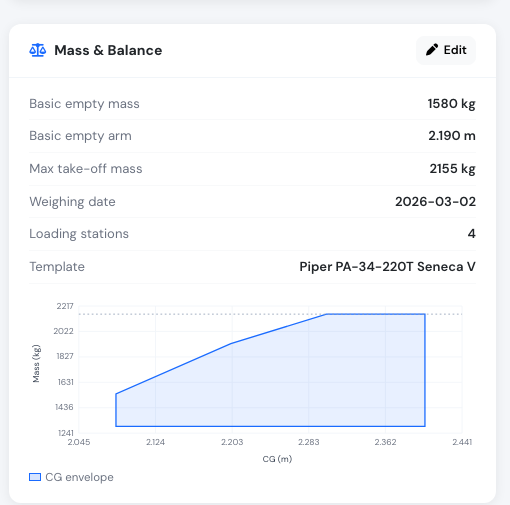
Open the aircraft and find the **Mass & Balance** card, under *Certificates & expirations*. Click **Set up**, or **Edit** if a profile already exists.

<figure><img src="https://3907986352-files.gitbook.io/~/files/v0/b/gitbook-x-prod.appspot.com/o/spaces%2FMT7uFw9SCqEw2vqrAnQg%2Fuploads%2Fgit-blob-056e4b348be9bdc17a73819facc15d8058827f96%2Fmass-balance-aircraft-card.png?alt=media" alt="Mass &#x26; Balance card on the aircraft page, showing basic empty mass, arm, max take-off mass, weighing date and the CG envelope"><figcaption><p>The Mass &#x26; Balance card on the aircraft page</p></figcaption></figure>

A profile contains:

| Section              | What to enter                                                                                                                                                                                                                                                                                                                                    |
| -------------------- | ------------------------------------------------------------------------------------------------------------------------------------------------------------------------------------------------------------------------------------------------------------------------------------------------------------------------------------------------ |
| **Units**            | Mass in **kg** or **lb**; arm in **m**, **mm**, **cm** or **in**. Use the units of the flight manual. Changing a unit does **not** convert values already entered.                                                                                                                                                                               |
| **Weighing**         | Basic empty mass and its arm, weighing date and weighing report reference.                                                                                                                                                                                                                                                                       |
| **Limits**           | Max take-off mass (required), max landing, max zero fuel and max ramp mass (optional).                                                                                                                                                                                                                                                           |
| **Loading stations** | One row per seat row, baggage area or fuel tank, each with its arm from the AFM loading table. Seats and baggage can have a maximum mass. Fuel tanks have a fuel unit (litres, US or imperial gallons), a **density**, and an optional usable capacity. The **AVGAS** and **Jet A-1** buttons fill a typical density; check it against your AFM. |
| **CG envelope**      | The forward and aft limits as *mass / arm* points, exactly as the AFM or type certificate gives them. Between points the limit is a straight line. Below the first point and above the last it stays constant.                                                                                                                                   |
| **Landing envelope** | Optional, for aircraft whose landing CG limits differ from take-off. It only adds limits: the landing CG is checked against the landing envelope **and** the normal envelope, so you can enter it as a simple box without copying the normal envelope's sloped lines.                                                                            |

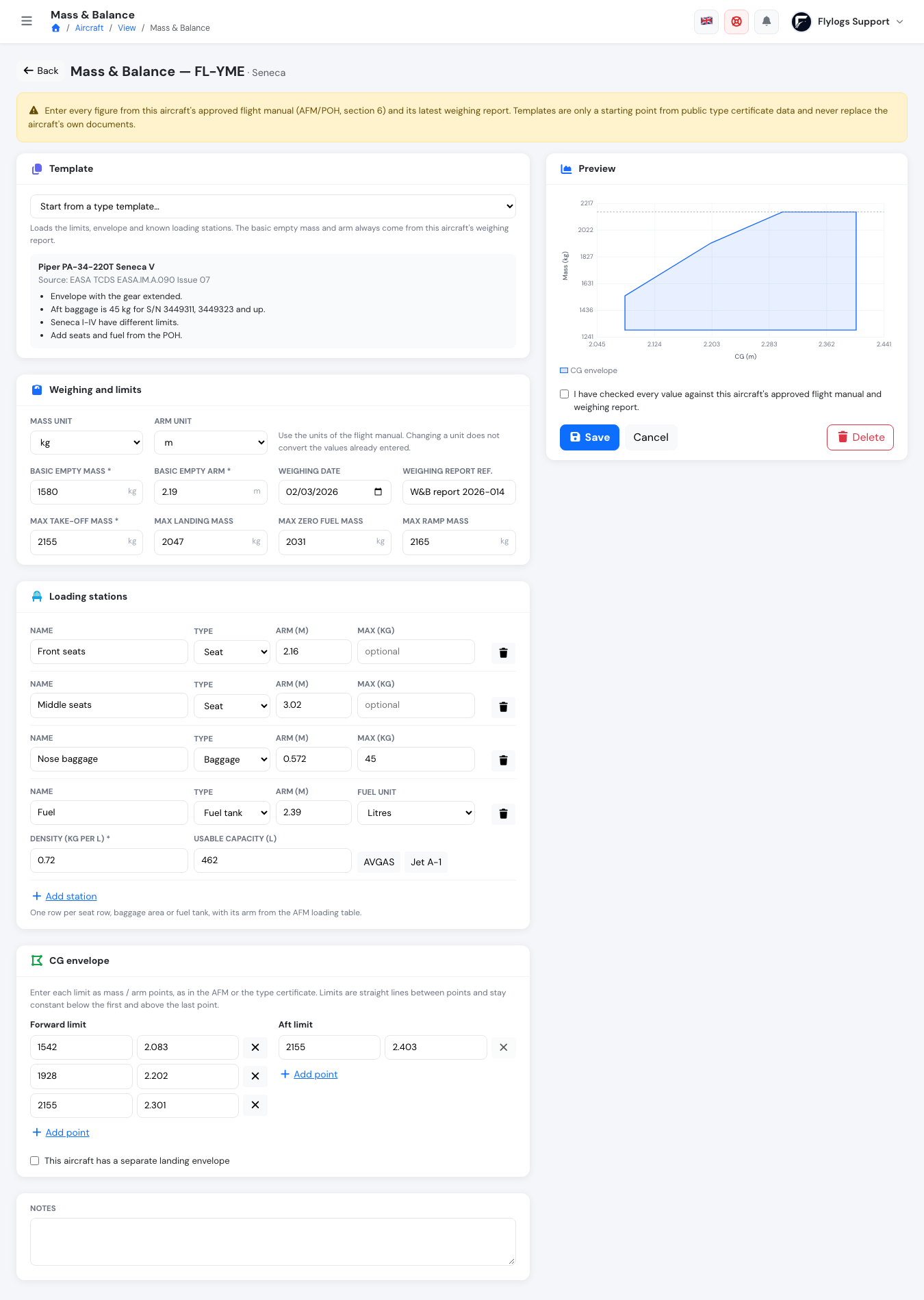
The preview chart updates as you type. Before saving you must tick the box confirming you checked every value against the flight manual and weighing report.

<figure><img src="https://3907986352-files.gitbook.io/~/files/v0/b/gitbook-x-prod.appspot.com/o/spaces%2FMT7uFw9SCqEw2vqrAnQg%2Fuploads%2Fgit-blob-17776fdd360aa05d942931611df2f37ad8a58c15%2Fmass-balance-profile-editor.png?alt=media" alt="Mass &#x26; Balance profile editor with the template panel, weighing and limits, loading stations and the CG envelope points"><figcaption><p>The profile editor: template, weighing and limits, loading stations and CG envelope</p></figcaption></figure>

### Reading a weighing report

Under *Weighing and limits*, **Read a weighing report** reads the basic empty mass, its arm, the weighing date and the report reference from a scan or PDF of the report. **Apply to the profile** fills them in.

The profile's units never change: if the report uses other units (pounds and inches, say), the values are **converted** to the profile's units, with the report's own figures shown next to them. Check them against the report, then save the profile as usual. A new empty mass changes every future loadsheet.

<figure><img src="https://3907986352-files.gitbook.io/~/files/v0/b/gitbook-x-prod.appspot.com/o/spaces%2FMT7uFw9SCqEw2vqrAnQg%2Fuploads%2Fgit-blob-bbd64830bcaa4beea1505ad9d05fb9eae98cfee5%2Fai-weighing-report.png?alt=media" alt=""><figcaption><p>A weighing report in pounds and inches, converted to a metric profile.</p></figcaption></figure>

### Type templates

To save typing, choose a **type template**. Templates for your aircraft model are listed first. A template fills in the units, maximum masses, envelope and whatever loading stations the public data gives. It never fills in the basic empty mass or arm.

Templates exist for common types such as the Cessna 150/152/172/206/210/208, Piper PA-28-181, PA-34 Seneca V and PA-38, Diamond DA40 / DA40 NG / DA42 / DA62, Tecnam P2008 / P92 / P-Mentor, Cirrus SR20/SR22, TBM 700 N and Pilatus PC-12/47E. They come from public **type certificate data sheets** and, where noted, AFM pages. Each template names its source and lists what to check: serial number ranges, modifications that change the limits, and stations you still need to add.

{% hint style="info" %}
A template is a starting point, not a certified profile. Many types have several envelopes depending on serial number or installed modifications (for example the DA40 NG maximum take-off mass of 1280 or 1310 kg). Always compare it with your own flight manual.
{% endhint %}

Not covered: helicopters (they need a lateral CG check), aircraft whose limits are only given in % MAC, and airliners or business jets (use your operator's loadsheet system).

### Who can edit the profile

| Action                    | Who                                                                                                                                                              |
| ------------------------- | ---------------------------------------------------------------------------------------------------------------------------------------------------------------- |
| View the profile          | Everyone in the company                                                                                                                                          |
| Create, edit or delete it | Flylogs Administrator, Company Administrator, Operations Manager, Compliance & Safety Manager, Chief Pilot, Mechanic — and the **private owner** of the aircraft |

Deleting a profile does not change loadsheets already saved on flights: each keeps its own copy.

## The flight loadsheet

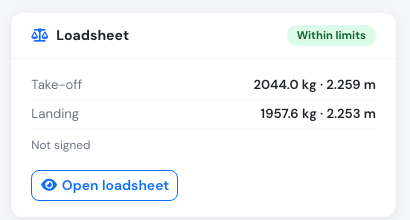
On a flight with an aircraft that has a profile, the **Loadsheet** card appears in the right-hand column. Click **Calculate loadsheet** (or **Open loadsheet** once one exists).

<figure><img src="https://3907986352-files.gitbook.io/~/files/v0/b/gitbook-x-prod.appspot.com/o/spaces%2FMT7uFw9SCqEw2vqrAnQg%2Fuploads%2Fgit-blob-082997b47f366122430bbb62d3b86f862543bb14%2Fmass-balance-flight-card.png?alt=media" alt="Loadsheet card on the flight page showing a Within limits badge, take-off and landing mass and CG, and an Open loadsheet button"><figcaption><p>The Loadsheet card on the flight page</p></figcaption></figure>

1. For each seat and baggage station, enter the **mass**. For seats, pick who sits there from a searchable list of the flight's crew, the passengers on the manifest and the company's users; a seat row can hold several people. For baggage, optionally type what is loaded. A new loadsheet puts the PIC (CM1) and the SIC (CM2, or the supervisor when there is no SIC) on the first seat row and spreads the manifest passengers over the other seats. Masses are always left for you to enter.
2. For each fuel tank enter volumes:
   * **Ramp**: fuel on board at engine start.
   * **Taxi**: fuel burnt before take-off. Take-off fuel is ramp minus taxi.
   * **Trip**: fuel burnt before landing.
3. The **Result** panel shows the zero fuel, ramp, take-off and landing mass and CG against the maximums, a list of every limit exceeded, and the points on the envelope chart.
4. Click **Save**. The server recalculates the loadsheet with the aircraft's current profile and stores it with the flight, including a copy of the profile used.

<figure><img src="https://3907986352-files.gitbook.io/~/files/v0/b/gitbook-x-prod.appspot.com/o/spaces%2FMT7uFw9SCqEw2vqrAnQg%2Fuploads%2Fgit-blob-e67192123f1a4c1a82b2cda369eb671a691b9ede%2Fmass-balance-loadsheet.png?alt=media" alt="Loadsheet page: loading table on the left with occupants, masses and fuel; result panel on the right with masses, CG and the envelope chart"><figcaption><p>The loadsheet: what is loaded on the left, the result and the envelope on the right</p></figcaption></figure>

The loadsheet checks:

* each station's maximum mass and each tank's usable capacity,
* taxi fuel not greater than ramp fuel, and trip fuel not greater than take-off fuel,
* max zero fuel, ramp, take-off and landing mass,
* CG inside the envelope at zero fuel, take-off and landing. When there is a landing envelope, the landing CG must be inside **both** the landing envelope and the normal envelope. The chart draws the landing envelope clipped to the normal one, so the dashed line never goes outside it.

### Signing

Once a loadsheet is saved **within limits**, the **PIC** (or the flight's **supervisor**) can **Sign** it by entering their password. The signature records who, when and from which device. It is bound to the exact numbers saved.

* Changing any figure and saving again **removes** the signature.
* A loadsheet **outside limits cannot be signed**.
* If the aircraft or its profile changes after saving, the loadsheet is marked as out of date. Save it again to recalculate before signing.
* If the stored numbers no longer match the signature, Flylogs shows the signature as **invalid**.

### PDF

**PDF** prints the saved loadsheet: flight details, loading table, results, exceeded limits, the envelope chart, who calculated it and who signed it. Save your changes first; the PDF always shows the stored loadsheet, not unsaved screen values.

### Who can use loadsheets

| Action                    | Who                                                                                                                                                                                                                                                                    |
| ------------------------- | ---------------------------------------------------------------------------------------------------------------------------------------------------------------------------------------------------------------------------------------------------------------------- |
| View                      | Anyone who can view the flight. Captains, pilots, students, cabin crew and specialists (groups above Flight Instructor, below Auditor) only for flights they are on or aircraft they own                                                                               |
| Calculate, save or delete | The flight's creator, PIC, SIC or supervisor; any of the aircraft's managers; Flylogs Administrator, Company Administrator, Operations Manager, Compliance & Safety Manager, Flight Dispatcher, Chief Pilot and Flight Instructor. Not on cancelled or deleted flights |
| Sign                      | The PIC or the supervisor only (the creator if the flight has no PIC)                                                                                                                                                                                                  |

Auditors, cabin crew and specialists can read loadsheets but not change them.

See also the [Mass & Balance API](https://github.com/flylogs/docs/tree/master/API/mass-balance.md).