

Aircraft management
Adding aircraft to your account should be one of the first steps in the initial setup process to start working with Flylogs. Once you have aircraft and pilots, all features can be fully tested.
The aircraft management can only be performed by the account administrator or a designated Operations Manager that the company administrator can create.
On top of that, any single aircraft can name one or more aircraft managers — the people responsible for that tail. Whatever their user group, they get full control of that one aircraft (its record, maintenance, reports and bookings) and nothing else in the fleet. This is how operators hand an aeroplane they manage for a third-party owner to that owner, to its assigned crew member, or to a small team sharing the responsibility.
Each aircraft’s photo can be uploaded, replaced, or removed from its edit page — the same administrator, Operations Manager, or any of the aircraft’s own assigned Aircraft Managers can do this. New aircraft get a photo looked up automatically from public aviation photo sources when they’re first added; after that, the photo is entirely up to you to manage.
Captains and Pilots can see the fleet from the Aircraft menu, read only: the company’s active aircraft, their hours, landings, potential and certificate expirations. They cannot add aircraft, and can edit one only if they are named as its manager. Student Pilots and Cabin Crew do not get the Aircraft menu unless they are an aircraft manager.
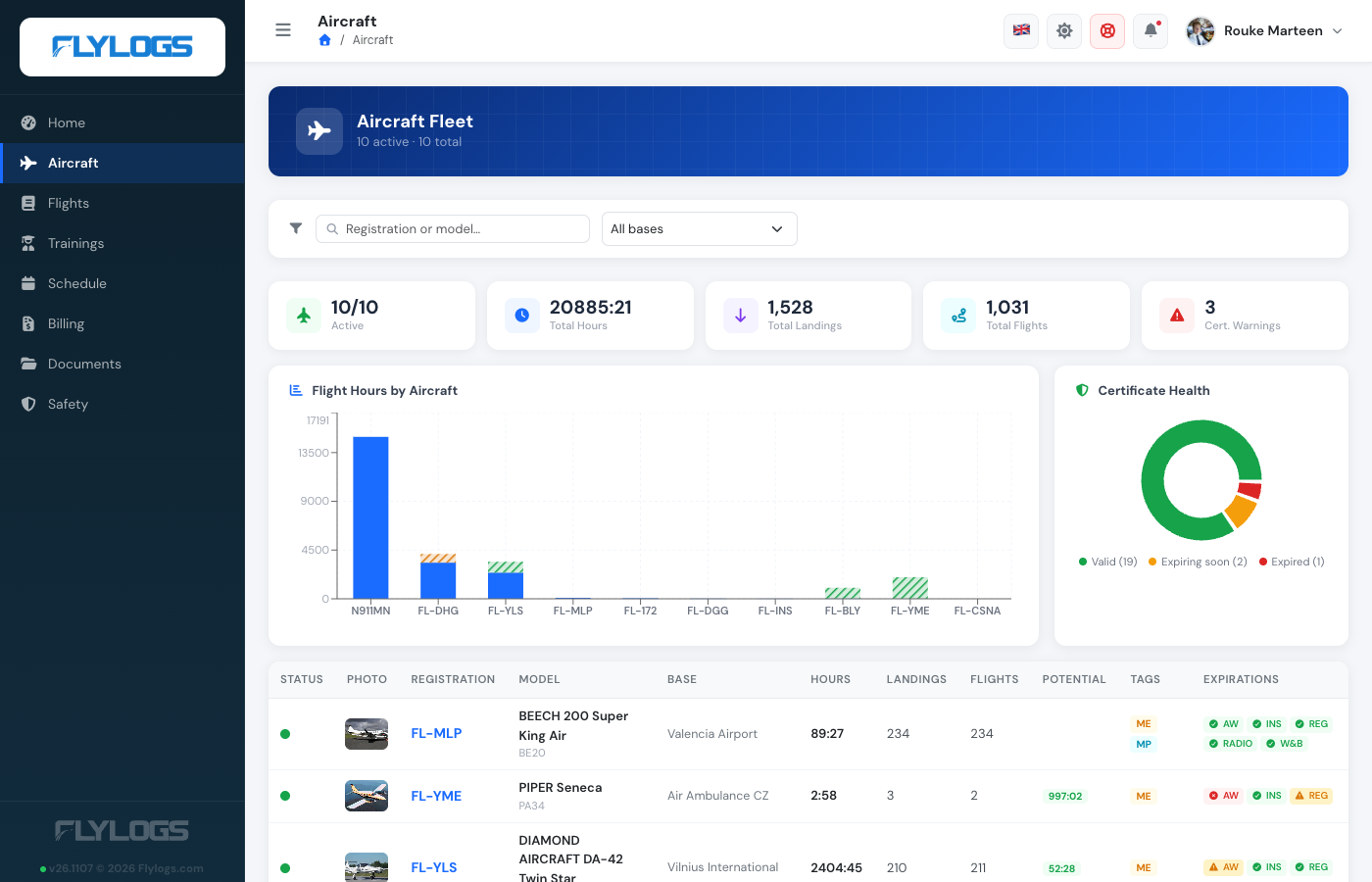
The Aircraft Fleet page as a Pilot sees it
The Aircraft documents section of each aircraft page follows the same rule. Company Administrators, Operations Managers, Compliance & Safety Managers, Chief Pilots, Mechanics and the aircraft’s own aircraft managers can upload, rename, set an expiry date on and delete its documents. Everyone else who can open the aircraft (Flight Instructors, Captains, Pilots) can open and download them, but sees no Upload button and no edit or delete actions, and the server refuses those actions if attempted.
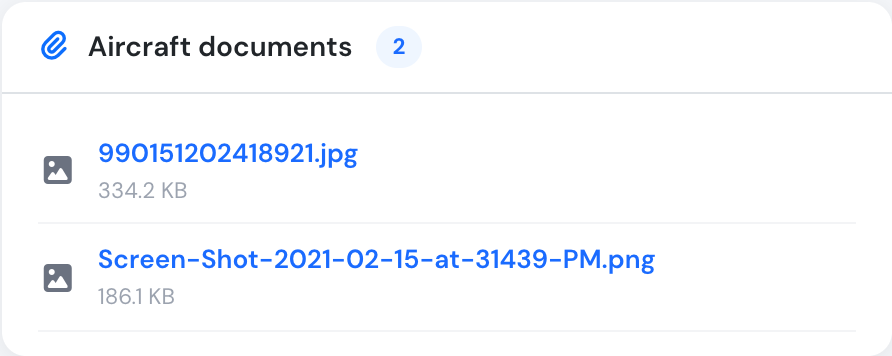
Aircraft documents are read only for Captains and Pilots
Remember, you have no limits on the amount of users you create, but choose carefully the profile type, since each user group, has different access levels and permissions to edit and manage resources in your account.
View account limitations here.
View the user account types here.