

Flights
The Flights tab controls how flight records are created, confirmed, edited and protected across your company logbooks.
Flight timezone
Section titled “Flight timezone”By default every date and time in Flylogs — including flights — is shown in your company timezone (set in Company Information). Some operators fly in a region that differs from where the company is registered and prefer their flight times logged in the local operating timezone. The Flight timezone setting lets you do exactly that, without affecting anything else.
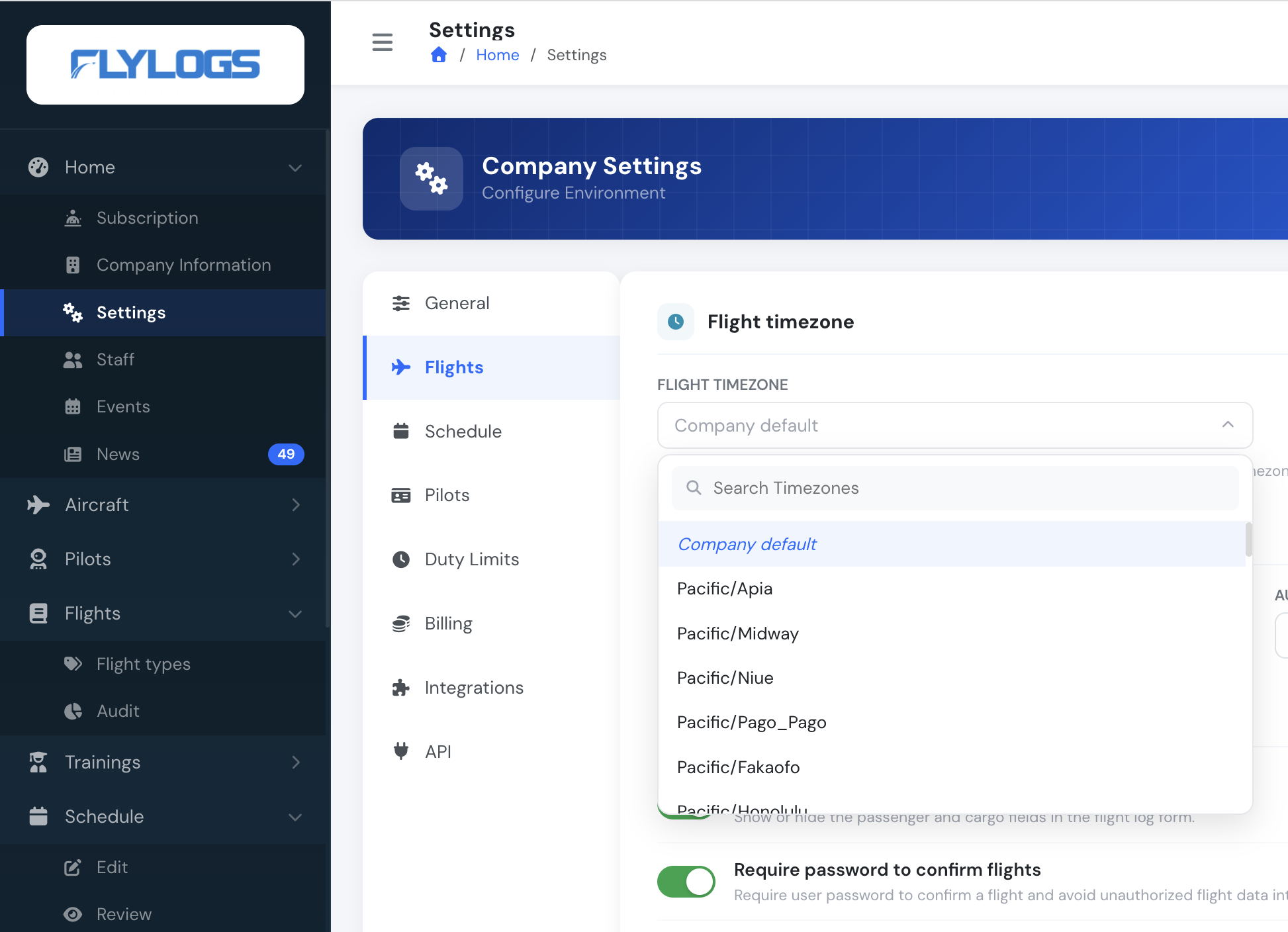
- Pick any timezone from the searchable list, or leave it on Company default to keep using the company timezone.
- The flight timezone applies only to the flights list, flight view and flight log form — off-blocks, take-off, landing and on-blocks times, and the flight date, are entered and displayed in this zone.
- Schedules and trainings are not affected — they always stay in the company timezone.
- When you first create a company the flight timezone is set to the same value as your company timezone, so nothing changes until you deliberately pick a different one.
Logbook settings
Section titled “Logbook settings”-
Block logbook after — locks the logbook against changes in the past. Once set, Flylogs rejects any flight dated earlier than today minus the selected number of days — both new entries and edits of existing flights. Choose from 1 day up to 1 year, or Disabled to allow changes at any date.
This is your main data-integrity protection: after the window closes, the logbook becomes an immutable historical record for everybody, including managers.
-
Auto delete flight files — a retention policy for files attached to flights (photos, scans, PDFs). A nightly background job permanently deletes flight attachments older than the selected age (1 month up to 10 years). Never keeps everything. Only the attached files are removed — the flight data itself is never touched.
Flight options
Section titled “Flight options”- Pax & cargo fields — shows or hides the passenger and cargo weight fields on the flight log form and on the schedule review pages. It is enabled automatically for companies registered as AOC operators, and optional for everyone else.
- Require password to confirm flights — adds a second validation step: the user must retype their own account password to confirm a flight into the logbook. Recommended for shared office or dispatch computers, where a logged-in session might be used by someone else.
Aircraft settings (technical log, aircraft defects and the fuel uplift unit) are on the Aircraft tab.
Pre-dispatch gates
Section titled “Pre-dispatch gates”This switch adds a mandatory safety step to the flight dispatch function. It is off by default.

-
Require pre-dispatch checklist — the crew must tick every item on an acknowledgement checklist (weather, NOTAMs, aircraft status, crew documents, SOPs) before the Dispatch button becomes active. The checklist is an acknowledgement only; the ticks are not stored. The Flight Risk Assessment (FRAT) is no longer a company setting: it is switched on per flight type, under Flight types → edit → Pre-dispatch → Require Flight Risk Assessment (FRAT) (see Flight Types). Companies that had the FRAT switched on here have it on for all their flight types.
-
What the FRAT does — a crew member dispatching their own flight of such a type must first complete a FAA-style PAVE questionnaire. The answers produce a risk score and a band (Low / Medium / High). High-risk flights can only be dispatched by a supervisor. Results are stored per flight and per crew member for audit. Several questions are pre-answered from the dispatcher’s own flight history (recent hours, type familiarity, airports flown, night experience) and live route weather. The requirement only applies when the person dispatching is assigned to the flight. See Flight Risk Assessment (FRAT).
Flight permissions
Section titled “Flight permissions”Flylogs splits flight handling into three independent permissions. For each one, you tick which user types in your company are allowed to perform the action:
- Who can create flights — draft a new flight from the Flights page, dispatch a scheduled flight into a draft, or edit a draft.
- Who can confirm flights — turn a completed draft into a confirmed entry in the logbooks.
- Who can edit flights — change values on a confirmed flight or mark it as deleted.
Each permission is granted per user type (Pilot, Captain, Flight Instructor, Chief Pilot, Flight Dispatcher, Student, etc.). A user only sees the matching button when their user type is enabled in the corresponding list.
What happens when a permission is missing
Section titled “What happens when a permission is missing”| Action | Where the button appears | If your user type is not allowed |
|---|---|---|
| Create flight | Flights page, top-right “Log flight” | Button is hidden |
| Dispatch flight | Schedule modal, “Dispatch flight” | Action is hidden in the dropdown |
| Confirm flight | Flight view, green confirm button | Button is hidden |
| Edit flight | Flight view, edit button | Button is hidden |
| Delete flight | Flight view, delete button | Button is hidden |
| Cancel flight | Flight view, cancel button | Visible only to the crew of an upcoming draft |
Rules that always apply
Section titled “Rules that always apply”- Company Administrators, Operations Managers, and Compliance & Safety Managers can create, confirm, edit, delete and cancel any flight regardless of how the permissions are configured. These staff roles are never restricted by flight permission settings, so they do not appear in the permission lists.
- Creator and PIC self-edit window — the user who created the flight, or the pilot listed as PIC, can edit a confirmed flight for 12 hours after its off-block time, even if their user type is not in the edit list.
- Editing drafts needs “create” — changing a draft flight counts as drafting it, so it needs the Who can create flights permission, also for the draft’s own PIC or creator. Users without it (for example students, if you have not ticked them) do not see the Edit button on drafts.
- Active pilots only — to create a flight you must be marked as a pilot in your profile and your account must be active. A staff-only user (no pilot flag) above the Crew Scheduling level cannot create flights even if their user type is allowed.
- Historical and deleted flights are locked for everybody — no edits, no deletes, no confirmations.
Permission changes take effect immediately for every user, on their next page load.