

Create a flight
Our flight create form has been designed to be clear, easy to use, avoid mistakes and at the same time, be 100% usable on mobile devices.
Don’t see the “Log flight” button? Creating flights requires the Create flights permission to be enabled for your user type, plus an active pilot profile. Company Administrators, Operations Managers, and Compliance & Safety Managers can always create flights. See Flight permissions for details.
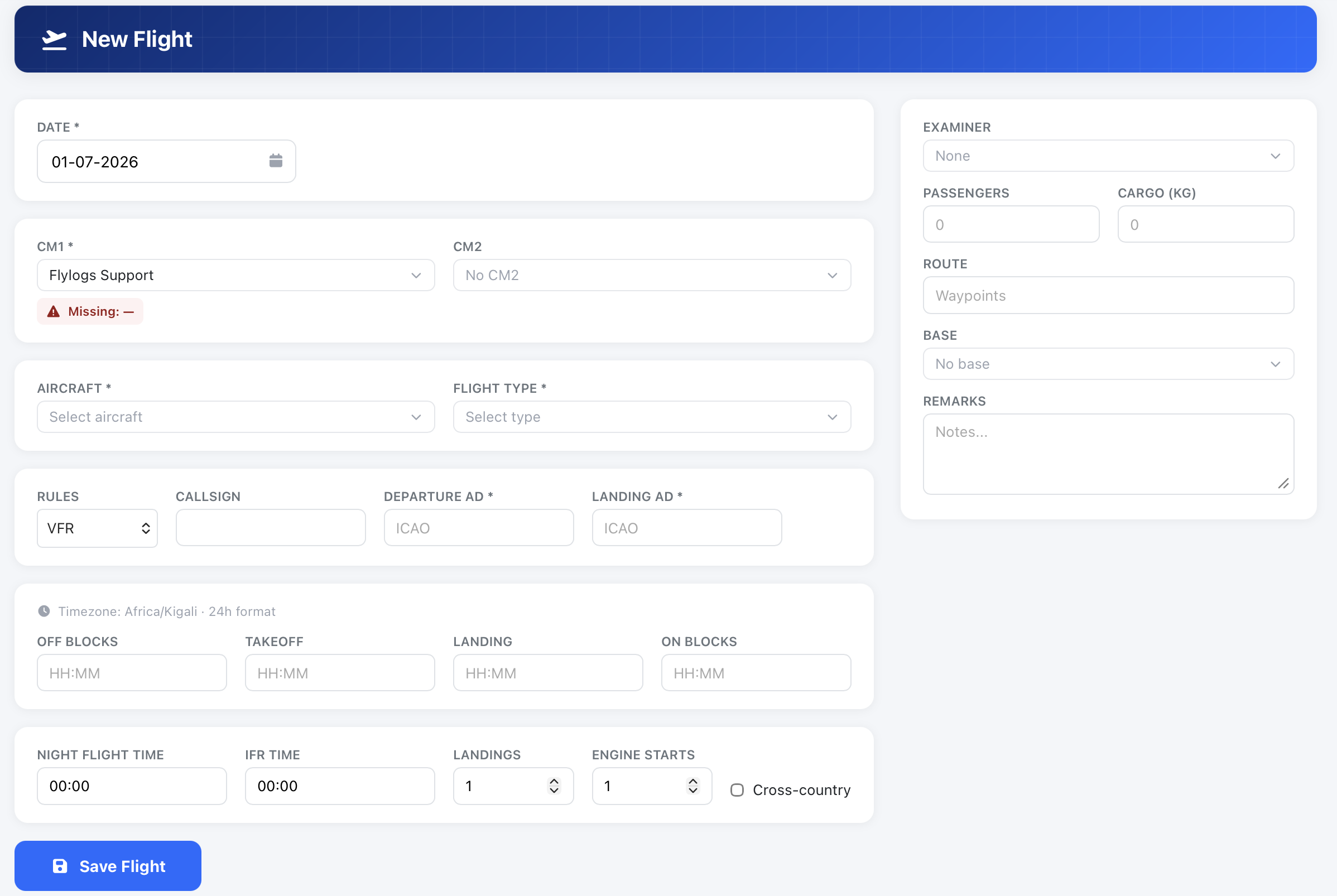
From top to bottom:
Section titled “From top to bottom:”Noted with an * are required fields.
- * Date of flight
- * Aircraft — if the flight type is restricted to specific aircraft, the others are greyed out, and a warning appears if the chosen aircraft is not on the type’s list
- * Flight Callsign
- * Flight rules
- * PIC (Pilot in command) — shown as CM1 in the form
- SIC (Second in command or student) — shown as CM2 in the form
- * Departure Aerodrome
- * Landing Aerodrome
- Cross-country — ticked automatically when the departure and landing aerodromes differ, or when you add a cross-country training mission. With the same aerodrome at both ends it is only unticked automatically when no cross-country mission is on the flight. Opening an existing flight keeps its saved value.
Who appears in the CM1 / CM2 (and Supervisor) selectors
Section titled “Who appears in the CM1 / CM2 (and Supervisor) selectors”The list of crew you can pick depends on your own user group (role tier — lower numbers are more senior, e.g. instructors and staff; higher numbers are students and restricted roles):
-
Flight Instructor and above (staff and instructors): the selector lists all pilots in the company.
-
User group above 170 (students and other restricted roles): the selector is limited to:
- yourself, plus
- any pilot-flagged user whose user group is the same as yours or lower (i.e. your tier and everyone more senior).
Roles less senior than yours are hidden. For example, a Pilot sees other Pilots and every more senior role, but does not see Student Pilots.
The person already chosen in another crew field (CM1, CM2 or Supervisor) is removed from the other two selectors so the same person can’t be picked twice.
Time fields:
Section titled “Time fields:”The flight time fields will be only available once the DATE field has a value of today or before.
The time fields can be left blank, but the flight will be saved only as a draft and will not have the option to be confirmed into the logbooks.
- Off Blocks time ( in HH:mm format )
- Take Off time ( in HH:mm format )
- Landing time ( in HH:mm format )
- On Blocks time ( in HH:mm format )
UTC vs local time.
The timezone is a setting that the company management can set in the company settings page and affects all time fields across the different Flylogs systems, like Flights, schedules, trainings …
The flight create form shows the required timezone (and whether it expects 12h or 24h format) right above the time inputs, so you always know which timezone to enter times in.
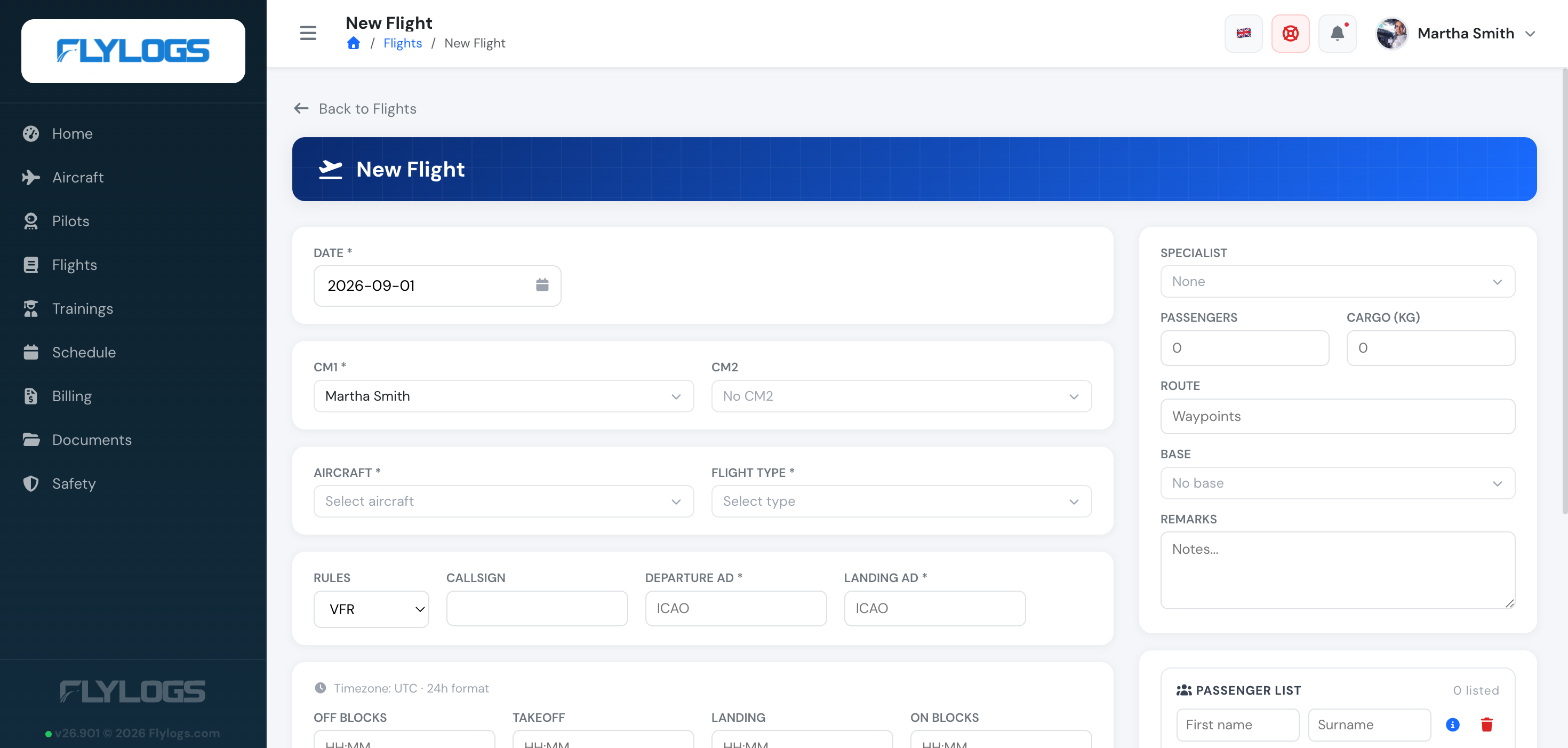
Once the flight times have been entered correctly the following fields will be available:
- * Landings (Quantity of landings performed in this flight)
- Night flight time (Night flight time in HH:mm format)
- IFR flight time (IFR flight time in HH:mm format)
Right column inputs:
- * Flight type
- Route
- Base
- Supervisor
- Remarks
Hobbs and Tach readings
Section titled “Hobbs and Tach readings”If the selected aircraft tracks Hobbs and/or Tach meters, the form shows those fields and helps you fill them in:
- Hobbs/Tach start is pre-filled from the end reading of that aircraft’s last logged flight, so consecutive flights stay continuous.
- Hobbs/Tach end is auto-calculated as the start reading plus the block time. The link icon next to the field shows whether the value is auto-calculated or has been overridden — you can edit it manually, and click the pencil icon to revert to the auto-calculated value.
- Exception — the meter the aircraft bills on. When the aircraft bills on tach or Hobbs time, that meter’s end reading is never auto-calculated: it stays empty until you type the reading from the aircraft, and there is no link icon. Both readings are required once the flight has flown, and 0 is not accepted, because the bill is the difference between them.
- Readings can be typed with a decimal comma:
1251,4becomes1251.4as you type.
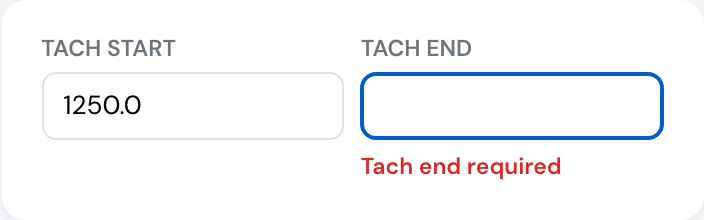
An aircraft billed on tach time: the end reading must be entered.
When editing an existing flight, your stored readings are respected:
- If the flight already has Hobbs/Tach values, they are left untouched — the form will not overwrite them.
- If a value is empty, it is auto-filled as described above.
- If you change the aircraft, all Hobbs/Tach readings are re-prefilled from the newly selected aircraft’s last flight. When the new aircraft bills on a meter, that meter’s end reading is cleared so you enter it yourself.
Flight type and logbook time
Section titled “Flight type and logbook time”The selected flight type determines what kind of time is written to each crew member’s logbook. Every flight type defines a time classification for each of the three crew roles: PIC, SIC, and Supervisor (also shown as Examiner or Specialist depending on company type).
The available classifications are:
| Classification | Logbook effect |
|---|---|
| Pilot in Command | Logs PIC time. |
| Pilot in Command Under Supervision | Logs PIC time (shown separately as PICUS). |
| Second in Command | Logs SIC time. Only counts on multi-pilot aircraft — on single-pilot aircraft no SIC time is logged. |
| Flight Instructor | Logs both PIC and FI time. |
| Dual Received | Logs Dual time. |
| Class Rating Instructor, Instrument Rating Instructor, Type Rating Instructor, Flight Instructor of Flight Instructors, Synthetic Flight Instructor, Examiner | Log both PIC and FI time, and are also reported separately so each instructor/examiner role can be tracked on its own. |
| Supervisor | Reported separately only — not added to PIC or FI totals. |
| None | No time logged for that role. |
For example, a training flight type can log Flight Instructor time for the PIC, Dual time for the SIC, and no time for the supervisor.
Company managers can configure these classifications in the flight types management page. The supervisor classification is set to None by default, so supervisors receive no logbook time from a flight unless the company configures otherwise.
Note: The old Copilot classification has been replaced by Second in Command (SIC). Existing flight types that used Copilot were automatically migrated to SIC, which keeps the same behaviour of only logging time on multi-pilot aircraft.
Default flight condition
Section titled “Default flight condition”A flight type can also carry an optional default flight condition — VFR or IFR — set by a company manager on the flight types management page. When you select the flight type, the flight’s Flight rules are pre-filled with that value. It is a convenience default, not a lock: you can still change the rules for that individual flight.
Leaving the default flight condition empty keeps the previous behaviour: nothing is pre-filled. The default is only applied when you pick the flight type yourself — editing an existing flight never overwrites its saved rules.