

Aircraft manager
Every aircraft can name its aircraft managers: the people responsible for that tail. They are set from the aircraft’s edit page, in the Aircraft Managers card, and they are stored on the aircraft itself, not on the user.
An aircraft can have as many managers as you need, and they are equals — there is no primary manager and no ranking between them. Each of them can do everything on the list below, including work another one started. A tail with a deputy, a maintenance controller alongside the owner, or two partners sharing an aeroplane are all just several names in the same card.
The function is deliberately independent of the user group. A Captain, a Flight Instructor, a line Pilot or even a Student Pilot who owns the aeroplane they train in gets the same authority over that aircraft as a Company Administrator has over the whole fleet — and no extra authority anywhere else. Their user group is unchanged, and they gain no authority over the rest of the fleet.
The typical use is an operator that manages aircraft on behalf of third-party owners: the owner (or the crew member assigned to that aeroplane) gets a real seat in the system and sees their own aircraft’s hours, next maintenance, expiring certificates and upcoming bookings.
What the rest of the fleet looks like to them depends on their user group. A Student Pilot or Cabin Crew manager sees only the aircraft they manage on the fleet page. A Captain or Pilot manager sees every active aircraft there and on the Fleet Maintenance Status card, as all Captains and Pilots do, and can act only on the aircraft they manage.
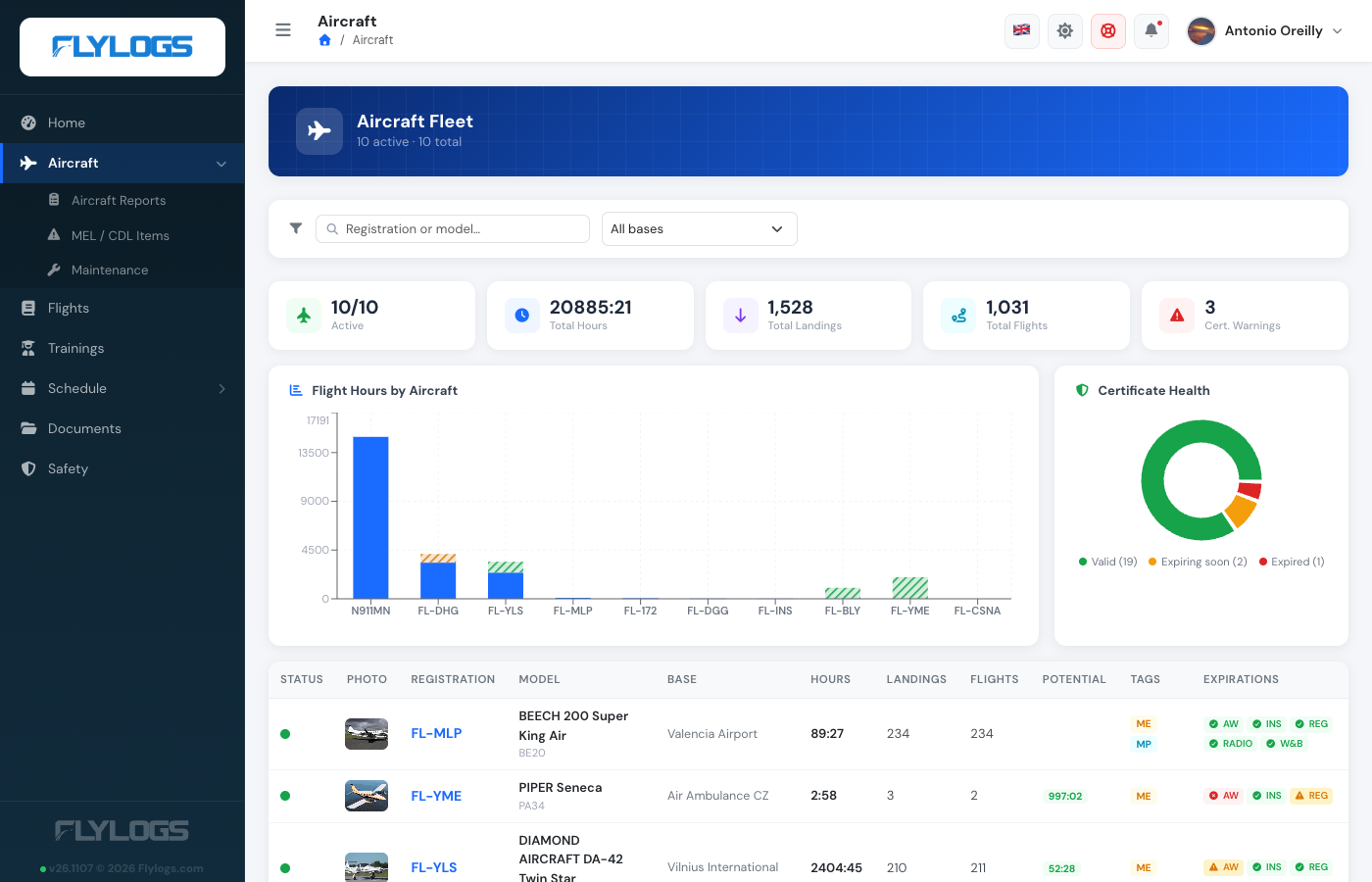
A Pilot who manages one aeroplane: the Aircraft menu has gained its maintenance sections, which apply to the managed aircraft
Setting the manager
Section titled “Setting the manager”- Open Aircraft → (the aircraft) → Edit.
- Scroll to the Aircraft Managers card, search by name and pick as many people as you need. Each one you pick is added as a chip below the selector; the × on a chip removes them.
- Save.
Removing everybody from the card leaves the aircraft with no manager.
Only company staff can change this list: groups 1, 100, 105, 110, 150 and 300 (Flylogs
Administrator, Company Administrator, Operations Manager, Compliance & Safety Manager, Chief Pilot,
Mechanic). A manager editing their own aircraft sees the selector read-only — the server drops the
manager list, company_id, active and deleted from their save, so they cannot hand the
aeroplane to somebody else, drop a co-manager, move it to another company or retire it.
Anybody with an active account in your company can be named, whatever their role — the owner of an aeroplane you operate does not have to be one of your pilots.
Leaving the card empty means the aircraft has no manager; only staff act on it.
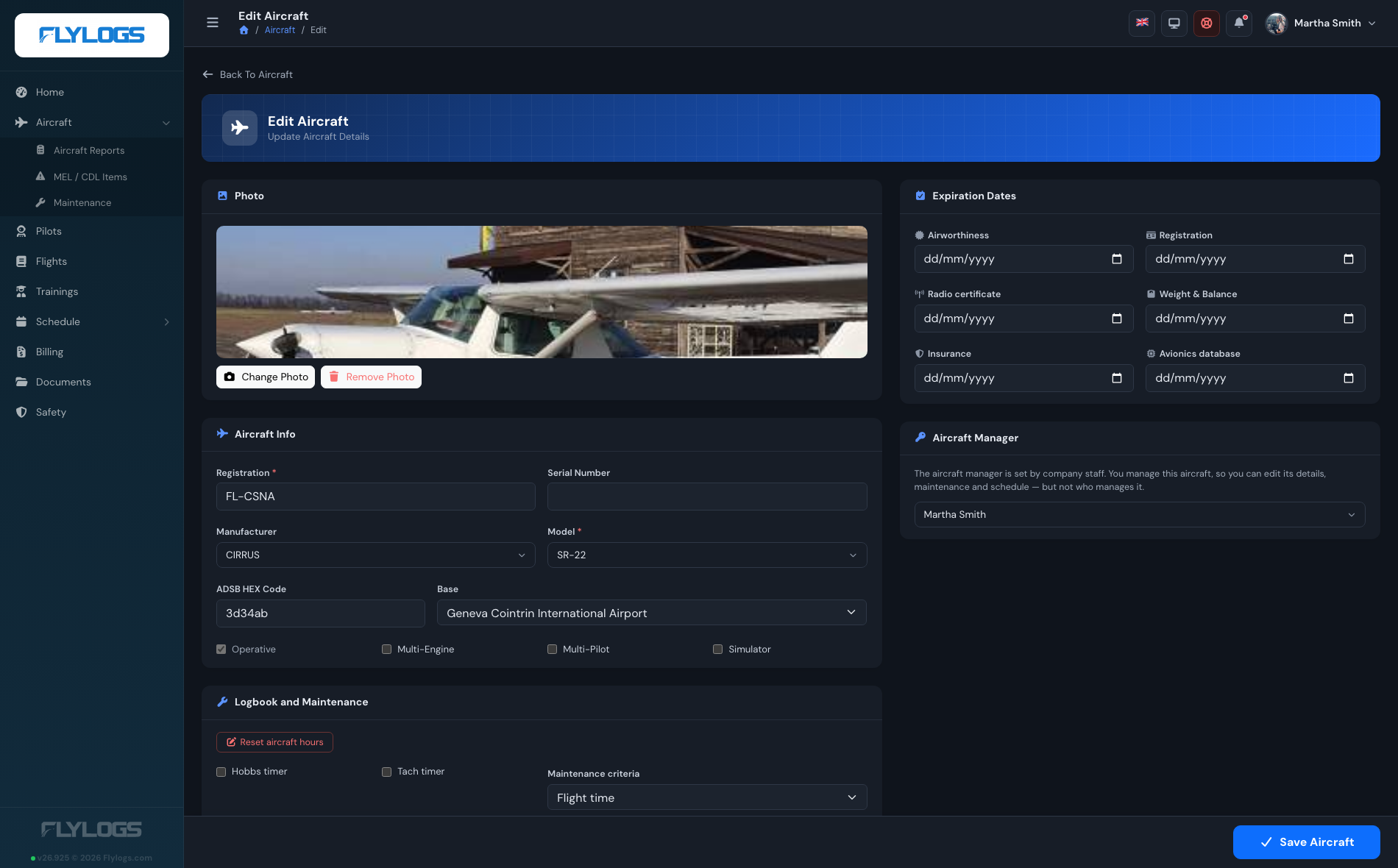
The same edit form seen by a manager: everything is theirs to change except who manages the aircraft and whether it is in service
What the manager can do
Section titled “What the manager can do”On the aircraft they are named on — and only those:
| Area | What they get |
|---|---|
| Aircraft record | The full aircraft page (certificate expiry dates, hours, landings, logbook, documents, fuel and oil tracking) plus Edit, and the photo upload / remove actions |
| Mass & Balance | Create and edit the aircraft’s Mass & Balance profile |
| Maintenance jobs | Create, edit, duplicate and delete jobs; sign the Certificate of Release to Service; link and unlink aircraft reports to a job |
| Aircraft reports | Raise, edit, defer and delete defect reports, and raise, edit, extend and delete MEL / CDL items |
| Scheduling | The Schedule Manager page opens for them, showing only the aircraft they manage; they create and edit bookings on those tails and set the crew |
| Flights | Open any flight flown on the aircraft, even one they were not crewed on |
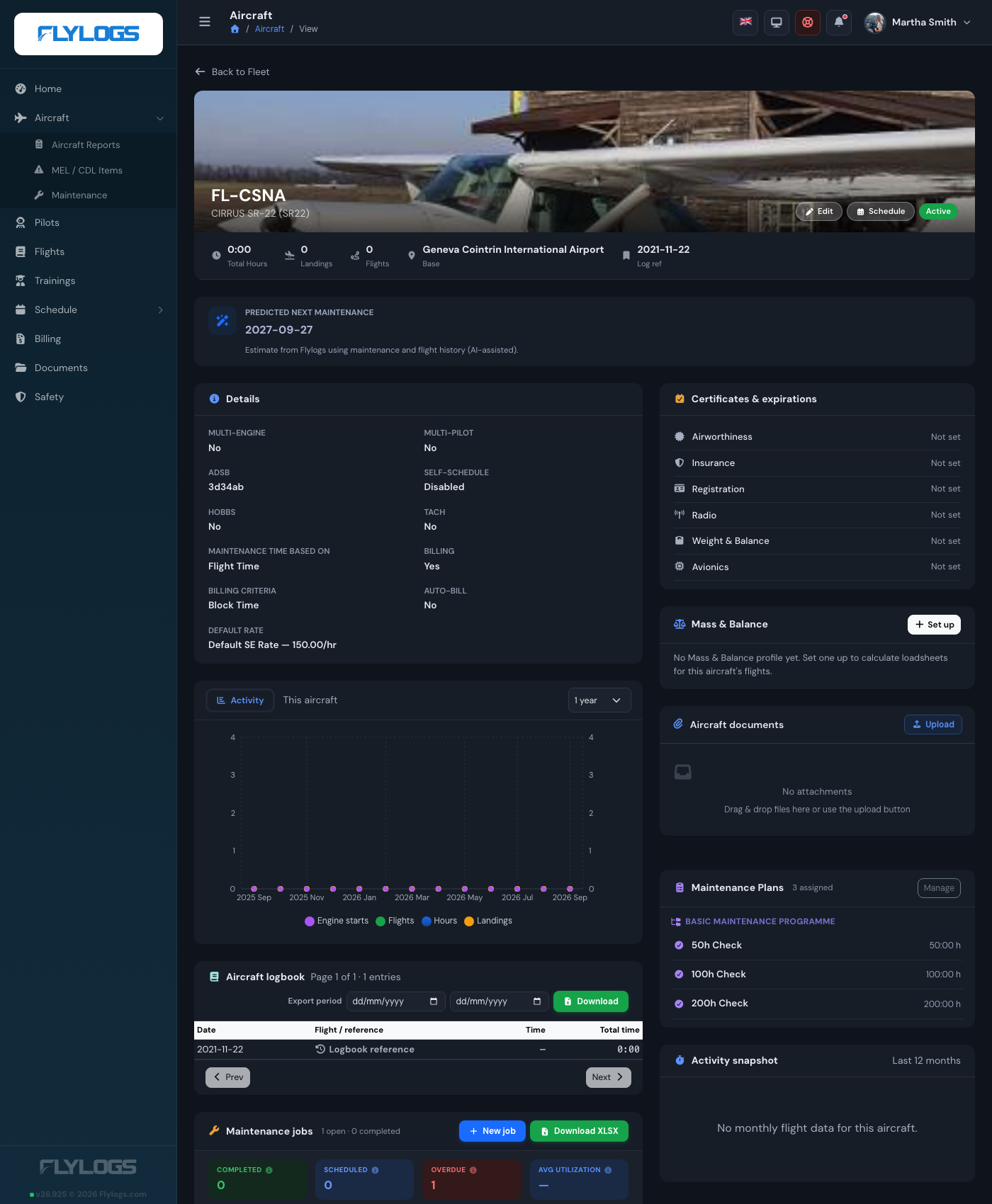
The aircraft page as its manager sees it — Edit and Schedule in the header, and every card an administrator gets
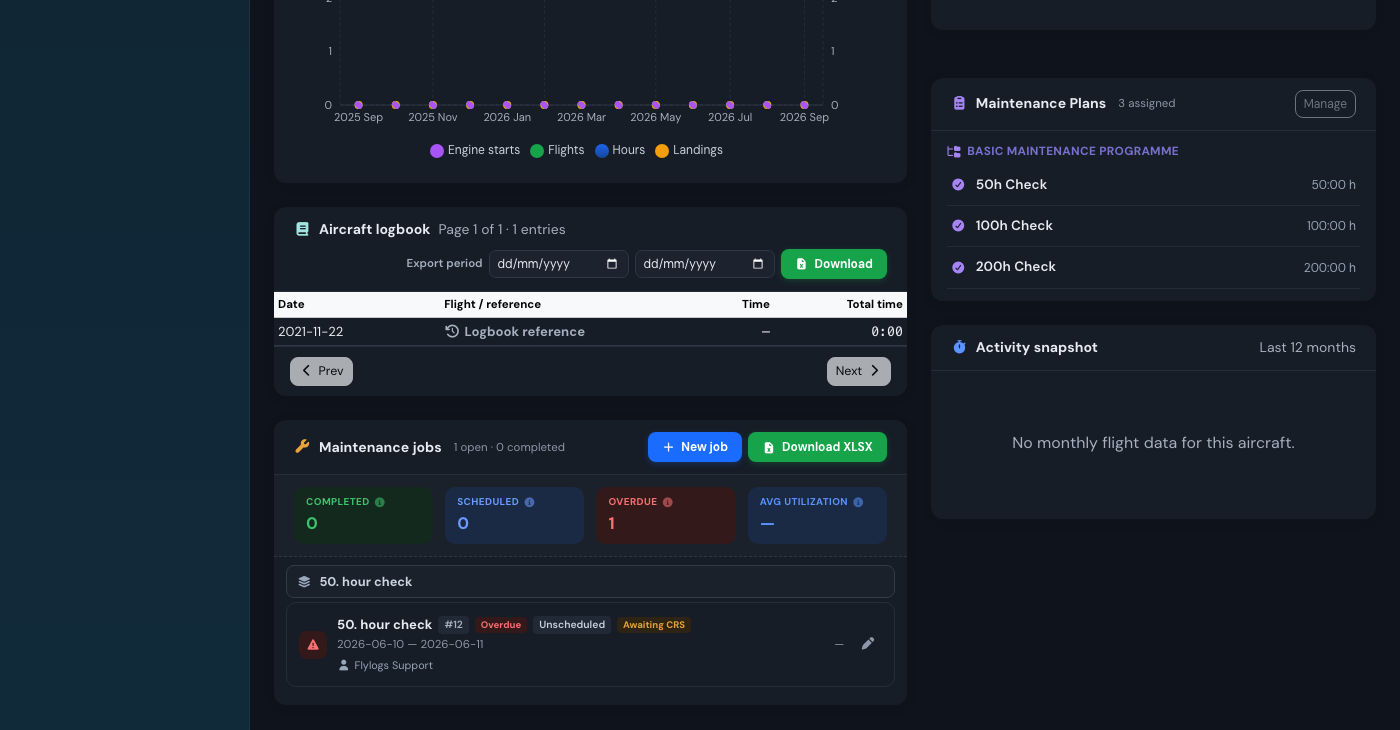
Maintenance for that aircraft: the manager opens, edits and signs off its jobs
The Aircraft menu entry appears for every manager, and its Maintenance sections appear even for a manager whose user group would not otherwise see them. Inside those pages, every aircraft selector is narrowed to their own tails — the “New Job” and “New MEL item” forms will not even offer another registration.
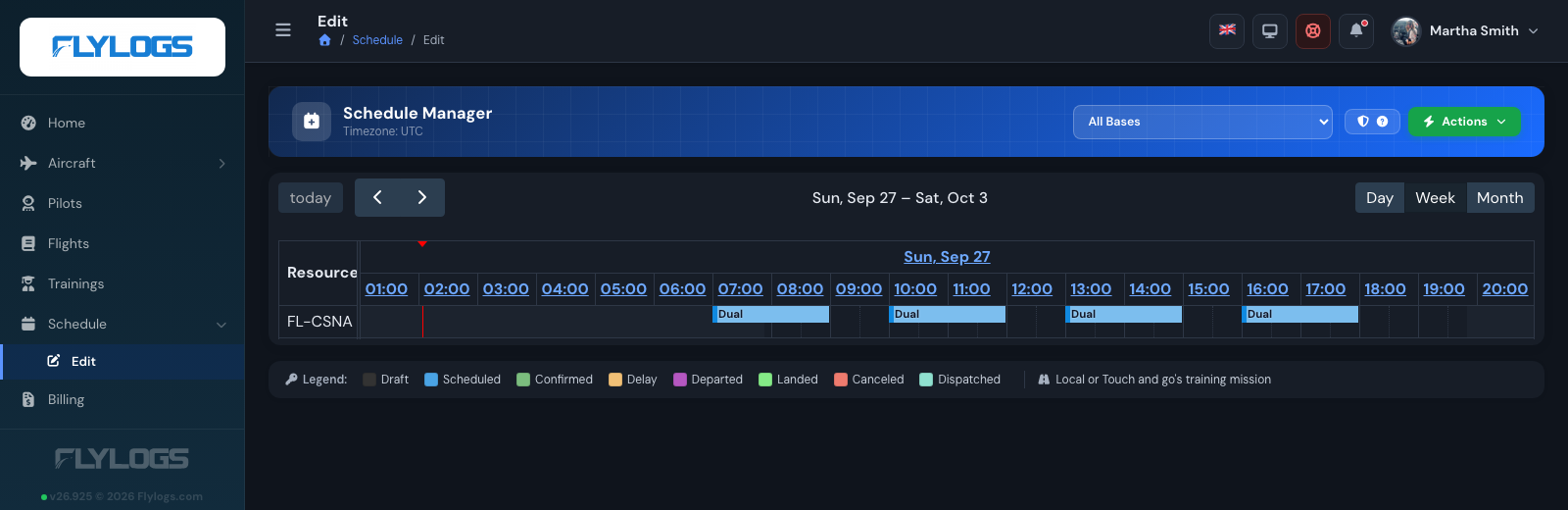
The Schedule Manager, narrowed to the tails the manager is responsible for
What stays with company staff
Section titled “What stays with company staff”The manager function is an authority over one aeroplane, not a promotion. These stay with the staff groups:
- Adding, retiring (
active) or deleting an aircraft, and reordering the fleet - Changing who manages an aircraft — including adding or removing a co-manager
- Company-wide maintenance plans and the parts inventory
- Deleting somebody else’s booking (a manager edits and re-crews bookings on their aircraft, but deletion still follows the normal booking-owner rules)
- Everything on every other aircraft in the company
How it is enforced
Section titled “How it is enforced”Every check is made on the server, per aircraft, not merely hidden in the interface. The shared
rule lives in AircraftManagerPolicy:
canManageAircraft()— maintenance jobs and aircraft reports: groups 1, 100, 105, 110, 300, or any manager of the aircraft.canEditAircraft()— the aircraft record, its photo and its Mass & Balance profile: groups 1, 100, 105, 110, 150, 300, or any manager of the aircraft.
Each check asks “is this tail one of the aircraft this person manages?”, so adding a second or third manager changes nothing about how any of them is authorised.
A request aimed at a tail the caller does not manage is answered with 404 Not Found, exactly as if
the record did not exist.
The Schedule Manager is narrowed the same way from both ends: the board only lists the aircraft the manager is responsible for, and the bookings it loads are the ones made on those aircraft — by anybody, not just by the manager. Bookings elsewhere in the fleet that they happen to be crewed on still appear, read-only, exactly as they do for any other pilot.