

Student evaluation
Flylogs provides a flexible and comprehensive student evaluation system for ground and flight training, allowing instructors to assess student performance using different grading scales and additional competency metrics.
Evaluation Scales
Flight training can be evaluated using one of the following three grading systems:
- Standard-Based: Below STD, STD, Above STD
- Numerical Scale: 1 to 5 grading system
- NICE Grading: A structured evaluation method
Additional Evaluation Features
Once an evaluation type is selected, instructors can enable:
- KSA (Knowledge, Skills, Attitude) Competency Evaluations
- Allows the creation of specific activities to assess different competencies for each student.
- Performance Metrics
- Standardized criteria applicable across all training sessions, enabling consistent evaluation of student attributes such as attitude, punctuality, and effort.
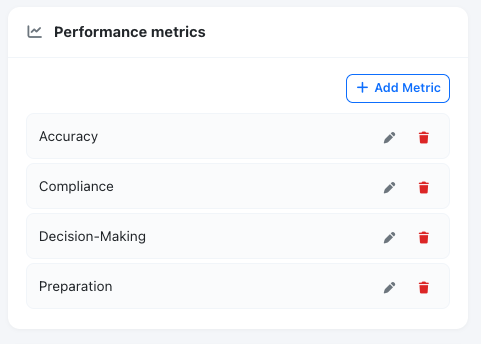
Activate the metrics and create them.
Knowledge evaluation
Section titled “Knowledge evaluation”Flylogs offers two types of knowledge evaluation exams:
- On-Site Exams
- These are structured training exams conducted as part of the Flylogs training program. They can be integrated into the training syllabus and scheduled for a specific date.
- Exams are managed similarly to classes, allowing you to assign a location, instructor, and schedule. Like classes, they can be held in a physical location or live online.
- Once the exam takes place, the instructor or a training manager can mark attendance and record grades.
- Distance Training Evaluations
- Distance training programs require students to complete self-evaluation tests after each content unit.
- These online assessments are available in Flylogs and can be taken by students at their convenience.
- While online evaluations are available for all training types, they are mandatory for distance training, ensuring continuous assessment after each lesson or subject.
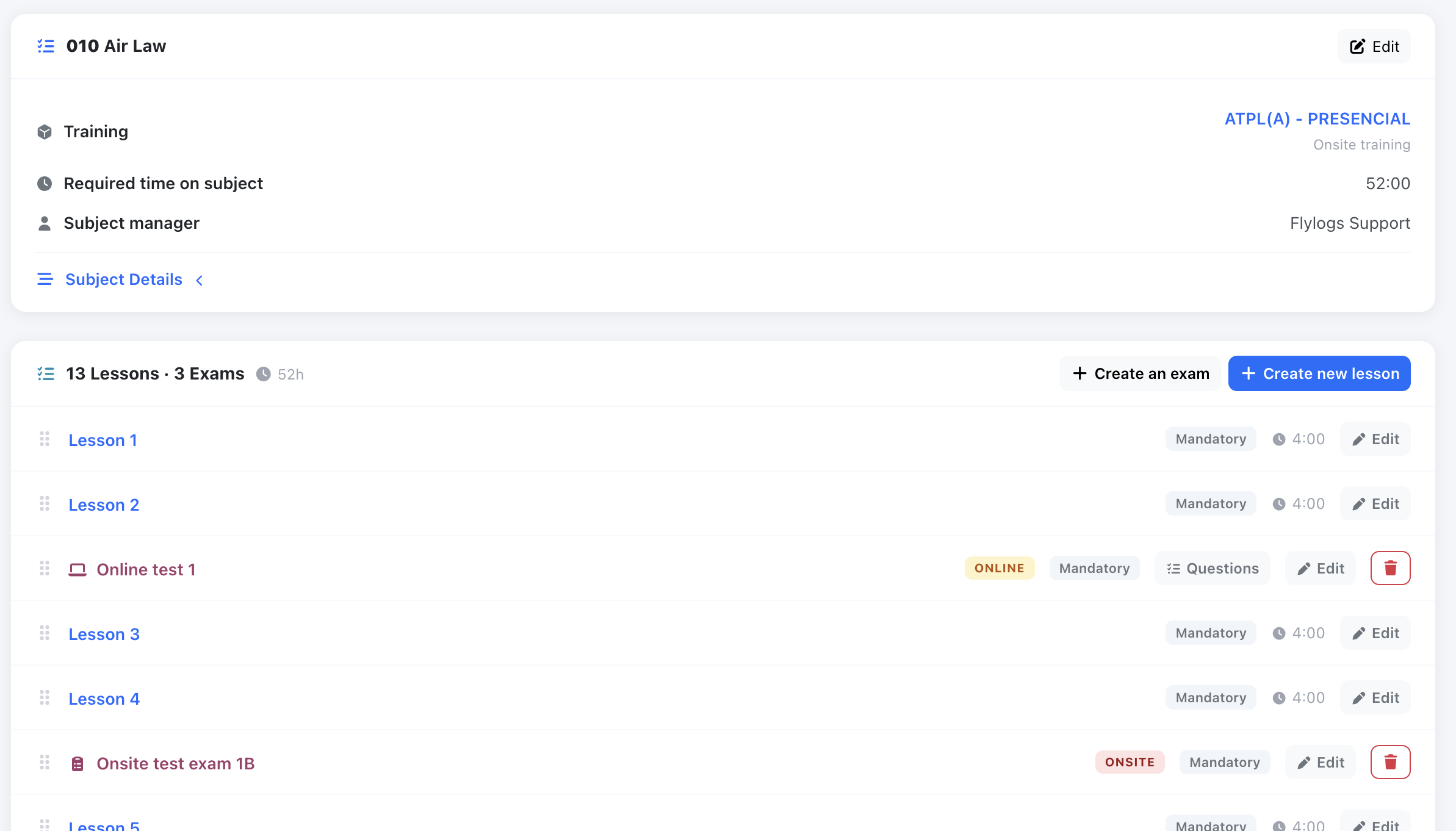
Onsite exams in existing In the AIR LAW subject syllabus.
Attendance and post-class evaluation
Section titled “Attendance and post-class evaluation”For onsite classes and exams, attendance is part of the evaluation. Each student is set to one of four statuses when the teacher signs the register:
- Attended and Attended (post-class) both count as present for progress and attendance-rate purposes.
- Absent counts as missed and lowers the attendance rate. Absent (justified) is neutral: it is left out of the attendance rate altogether, so it doesn’t lower it — but it never counts as attended either, so the lesson is not completed and the course progress doesn’t move. Only a plain Absent is left open for the student to justify — see Missed classes and class work.
Attended (post-class) is the status to use when a student didn’t attend live but still completed the class afterwards — for example after reviewing the class content and any requested class work. It credits the student the same way Attended does, while keeping the record honest about how it happened: reports keep post-class credit in its own bucket, separate from students who were simply there on the day.
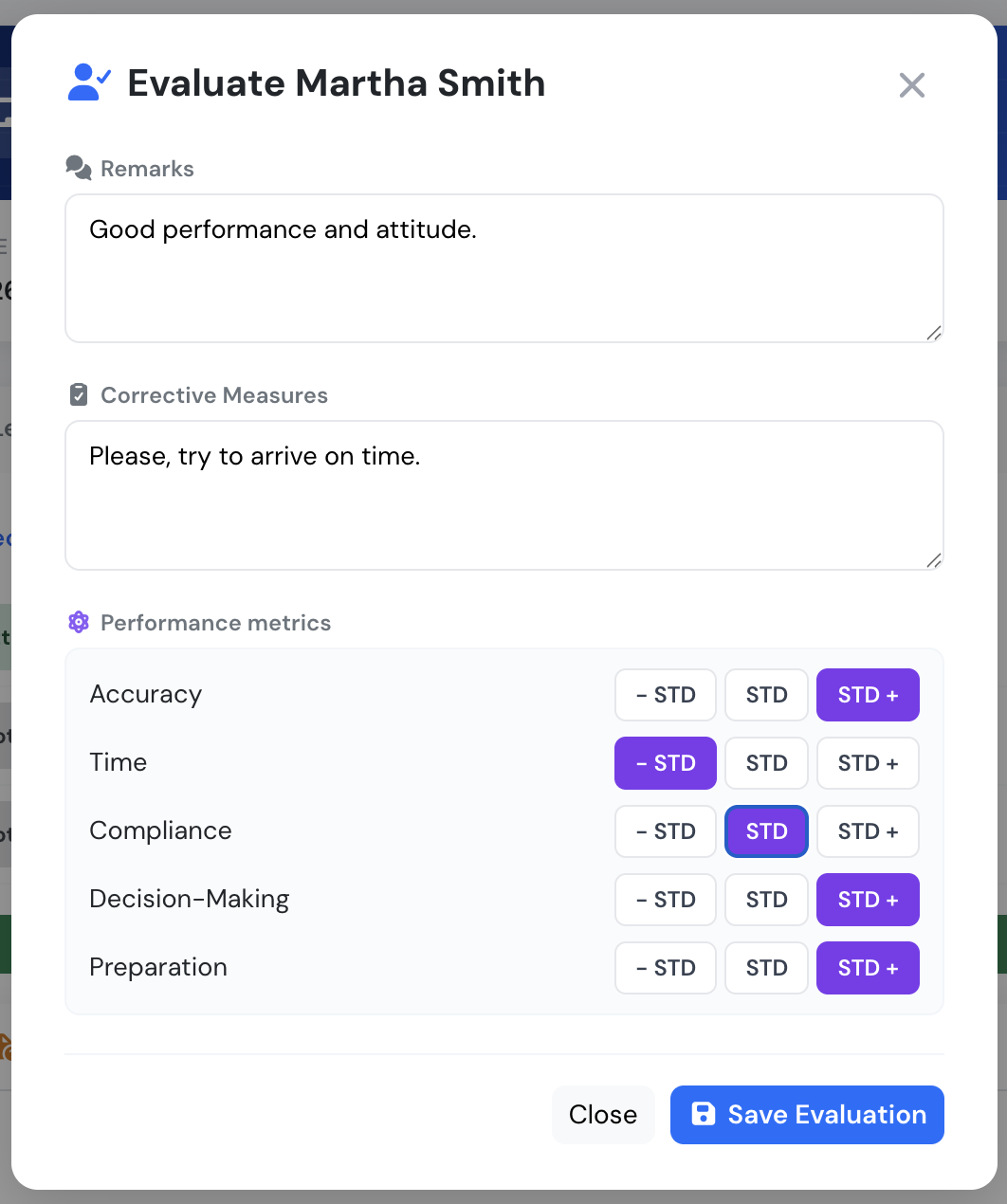
The evaluation window for a student on a class: remarks, corrective measures and performance metrics.
Flight training evaluation
Section titled “Flight training evaluation”On each flight, Flylogs will check for training enrollments for both PIC and SIC. You will be able to evaluate any of the crew members and introduce as many flight missions as necessary. On each of the performed flight missions, the performance metrics will be there to be evaluated as neccesary.
.png)
Training Records & Visualization
All evaluations are securely stored in the student’s training record and displayed in intuitive charts. These visual representations help instructors quickly identify strengths and areas for improvement, making it easier to track student progress and enhance training effectiveness.
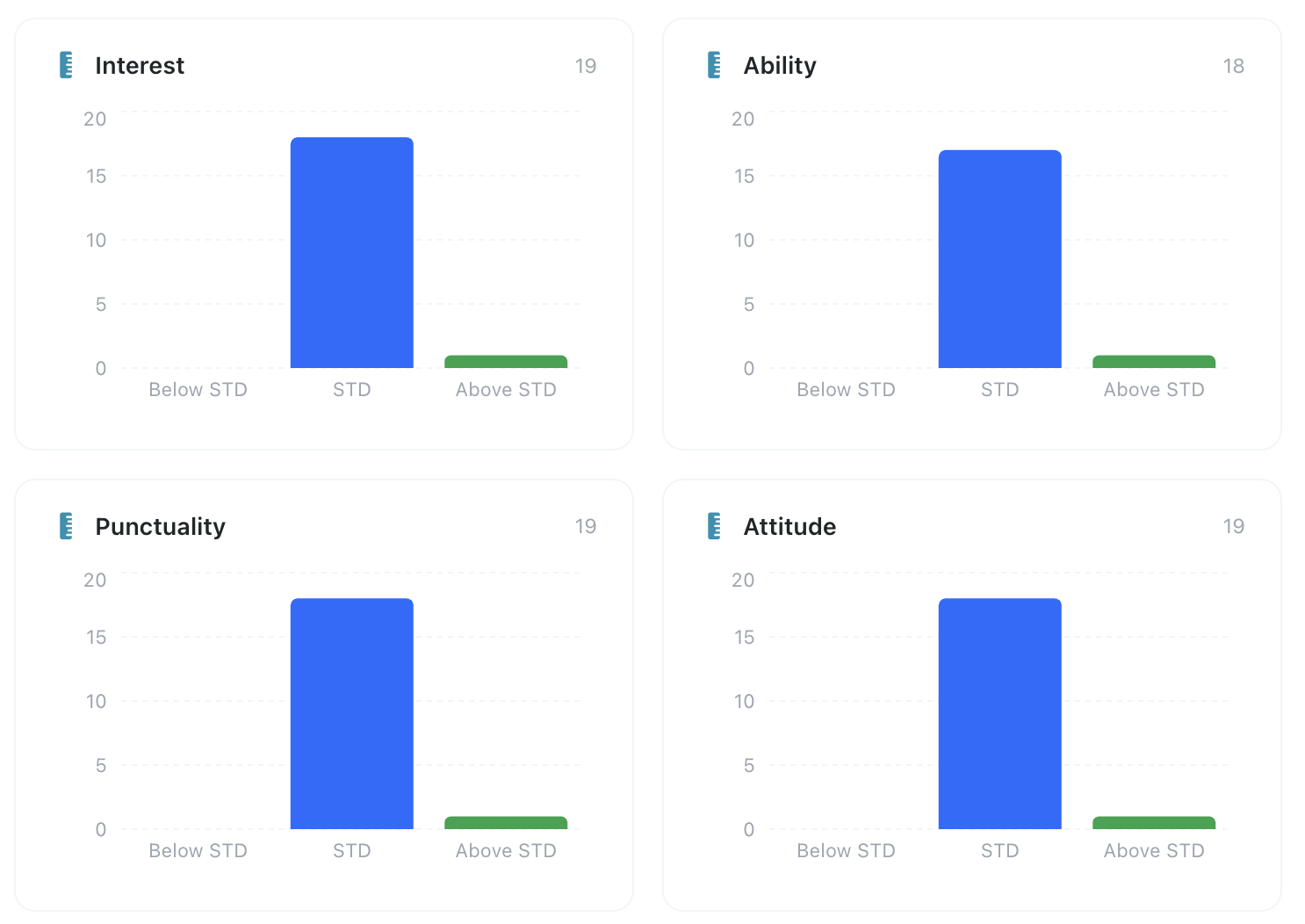
Once teachers introduce exam results, these are stored in the student syllabus and available for all training managers, as well as the student:
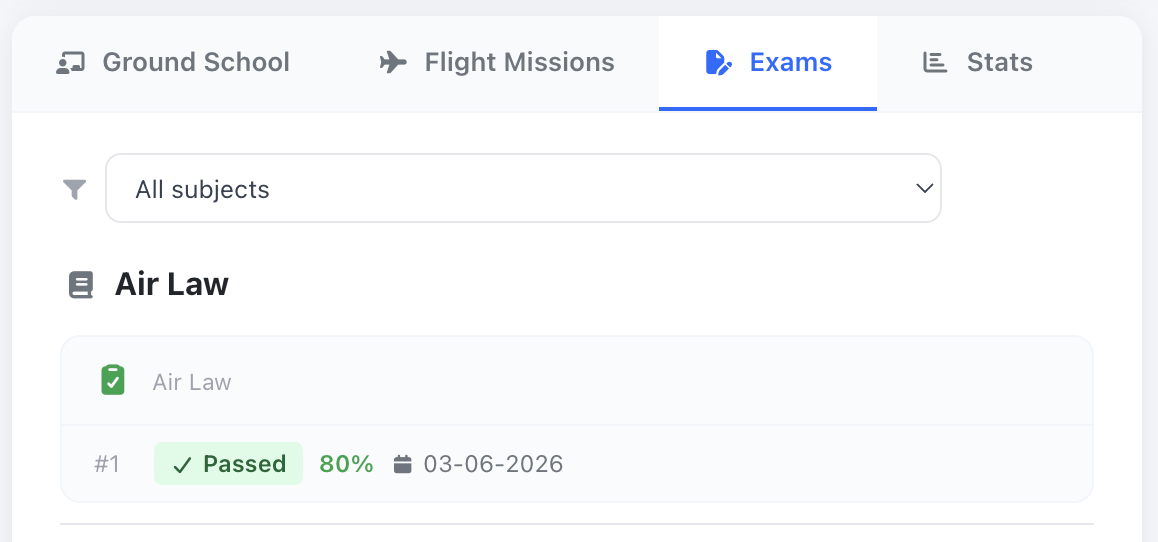
Exam results as stored by the teacher on the student record page.
Attaching files to an exam result
When you add or edit an onsite exam result from the student record page (Exams → Add result), you can attach files to it — a scanned answer sheet, the examiner’s report or any other evidence. Click Attach files in the result window, pick one or more files and save. To add or remove files later, click the paperclip next to the result; the number beside it shows how many files are attached.
These files are private to training management: only managers (Trainings Manager and above) and the Chief Pilot can see, add or remove them. Instructors and the student do not see them, not even on their own training record.
Flight debriefing
Section titled “Flight debriefing”Additionally, you can require SIC pilots or students to sign the flight mission results as well as any debriefing remarks written by the PIC. You may activate this option as as an email sumary to be sent to all crew members upon flight confirmation.
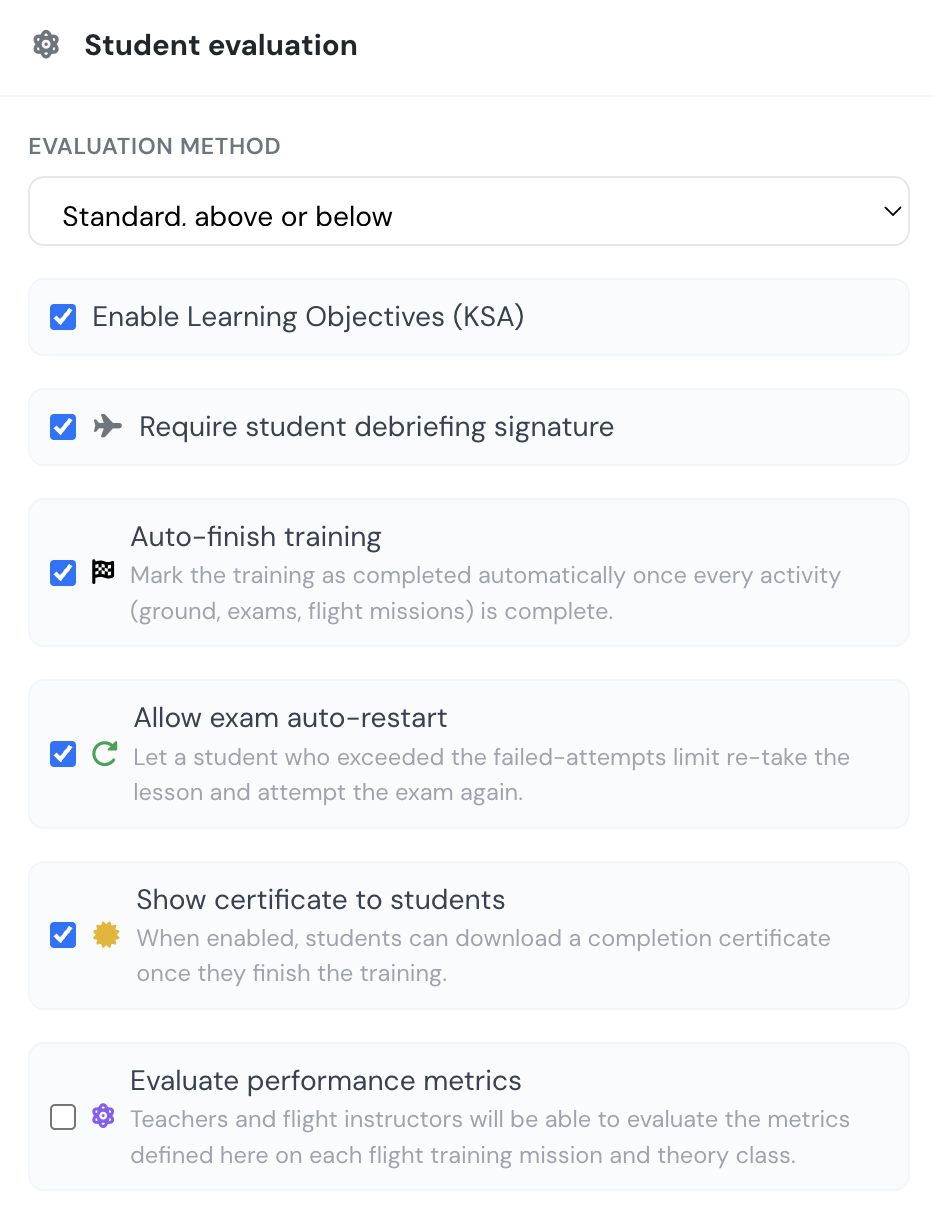
Additional options for flight mission evaluation.