Create Pilots or Students
In your Manager account, navigate to the pilots management area and click the blue Add Pilot button.
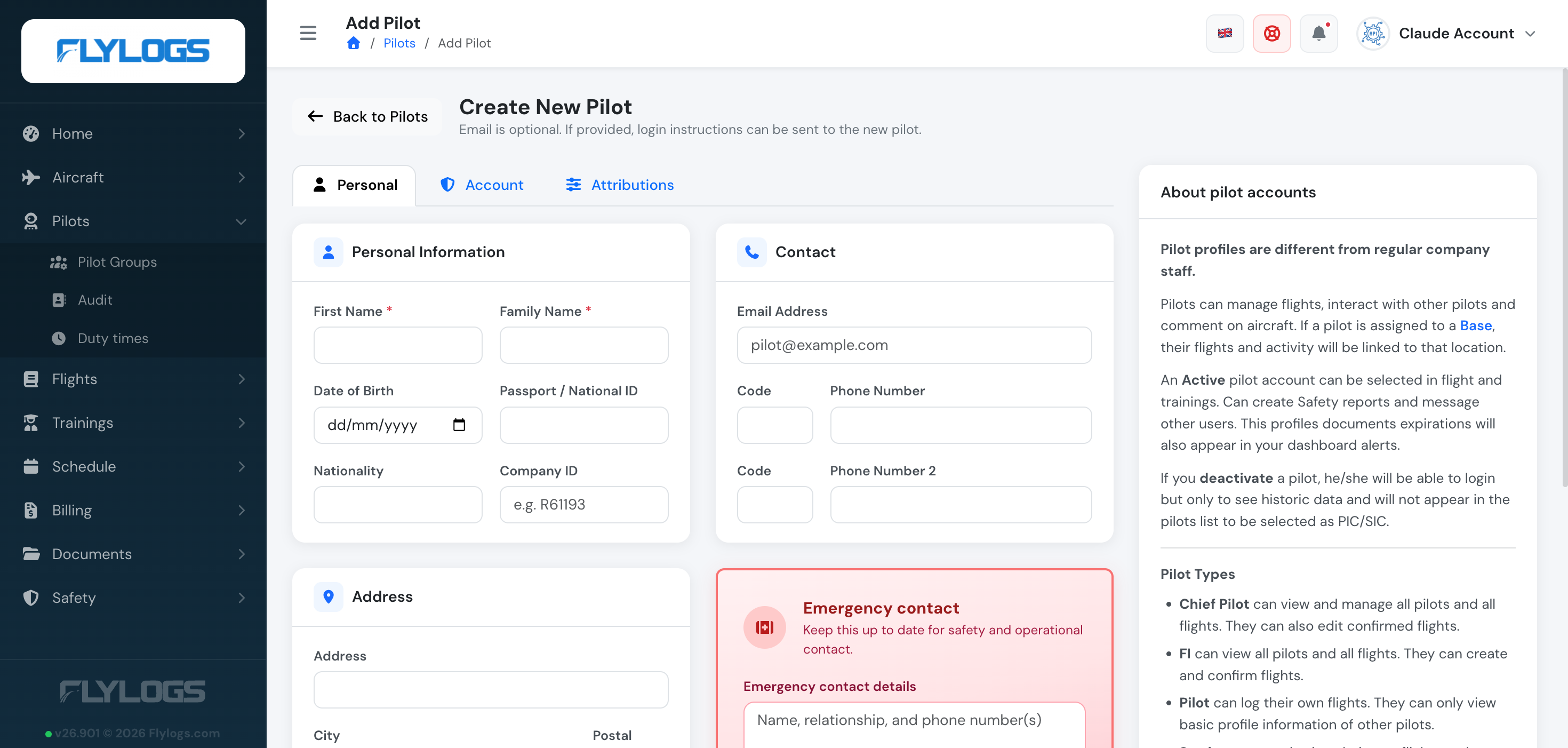
The create form is organized into three tabs — Personal, Account, and Attributions.
Personal tab
Section titled “Personal tab”Only First Name and Family Name are mandatory. Everything else — contact details, address, emergency contact, and previous flight time experience for crosschecking against an existing logbook — is optional.
Previous flight time from a logbook page
Section titled “Previous flight time from a logbook page”Under Previous flight time experience, Read a logbook page reads the running total at the bottom of a logbook page: the total time including previous pages, plus PIC, night and IFR when they are printed. Use … as previous flight time fills in the field. Upload the last page of the paper logbook, because its total includes all the earlier pages. Check the figure against the logbook before saving.
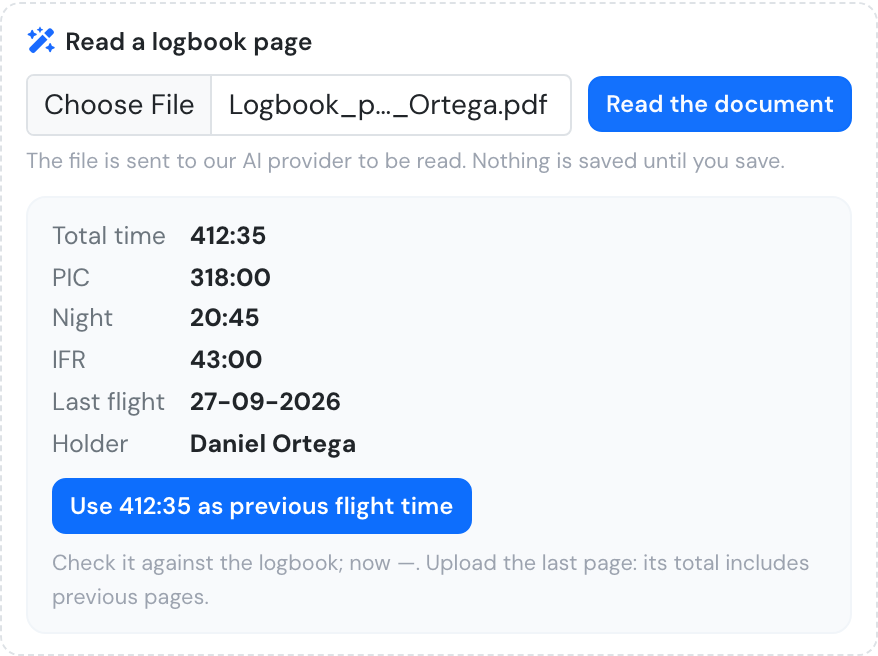
The total read from the last page of a paper logbook.
Previous flight time can only be changed by managers: on the pilot form by user groups below 150, and on their own profile by user groups 150 and below. Only they see this button.
If you do not have the email address of the pilot this is not a limitation, you can still create the pilot account so you and other pilots will be able to log flights for this new pilot.
If the pilot does not have an email address, he or she will not have the ability to login to Flylogs to check flights, schedules or attend training courses.
Account tab
Section titled “Account tab”This is where the account’s basic settings live: the User Group (Pilot Type, which defines the permissions given to the user — see Pilot Account Types and options), Base, Supervisor, and the Active account / Flight privileges toggles.
Additionally, if the account is Active, you can set an account expiration date at which this user will be automatically deactivated by the system.
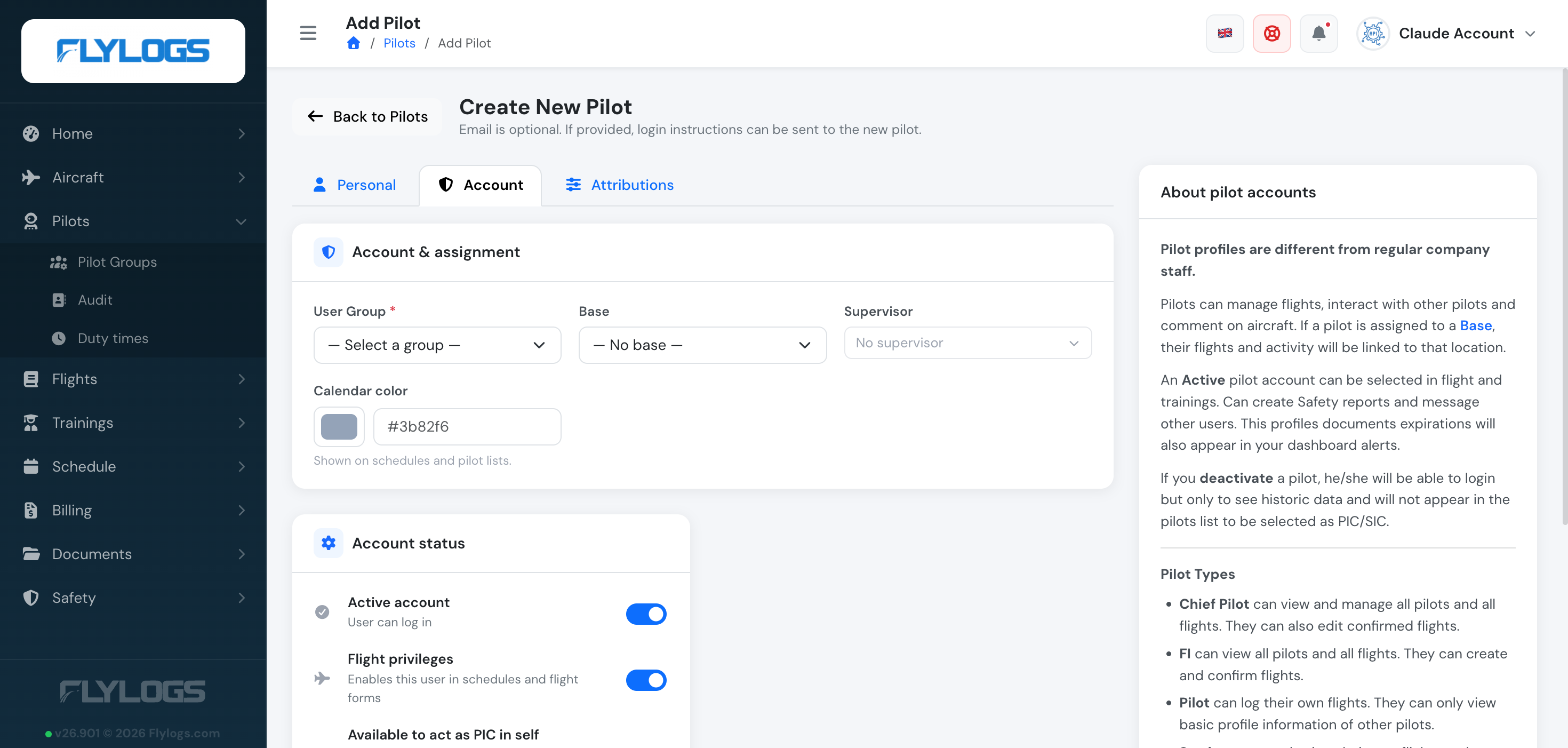
Note that Inactive pilots can still access to their Flylogs account with READ ONLY permissions with the aim to have access to their own logbook.
If an email address was entered on the Personal tab, this account is created with the option to send login instructions to the pilot. They will receive an email notification asking to complete the sign up process by clicking on the link to create the account password.
Attributions tab
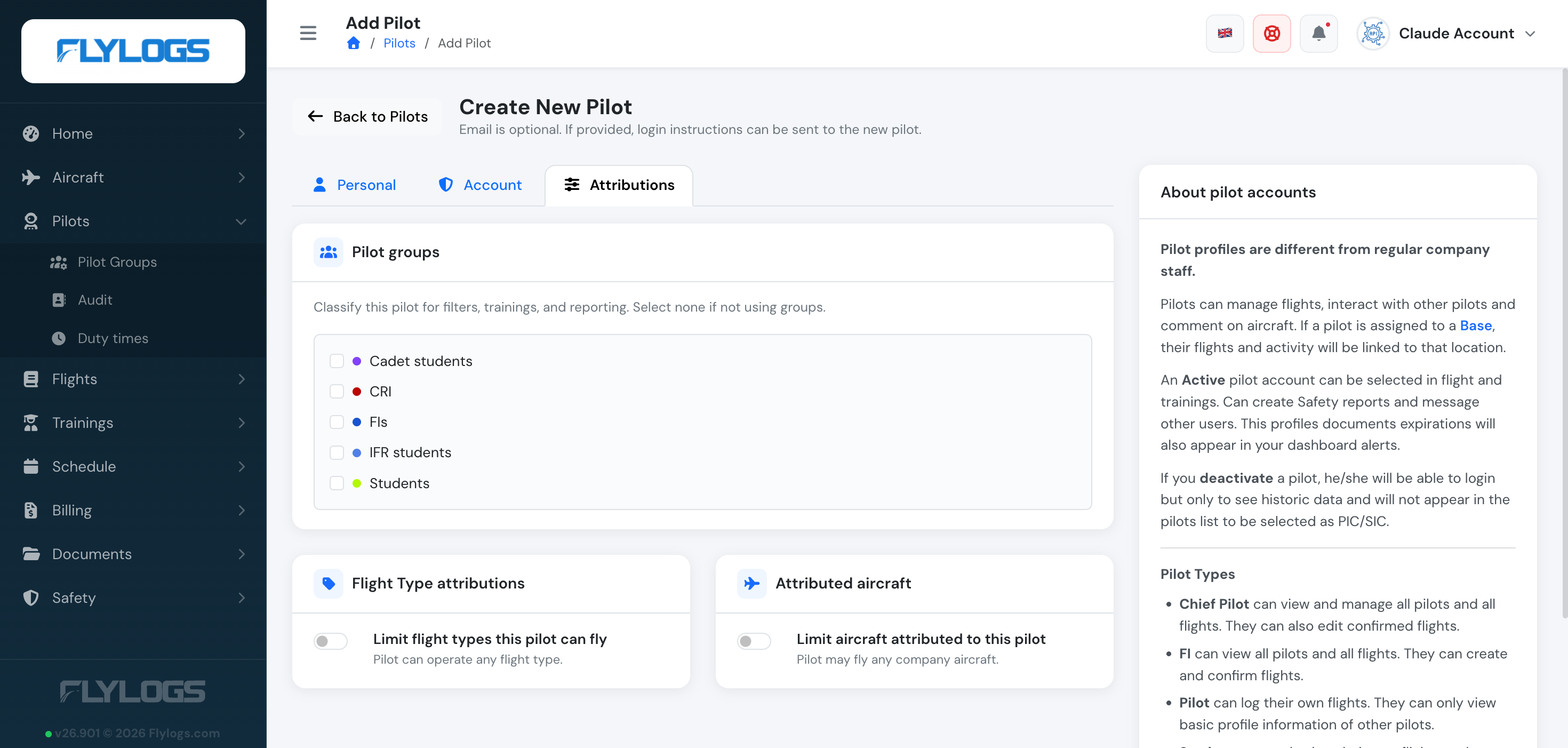
Section titled “Attributions tab”The Attributions tab lets you assign the pilot to Pilot groups (for filters, trainings, and reporting), and optionally restrict which Flight types they can fly and which aircraft are attributed to them — by default a pilot can operate any flight type on any company aircraft.
Import multiple pilots
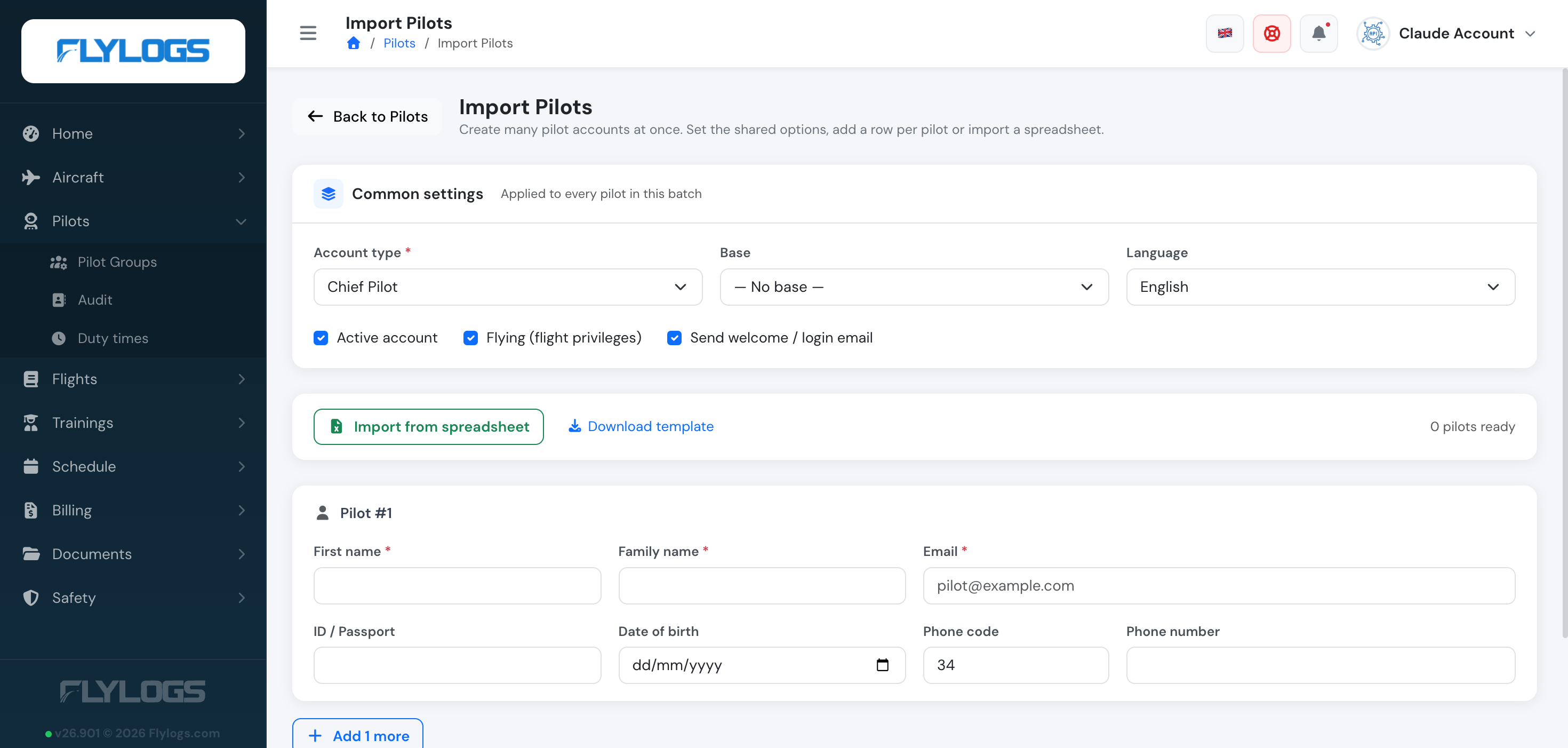
Section titled “Import multiple pilots”Probably you will need to create multiple accounts at once. For this purpose, click Import from the pilots list.
This function is an optimized form in which you set the shared settings once — account type, base, language, and whether to activate, grant flying privileges, and send the welcome/login email — then add a row per pilot (name, email, ID, date of birth, phone), or skip the manual rows entirely and import from a spreadsheet (a downloadable template is provided).
The system applies the common options you selected to every profile in the batch and sends the invites instantly to all the new pilot accounts.