

Flight Schedule Records
Flylogs flight scheduling has been designed to fit precisely the needs of ATO organizations with or without multiple operational bases and multiple aircraft on each location. Schedule records or bookings may be created by the company manager, roster manager, aircraft manager or even directly by your pilots or students.
Company Managers and Roster Managers have a full access to al rostering options in all company aircraft. Aircraft managers have full access to the aircraft they manage, including maintenance records, logbooks and schedules.
Pilot or Student self booking is available on demand, and requires the company to activate the flight billing functions.
Schedule Record Lifecycle
Section titled “Schedule Record Lifecycle”- Draft: Unpublished schedule record. Only visible to schedule management users.
- Active: The schedule record is published and visible to crew members.
- Confirmed: The schedule record has been confirmed by the flight crew.
- Rejected The schedule record has been rejected by either one of the flight crew.
- Cancelled: The flight has been cancelled after the schedule was confirmed.
- Deleted
Schedule Record Information
Section titled “Schedule Record Information”Each schedule record contains the following information and represents a scheduled flight, 1 flight.
- Published (check box that defines if the schedule record is visible by crew or not).
- Schedule start date and time
- Schedule end date and time
- Aircraft
- Crew: PIC, SIC and Supervisor or third crew member.
- Flight Rules
- Flight Type
- Flight Mission (See Trainings - Flight training missions)
Crew Acceptance Status
Section titled “Crew Acceptance Status”Each crew slot (PIC and SIC) on a schedule record carries its own acceptance status, independent of the overall record status.
| Status | Meaning |
|---|---|
| Pending | The crew member has been assigned but has not yet accepted the flight. |
| Accepted | The crew member has accepted (or was automatically accepted at creation). |
| None | The slot is empty — no crew member assigned. |
How the status is set when a record is created:
- Self-scheduled flights (pilot or student booking their own flight): the current user is automatically set as PIC with status Accepted. No SIC is assigned (None).
- Flights created by an instructor or Flight Instructor (FI): the FI is set as PIC (Accepted) and the selected pilot becomes SIC (None — SIC acceptance is not required in this case).
- Flights created by management on behalf of crew: both PIC and SIC (if assigned) are set to Pending. They must accept the flight through the notification they receive.
The Schedule record edit form
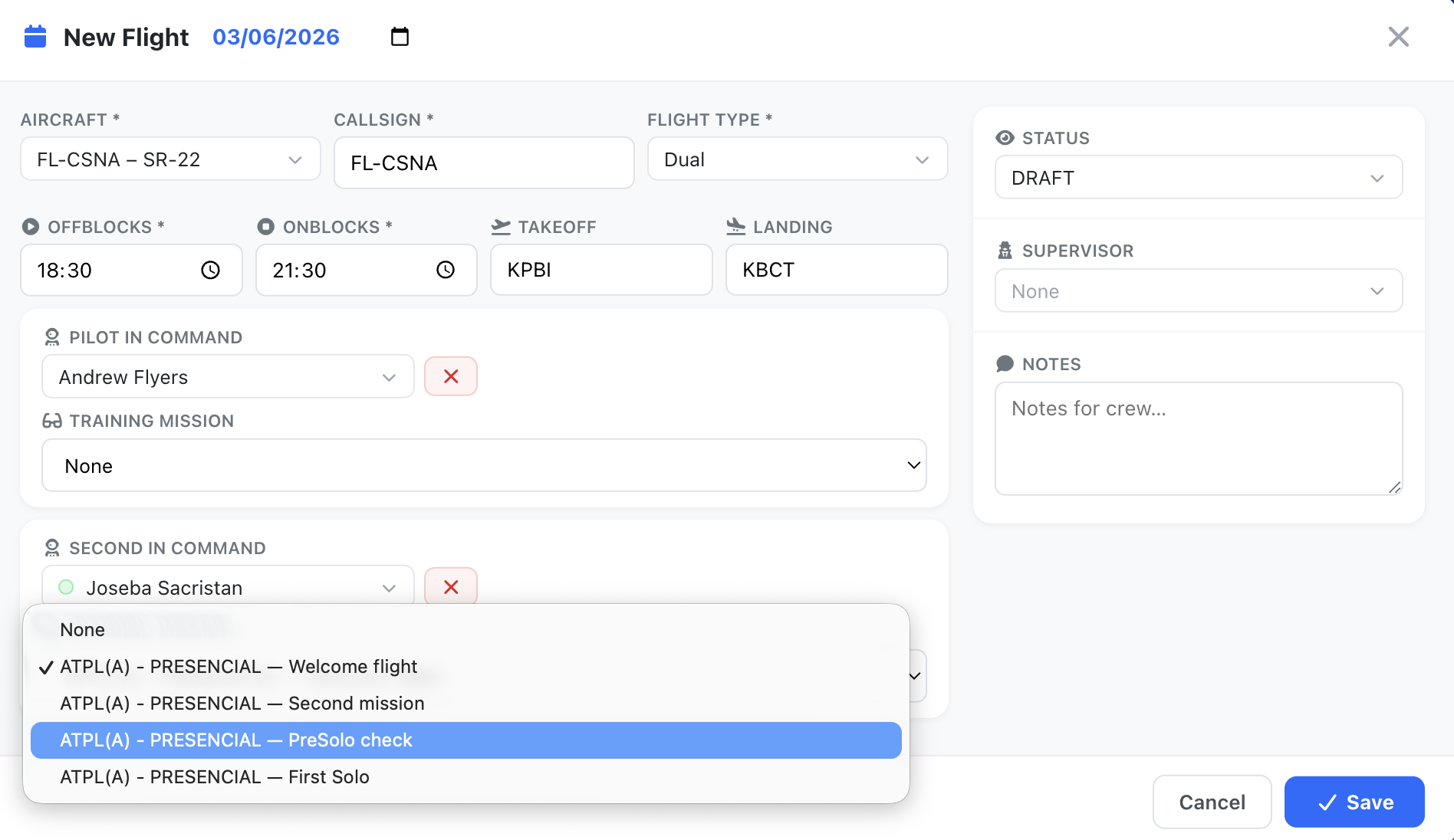
Section titled “The Schedule record edit form”We have created a fast editing form (see screenshot below) that includes the management of all information related to each schedule record.
The form has a flight data information on the left side, and a supplemental information right side that changes dynamically depending on the aircraft and crew members selected for the flight.
The form has only 5 fields that are mandatory:
- Flight type
- Start time (Automatically populated from your click position on the calendar)
- End time (Automatically populated from your click position on the calendar)
- Callsign (Automatically populated with the Aircraft registration if left empty)
- PIC
You can directly choose to publish the new record as you create it if select in the status box “SCHEDULED”.
Multi-leg flights
Section titled “Multi-leg flights”When you create a new booking you can plan a route with intermediate stops. Fill in the takeoff and landing airfields, then click the + button next to Landing and enter the next stop. You can add up to 3 extra airfields (4 legs in total).
The route is shown under the airport fields with one line per leg. Flylogs splits the offblocks–onblocks time equally between the legs; you can change the time at each intermediate stop. Use the × next to a leg to remove that stop.
When you save, Flylogs creates one booking per leg, back to back, with the same aircraft, callsign, flight type, crew, status and notes. Each leg is then an ordinary booking: it is dispatched, logged, edited and cancelled on its own, so every sector appears in the logbook.
Repeating flights
Section titled “Repeating flights”When you create a new booking, tick Repeat weekly to repeat it on the days of the week you choose:
- Tick the weekdays the flight repeats on. The day of the booking itself is always included.
- Choose the Until date (inclusive). It is required and has no default: saving without it is refused and the field is highlighted. The form shows how many bookings will be created, and the confirmation lists every date before anything is created.
A repeating flight can also be multi-leg: the whole route is repeated on every selected day. One save creates at most 100 bookings.
Editing or cancelling a repeating series
Section titled “Editing or cancelling a repeating series”The bookings created by one repeat are linked. A multi-leg repeat creates one series per leg (leg 1 on every date, leg 2 on every date…), so a single leg can be changed without touching the others.
Open any booking of a series in the Schedule Manager: the form shows that it is part of a repeating series. When you save, cancel (set the status to Canceled) or delete it, Flylogs asks:
- This booking only — only this booking changes. On save it is detached from the series.
- This and following — the same change is applied to the later bookings of the series.
“Following” only reaches bookings that are later than this one, still in the future, not yet dispatched or flown, and not already canceled. Each keeps its own date; the times you set are applied in the company time zone, so 16:00 stays 16:00 across a daylight-saving change. Aircraft, crew, flight type, airfields, notes and (if you changed it) status are carried over. Crew notifications and training missions are not repeated. A booking that the server refuses (for example an aircraft clash) is listed afterwards and left as it was.
Bookings created before this feature are not linked and are still edited one by one.
Before creating anything, Flylogs checks every date against the schedule. A date where the aircraft or one of the crew members is already booked is skipped, and the confirmation lists the skipped dates. If the server refuses a leg (for example because of maintenance), the remaining legs of that day are not created and you get a summary of what was not created.