

Schedules and classes offline
Flylogs keeps the next 7 days of your schedule on your device, so you can still check them without a connection: on a flight, in a hangar or at an airfield with no signal. This covers flight bookings, pilot availability and training classes.
Everything here is read-only while you are offline. To create, change, publish or sign anything, you need a connection.
What is kept on your device
Section titled “What is kept on your device”| What | Kept for | Where you see it offline |
|---|---|---|
| Flight bookings | Today to 7 days ahead, plus each booking’s own page | Schedule Review page, the booking page, the dashboard “Upcoming Flights” widget |
| Pilot availability | Today to 7 days ahead | Pilot availabilities |
| Training sessions (classes and exams) | Today to 7 days ahead | Trainings › Sessions |
| Class pages | Every session in those 7 days | The class page (lesson, attendance list, classroom, documents list) |
| Your own classes | From yesterday to 7 days ahead | The upcoming classes list on your Trainings page |
The 7 days are counted in your company’s time zone, from today through the day 7 days from now.
Who gets what
Section titled “Who gets what”Flylogs only keeps what you can already open while online:
- Bookings: managers have them, and so do staff with read-only access to the Schedule Review page. Pilots get them too when the company shows them the master schedule.
- Pilot availability: the roles that can open the Pilot availabilities page.
- Training sessions: staff who see Trainings › Sessions (managers, chief pilots and auditors). The company plan must include Trainings.
- Your own classes: every user enrolled in or teaching a course, including students and instructors.
How the copy stays up to date
Section titled “How the copy stays up to date”You don’t need to do anything. While Flylogs is open and online, it refreshes the copy in the background:
- when you log in or open the app,
- when the app comes back to the foreground,
- when the connection returns,
- every 15 minutes while it stays open.
Class pages are downloaded again when they are more than 6 hours old, and whenever you open one online. A new device starts with nothing stored: the first copy is made the first time you use Flylogs online with your account on it.
Using it offline
Section titled “Using it offline”When a page shows the stored copy, a yellow banner tells you so and shows when the copy was saved. Check that time: anything changed after it is not on your device.
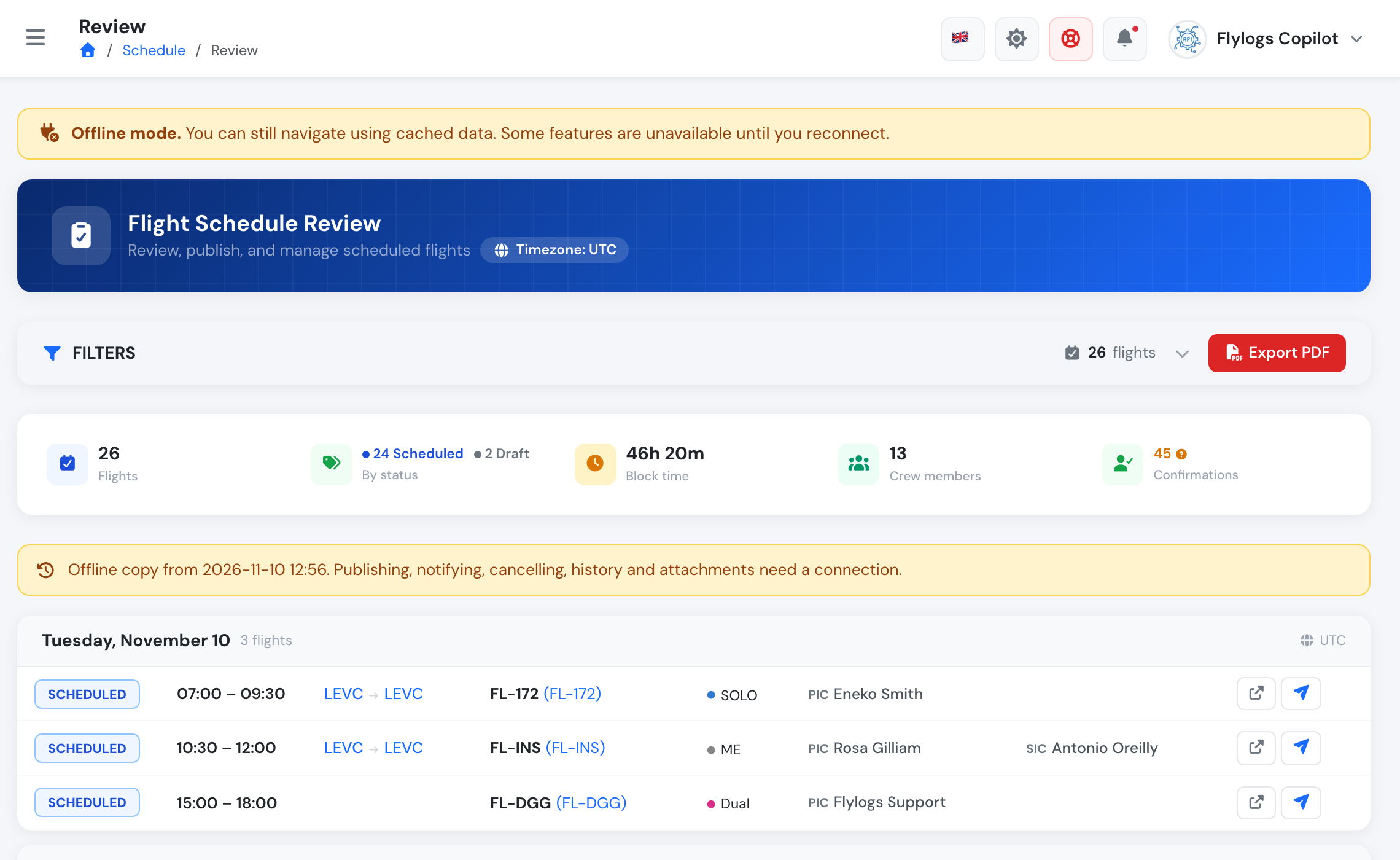
Schedule Review page offline: the bookings of the next 7 days, with the time the copy was saved
The filters still work on the stored copy. If you ask for dates outside the 7 days, the banner says which dates are kept. Only those dates can be shown.
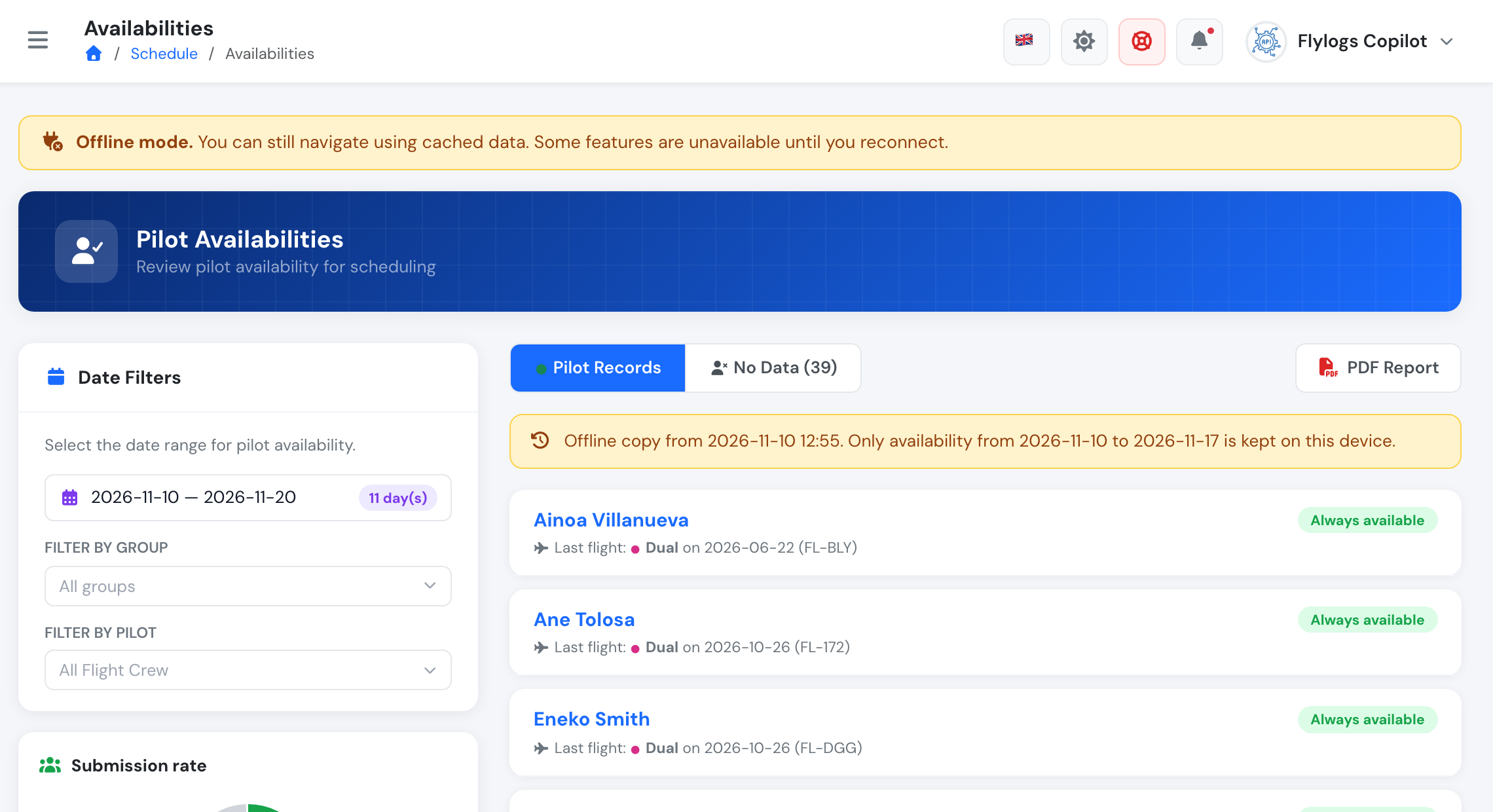
Pilot availabilities offline: the selected range goes past the 7 days kept on the device
Training sessions
Section titled “Training sessions”Trainings › Sessions lists the stored sessions in both the table and the calendar view. You can filter by date and by training.
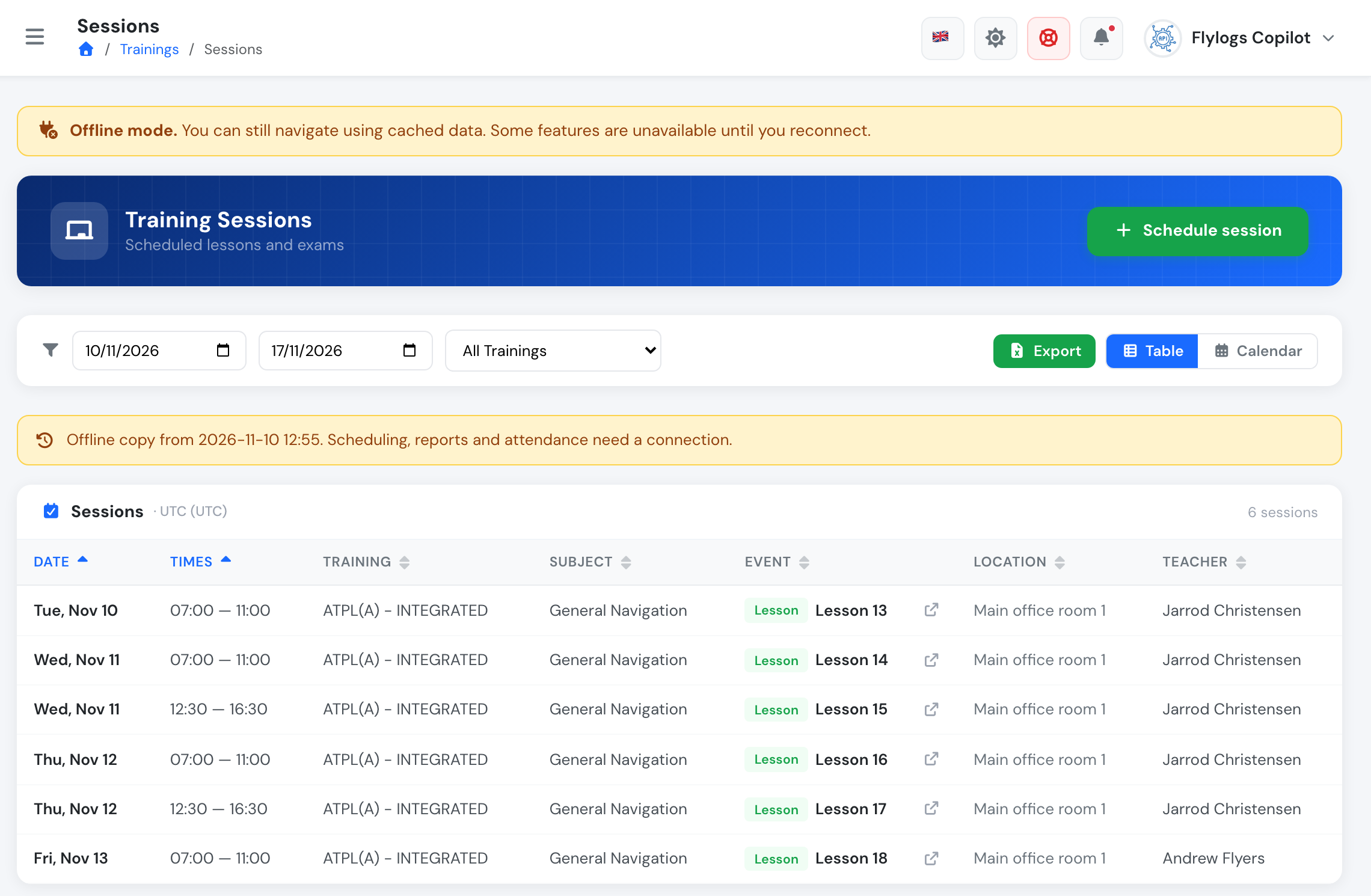
Training Sessions offline: the sessions of the next 7 days
Open a session to see its class page: date, time, teacher, location, the lesson content and the attendance list as they were when the copy was saved.
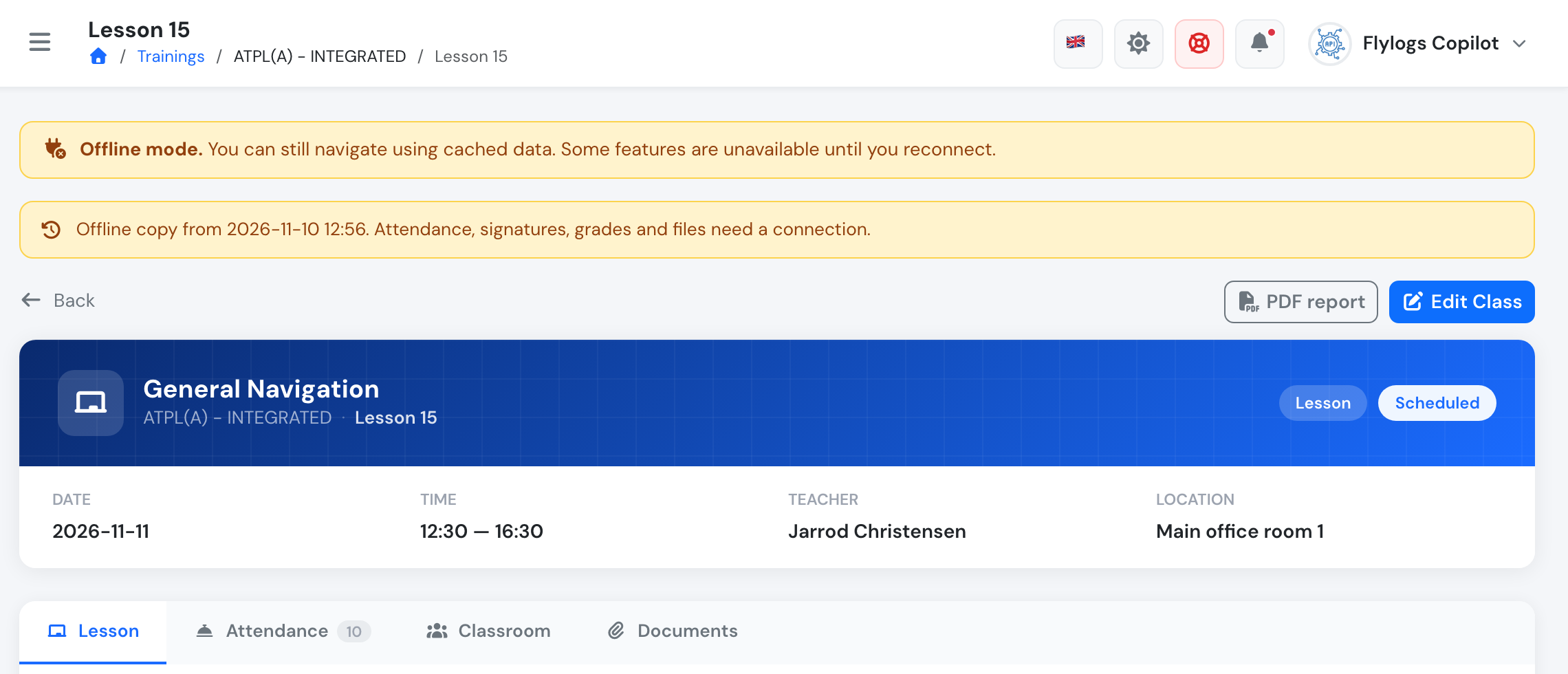
A class page opened offline
What needs a connection
Section titled “What needs a connection”- Creating, editing, publishing, notifying or cancelling bookings, and the booking history and attachments.
- Scheduling, editing or deleting sessions, and exporting the sessions report.
- Taking or signing attendance, grading, justifications, class work and exam openings.
- Opening or uploading files.
- Anything older than today or further ahead than 7 days. The exception is a page you opened recently online, which may still be on the device.
If you try to open something that was never stored, Flylogs says it is not available offline.
Good to know
Section titled “Good to know”- The copy lives in this browser, on this device. It is not shared between devices.
- Logging out or switching company clears it.
- Clearing your browser data or using a private/incognito window also removes it.
- The copy does not expire while you are offline: it stays until Flylogs can refresh it. Always check the time on the banner.
- Flights and safety reports can also be created offline and synced later. See Offline flight data and Offline safety reports.