

Missed classes and class work
Onsite classes and exams track attendance as part of the training record, and follow up automatically when a student misses one. This page walks through the whole flow, from an unmarked register to a resolved, reported outcome. For where each of these actions lives on screen, see Teacher tools, Student evaluation and Student management.
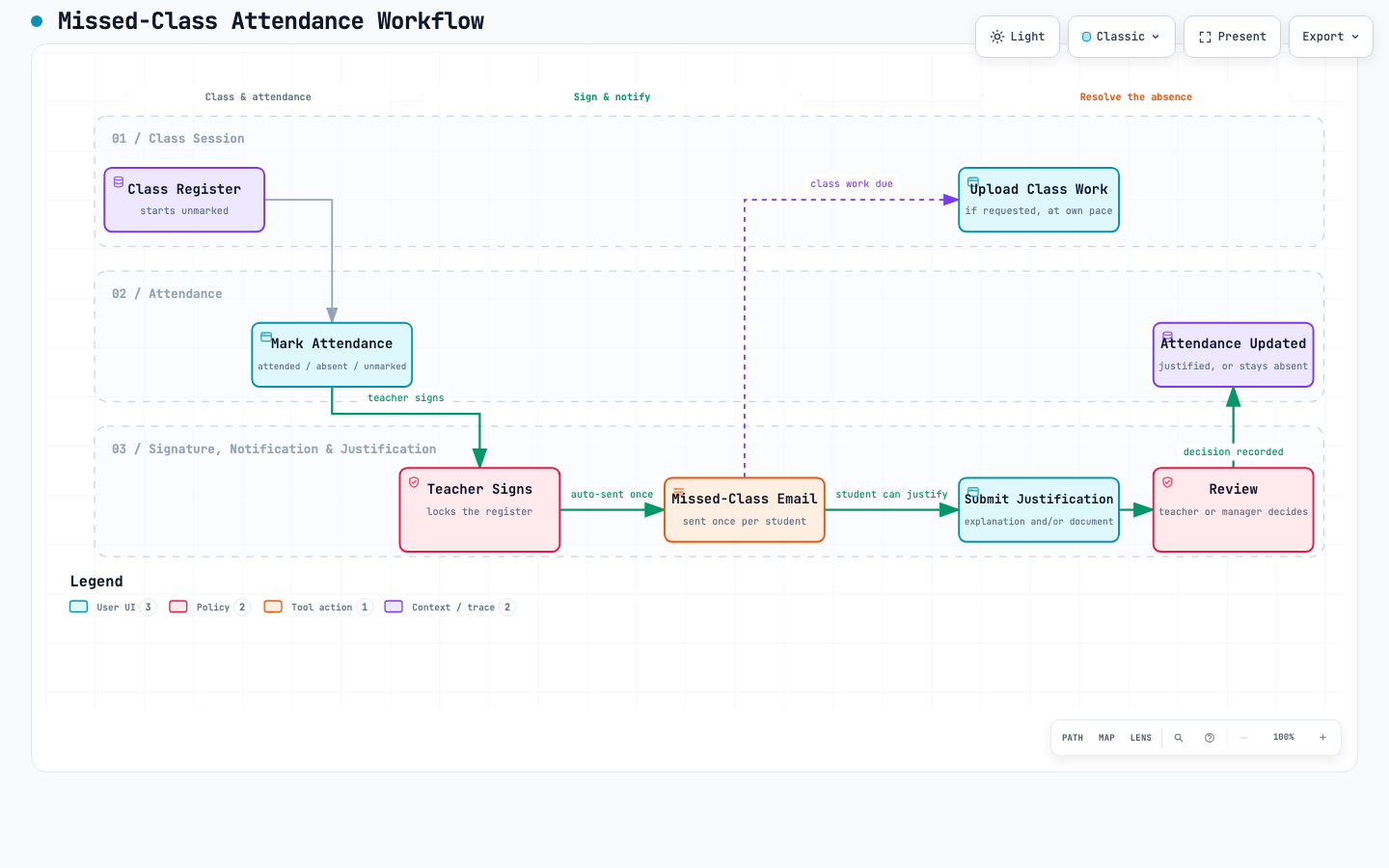
The full flow: class session, attendance, signature, class work and absence justification.
The four attendance statuses
Section titled “The four attendance statuses”Each student on a class register is set to one of:
- Attended
- Attended (post-class) — attended after the fact, see below.
- Absent
- Absent (justified) — an approved justification, see below.
Before the teacher signs the class, students can be left unmarked — nothing has been decided yet. Nothing is saved to the training record until the class is signed: signing is the moment the register becomes a record, and it turns every student still unmarked into Absent.
A signed register is locked. A training manager can reopen it with Modify signed attendance, make corrections, and sign again with Update attendance — every signature is kept as history, so nothing is overwritten. Both Attended and Attended (post-class) count as present; Absent (justified) does not — it doesn’t complete the lesson or add progress, but it is left out of the student’s attendance rate, so it doesn’t lower it either.
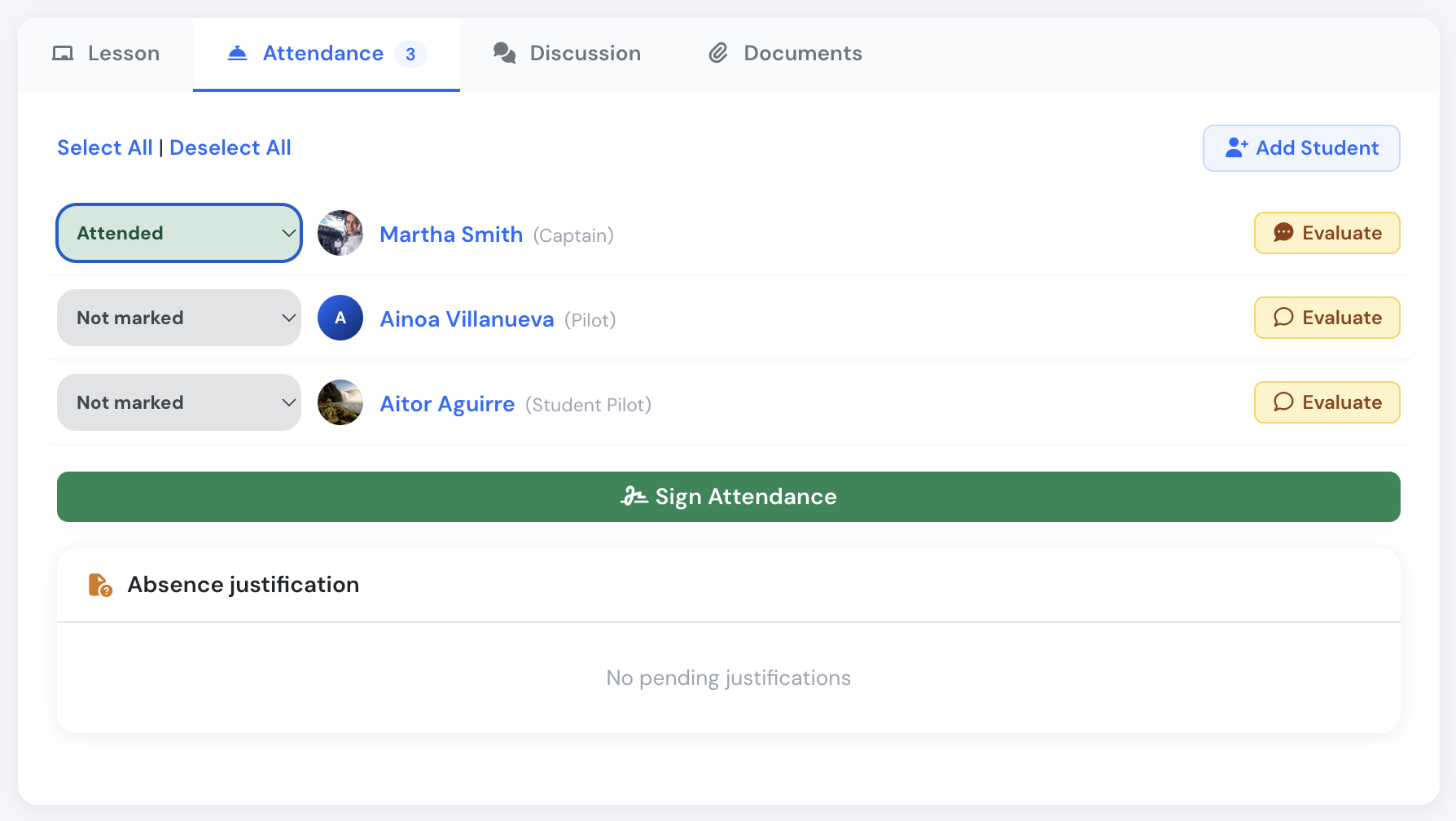
The four attendance statuses on a class register.
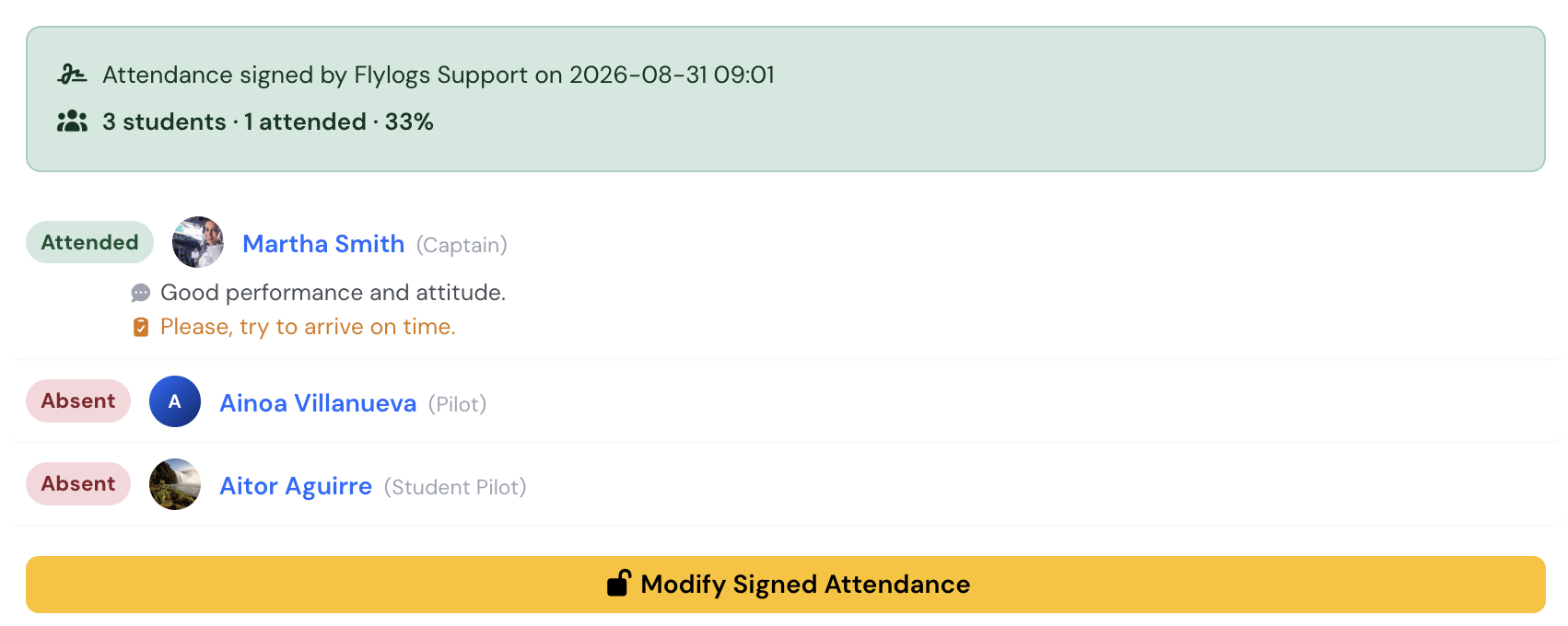
A signed register: statuses are read-only, the totals are summarised, and only "Modify Signed Attendance" reopens it.
Being on a class register means you’re expected: a student who will attend doesn’t need to do anything. A student who knows in advance that they can’t make it opens the class page and selects I can’t attend, optionally adding a reason.
From that moment:
- The student’s attendance is marked Absent. It’s a starting point, not a decision — the teacher can still change it when taking the register, for example if the student turns up after all.
- The class’s teacher (and the subject’s teacher, if different) receives an in-app message with the student’s name, the class and the reason.
- On the register, the teacher and training managers see a Notified absence mark next to the student, with when the notice was given and the reason. The mark stays even if the teacher changes the status, as a record that notice was given.
- The student can upload a justification document straight away, from the Attendance tab — see Justifying an absence. It’s reviewed like any other justification.
The notice can be given until the class ends, as long as it hasn’t been signed or cancelled, and only while the student hasn’t been marked yet — once the teacher has recorded something, the register is theirs. Until then, the student can also take it back with I can attend after all, which returns them to unmarked. That isn’t possible while a justification they submitted for this absence is still waiting for review.
Only students enrolled in the training can give notice. The missed-class email is still sent when the register is signed, so the student gets the class summary and any class work request like any other absent student.
Signing your own attendance
Section titled “Signing your own attendance”Some courses ask students to countersign their attendance — the setting is Require students to sign assistance on the training, off by default. On those courses, a student recorded as Attended or Attended (post-class) is asked, once per class, to confirm it themselves.
The student opens the class page, presses Sign my attendance and enters their password. The signature is stored with the date and time, and shown on the register and on the class report PDF next to their name.
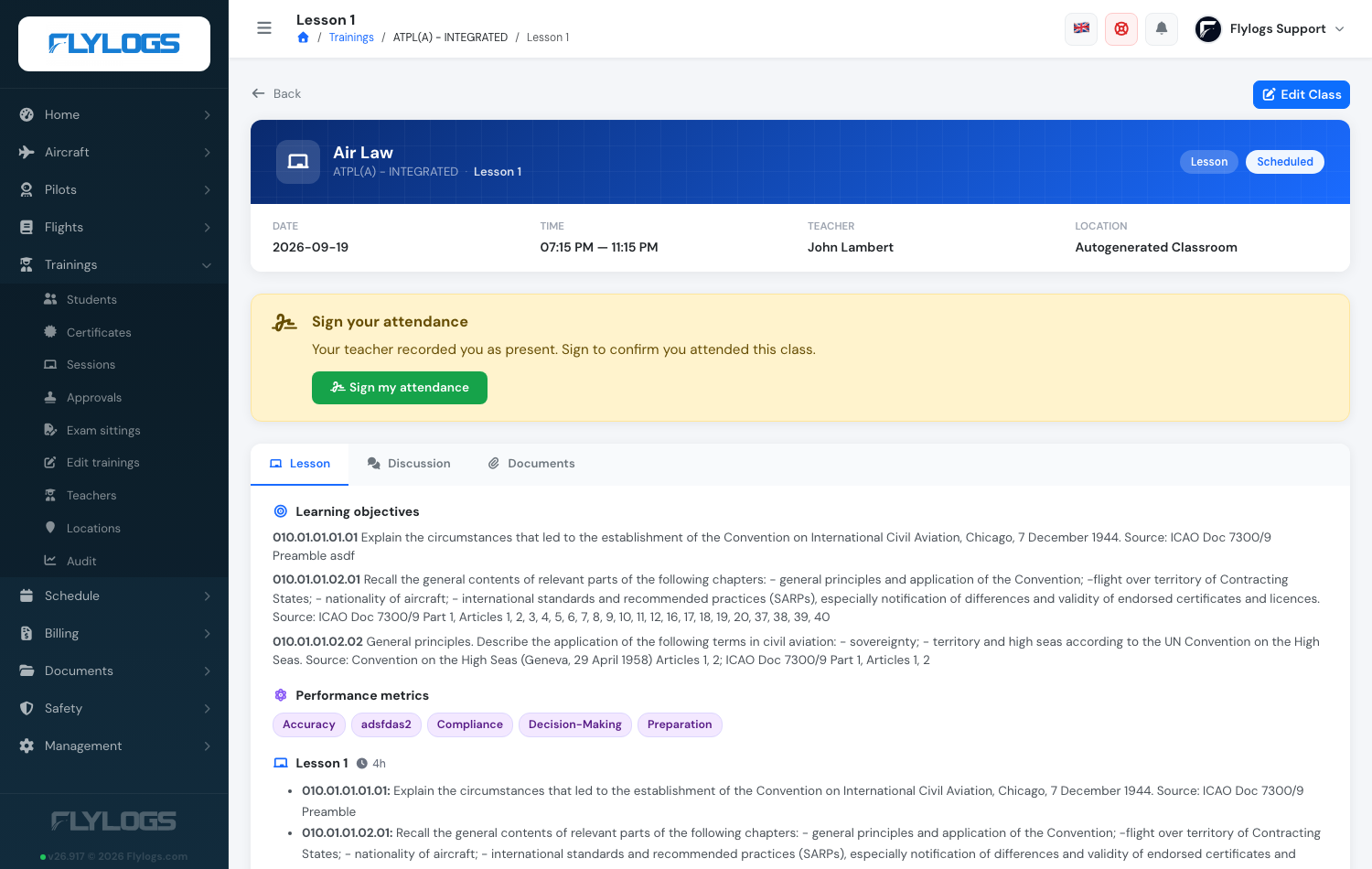
The prompt on the student's class page.
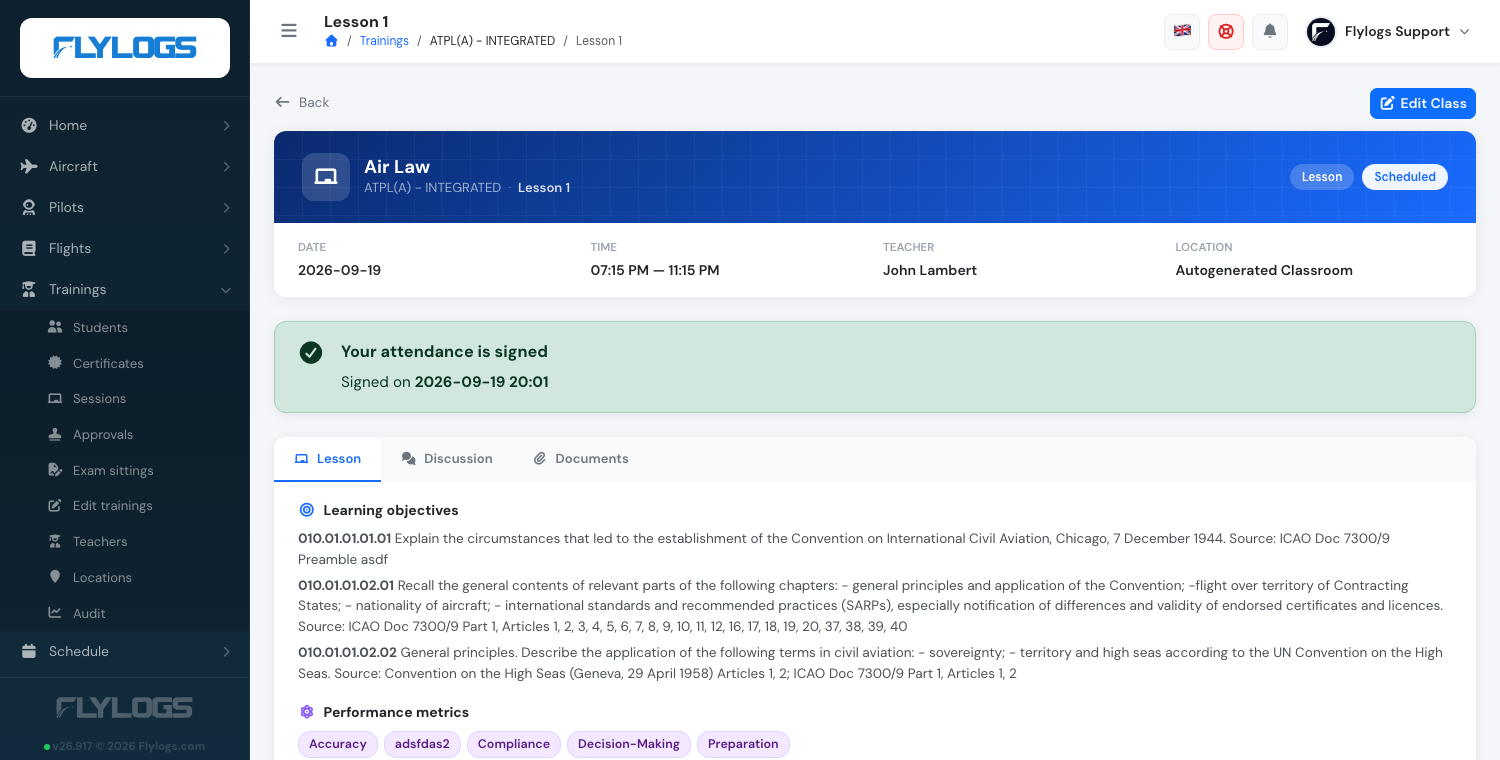
Once signed, the same banner confirms when it was done.
The window opens four hours before the class and, by default, never closes — a school can set a closing date per course, but nothing requires one. The teacher signing the register does not close it either: that signature says who was there, the student’s says they were, and the two are independent. Students who were absent are never asked to sign.
The requirement is not retroactive. A course that switches it on applies it to classes from that moment; everything taught before stays as it was recorded and is never shown as missing a signature.
If a student can’t sign, the class page says why: the class hasn’t started, their attendance isn’t recorded as attended, they’ve already signed, or the course’s own closing date has passed.
The missed-class email
Section titled “The missed-class email”When the register is signed, Flylogs automatically emails every student marked Absent. The email names the class, its date and location, a summary of the content, and links straight to the class page. It also tells the student whether class work has been requested and how to justify the absence, with the relevant deadlines if set.
Each student receives this email once per class — even if the register is later reopened and signed again, a student already emailed isn’t emailed a second time.
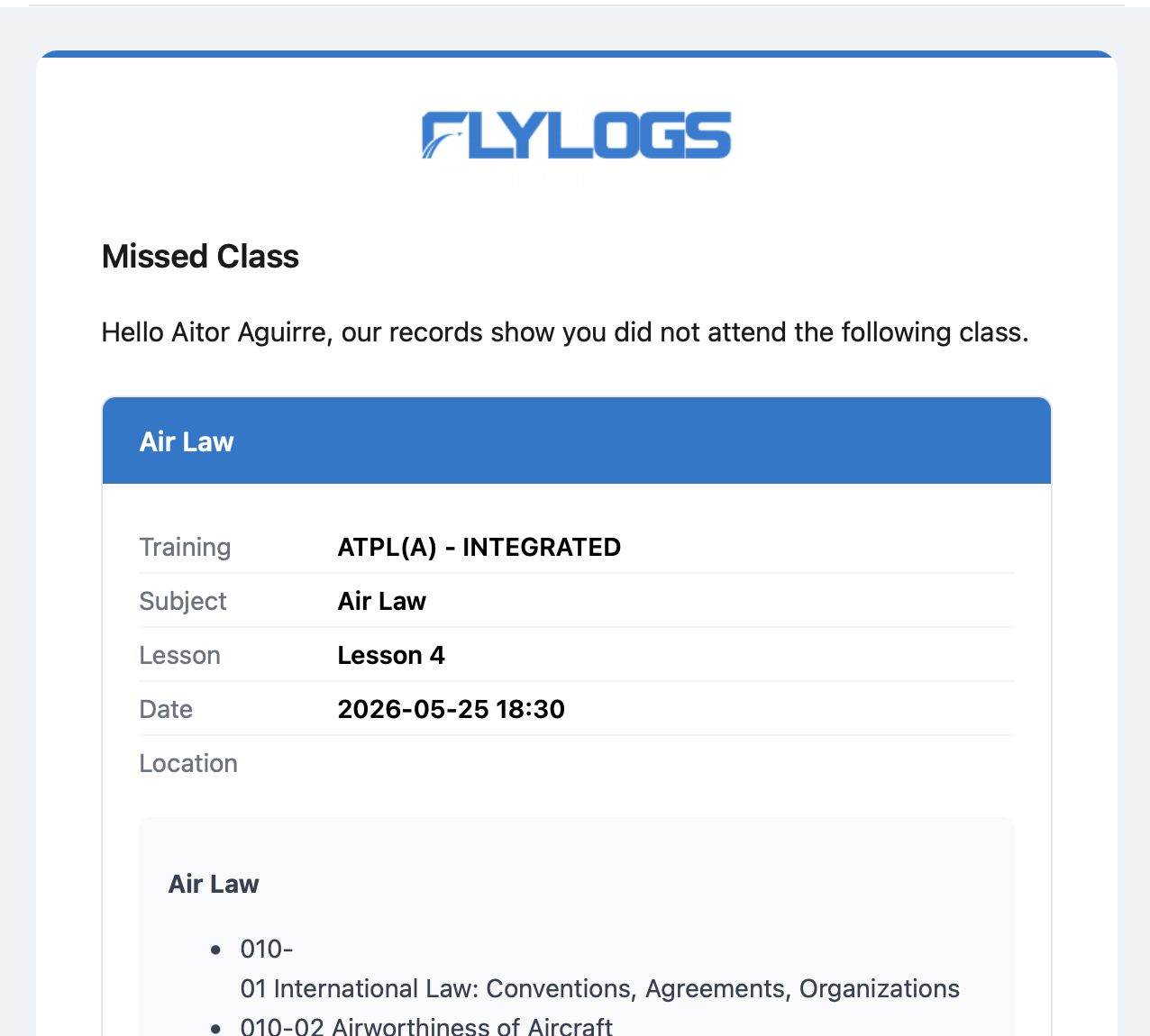
The missed-class email sent to an absent student.
A teacher can request class work (homework) from the class page’s Classroom tab — turned on there, not while scheduling the class. They set a deadline and write a description of what students need to do; students are notified and see a banner on the class page until they’ve dealt with it.
Once the register is signed, the request itself is frozen — it can’t be turned on, changed or cancelled after that point. Students can still upload their work after signing, which is the point: class work is often finished after a missed class, not before it’s caught up with. Each student only ever sees their own submissions; the teacher and any training manager see everyone’s, to evaluate.
One file, replaceable until the deadline — or until it’s graded. Class work is a single file. A student who wants to hand in something different deletes what they uploaded and uploads again, as often as they like. Two things close that window, whichever comes first: the deadline passing, or the teacher grading the work. After either, the file is locked — what the teacher graded is what stays. The teacher and any training manager can still remove it if something has to go.
While a class work request is open, the student’s class page shows a yellow banner asking for the work. Once they’ve submitted, it turns green and says so instead of nagging — the banner reports the state rather than demanding an action.
A student who submitted nothing by the deadline can still upload afterwards — that’s the whole point of the missed-class flow. Work that arrives after the deadline is accepted and marked Late wherever it’s shown, to the student and to the teacher alike. Extending the deadline afterwards removes the mark from anything the new deadline covers.
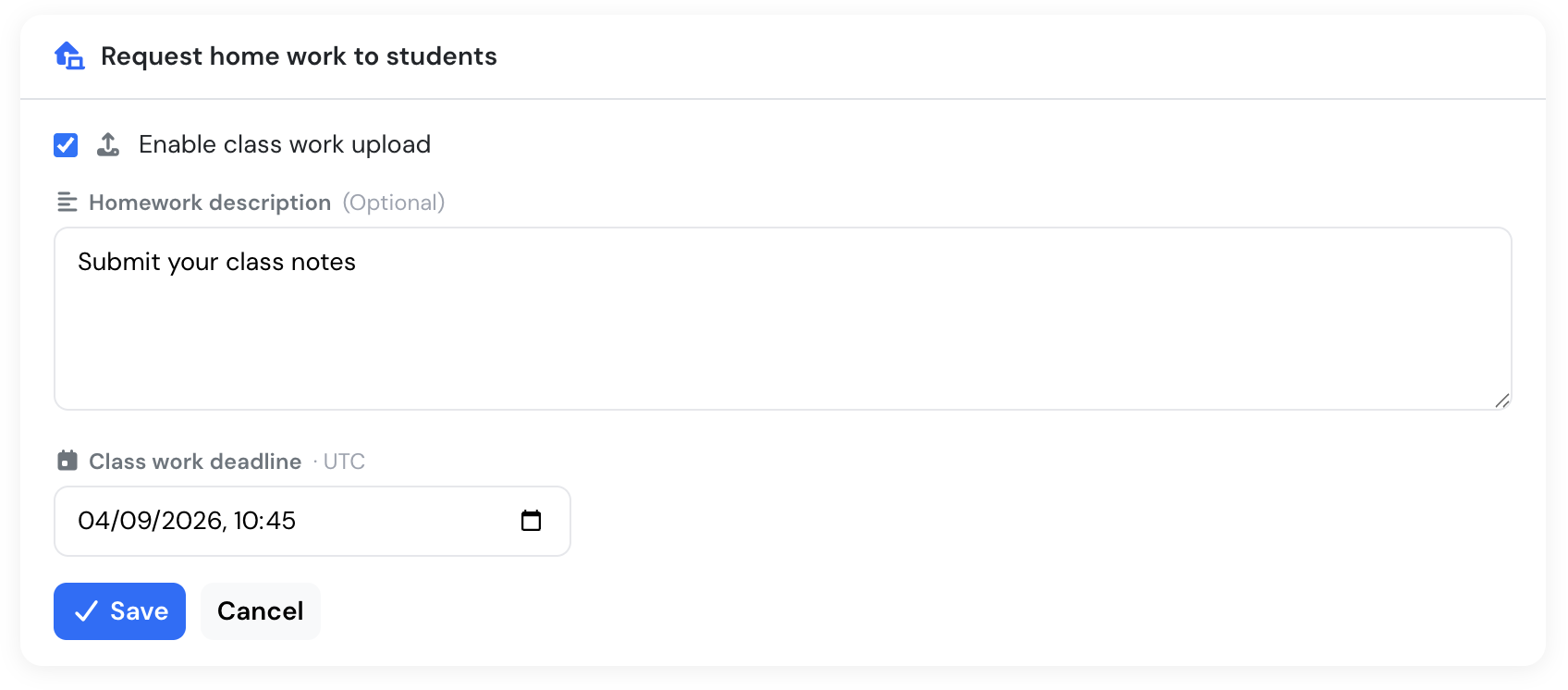
Requesting class work from the Classroom tab.
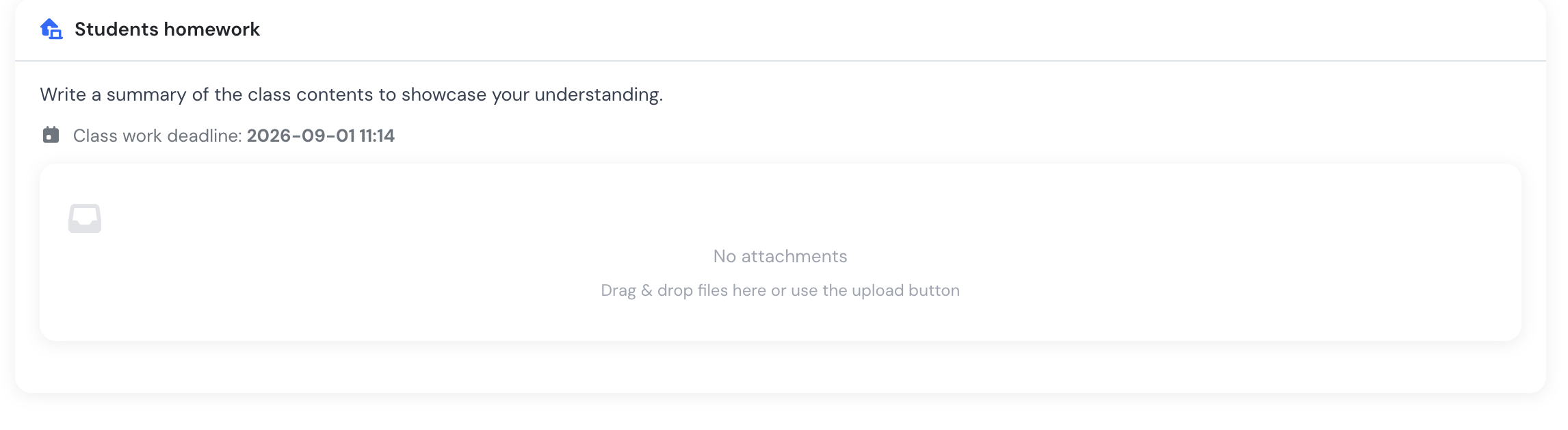
What the student sees: the brief, the deadline, and their own upload area. Students never see another student's file.
Grading class work
Section titled “Grading class work”The teacher — or the subject’s teacher, or any training manager — grades from the same Classroom tab. The class work box lists every student on the register: their file (with who uploaded it, when, and a Late mark if it applies), a score out of 10, and a comment for the student.
Students who handed nothing in still get a row, so a zero with an explanation is possible. Either the score or the comment is enough — an entirely empty grade isn’t saved. Re-grading overwrites the previous mark rather than adding a second one.
Saving a grade sends the student an in-app message with the score and the comment, linking back to the class. It’s a message only — no email, no phone notification. The student also sees their grade on the class page, under their own submission. Nobody sees anyone else’s mark.
Justifying an absence
Section titled “Justifying an absence”A student marked Absent can submit a justification from the class page’s Attendance tab — an explanation, a document, or both.
How a justification is decided
Section titled “How a justification is decided”The class’s teacher, or any training manager, reviews pending justifications from the same tab and either approves or rejects them, with an optional note. Approving sets the student to Absent (justified). Each submission gets one decision — if the student wants to try again, they submit a new justification rather than reopening the old one. Decided justifications stay visible on the same tab — the student’s explanation, the decision and the reviewer’s note — for the teacher and managers under Decided justifications, and for the student on their own class page.
Justifying an absence on the student’s behalf
Section titled “Justifying an absence on the student’s behalf”Evidence doesn’t always come through the student — a medical note handed in at the office, or an email to the training department. The class’s teacher, or any training manager, can add it themselves at any time after the class: in the Attendance tab, under Justify an absence, pick a student marked Absent, attach the document (and a note if useful) and select Justify absence. Because the teacher or manager is the one vouching for it, there’s no review step — the student is set to Absent (justified) straight away.
Only students still marked Absent appear in the list. If the student had already submitted a justification that is still pending, it stays in the review list and can be decided as usual; deciding it never undoes the justified absence.
Attended after the fact
Section titled “Attended after the fact”If a student makes up a missed class — for example by working through the content and any requested class work — a training manager can reopen the signed register and change that student’s status to Attended (post-class) instead of leaving them Absent or Absent (justified). It counts as attendance, but stays visible in reports as credit given after the fact rather than attendance on the day.
Recovering a class in another sitting
Section titled “Recovering a class in another sitting”When the same lesson is taught more than once — a morning and an afternoon cohort, or a repeat a few weeks later — a student who misses their own sitting can simply attend the other one. Nothing needs to be done by hand: as soon as the student is marked Attended in the other sitting (the teacher adds them to that class’s register if they are not on it), the missed sitting is credited automatically as Attended (post-class) and the lesson counts as attended in the student’s progress.
The record keeps the whole story. The missed sitting still shows that it was missed and which class recovered it — the register reads Attended (post-class) — recovered in the class of {date}, the same line appears on the printed class report, and the student’s attendance breakdown counts it under Credited after class, with the number of those that were recovered in another sitting shown separately. The status the row had before (Absent or Absent (justified)) is remembered too.
Two limits keep this honest:
- The other sitting must be within 90 days of the missed one, and within the student’s current enrollment. Last year’s run of the same lesson, or a previous enrollment, never excuses a new absence.
- If the attendance that earned the credit is later corrected to Absent, the credit is withdrawn and the missed sitting goes back to what it was — or moves to another sitting the student did attend.
A credit is only given for a sitting that has actually been marked absent. A sitting nobody has signed yet stays Not marked until the teacher decides it.
Students invited but not enrolled
Section titled “Students invited but not enrolled”Someone can be invited to a class without being enrolled in the training. They can open the class page, but no attendance or evaluation can be recorded for them: the register shows them read-only with a Not enrolled label, and they’re excluded from the attendance ratio, the missed-class email and the class work notification. Enrol them in the training to start recording their results.
How it’s reported
Section titled “How it’s reported”The student’s training record, the training report and its PDF all split missed sessions into three outcomes: justified, not justified, and credited after class. See Student management for where this appears.
Graded class work is part of the record as well. Every class that requested homework from the student is listed with the submission (On time, Late or Not submitted), the score, the teacher’s comment and who graded it, plus the average score. See Student management for where this appears.