

Aircraft reports
An aircraft report records something about the state of an aircraft: a defect, an informational note, a maintenance action, a servicing entry, or a MEL / CDL item. Every report carries the severity, the ATA chapter, the dispatch condition and whether the aircraft is left flyable or grounded.
Filing a report notifies the company’s managers and maintenance staff by message.
Reporting a defect without a flight
Section titled “Reporting a defect without a flight”A defect does not need a flight. Found something on the walk-around, on a parked aircraft, or with no flight planned at all? Use Report defect. You find it:
- on the Flights page, next to Log flight (you pick the aircraft in the form),
- on a booking: in the booking pop-up on the schedule and on the booking page,
- in the dispatch window, under Found a defect on the walk-around?,
- on the aircraft page.

Report defect sits next to Log Flight, so no flight is needed.
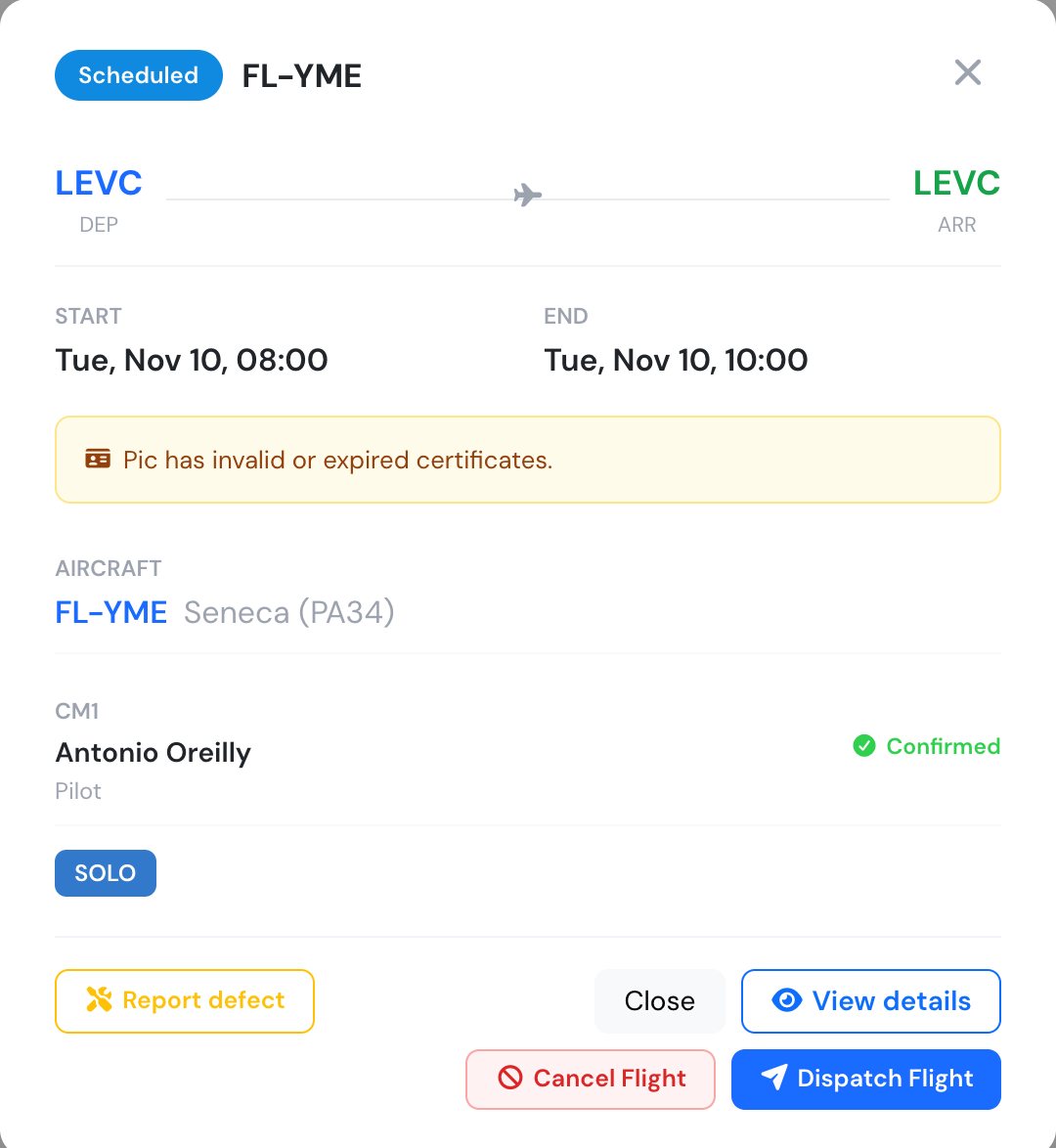
On a booking, the aircraft is already filled in.
Every user can file a defect this way, including pilots and students. No block or flight times are asked for. A company can keep it to managers, mechanics and the aircraft’s managers with Company Settings → Aircraft → Aircraft defects → Report defects without a flight; the button is then hidden from everyone else. You can still file a report from a logged flight, as before. Managers and maintenance staff also have Aircraft → Reports.
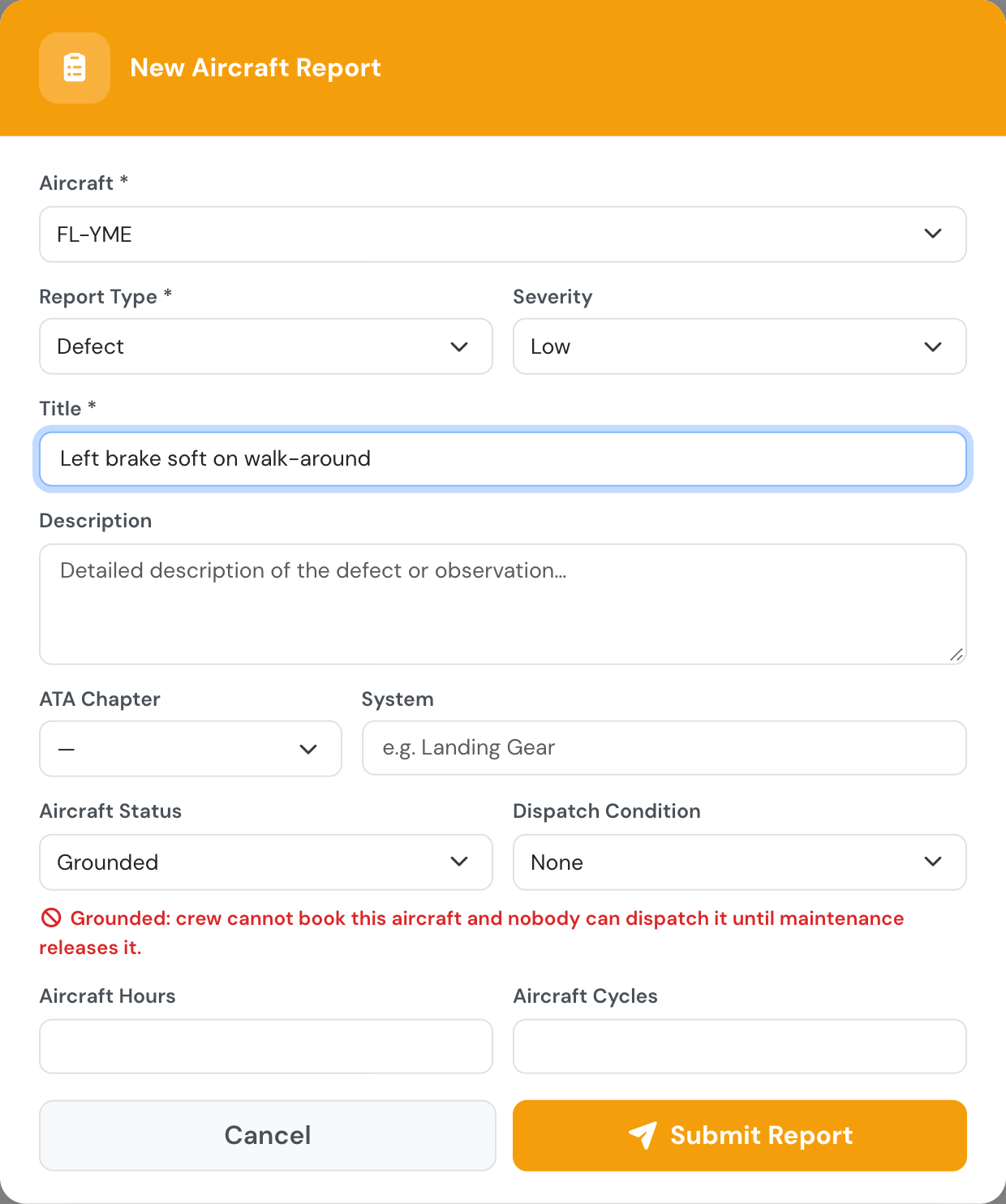
Choosing Grounded tells you straight away what it will do.
Grounding an aircraft
Section titled “Grounding an aircraft”Set Aircraft status (or Dispatch condition) to Grounded when the aircraft must not fly. While at least one open report grounds it:
-
Pilots, instructors and students cannot book it. The slot finder shows no slots and says why, and a booking attempt is refused.
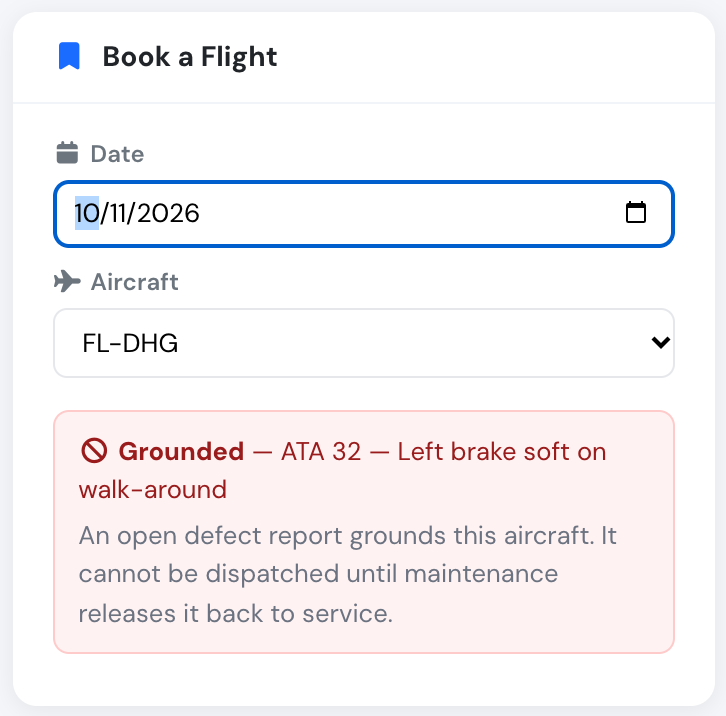
Book a Flight names the report that grounds the aircraft.
-
Nobody can dispatch it, managers included. The dispatch window says which report grounds the aircraft.

The dispatch window refuses a grounded aircraft for everybody. A defect found on the walk-around is reported right there.
-
Pilots, instructors and students cannot log a flight on it from Flights → Log Flight, or move a draft flight onto it. What counts is the time of the flight: a flight that took off before the report was filed (for example the flight on which the defect was found) can still be logged. Flights already logged are not affected, and a flight saved in the app while offline is always kept.
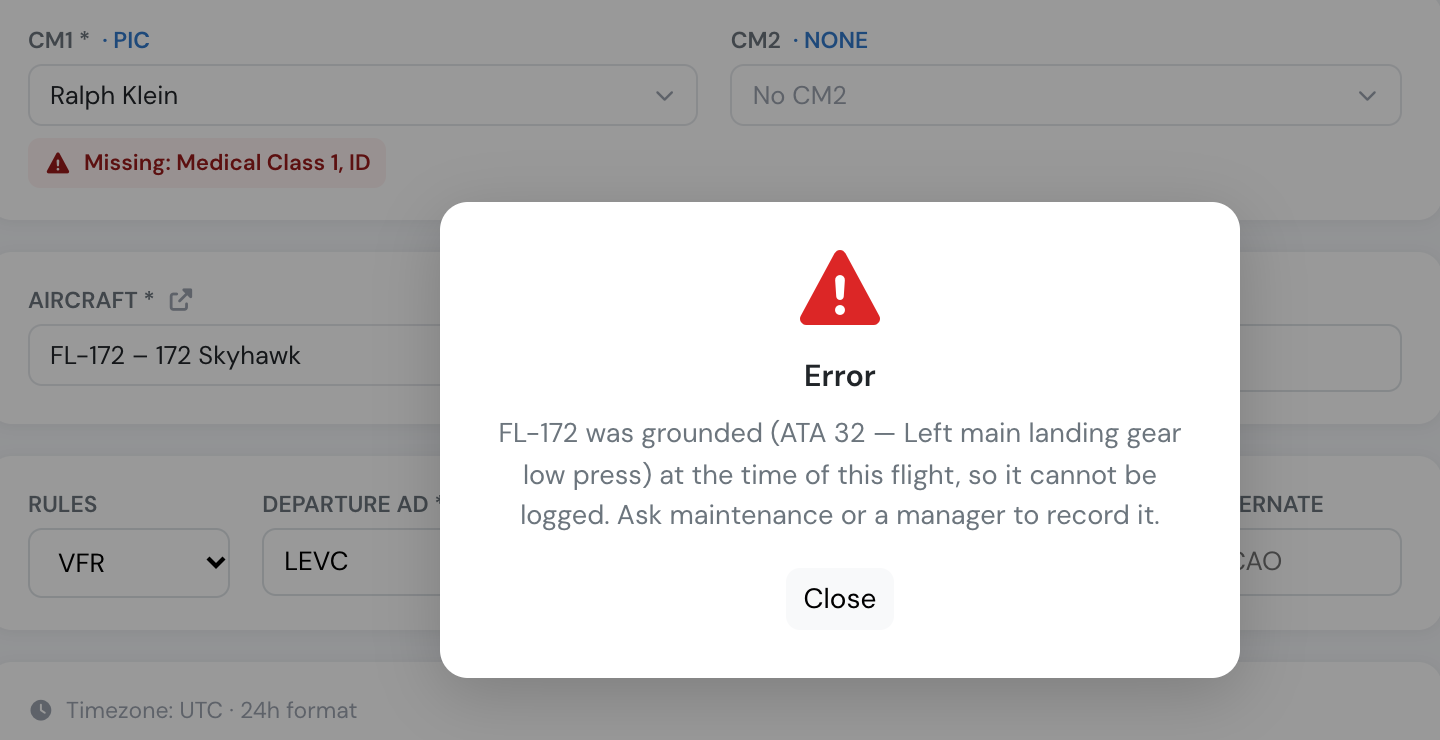
The flight form names the report that grounded the aircraft.
-
Company Administrators, Operations Managers, Compliance & Safety Managers, Chief Pilots, Mechanics and the aircraft’s managers can still book it, with a warning. This way they can plan the flights that follow the repair. Those flights cannot be dispatched until the aircraft is released either. They can also log a flight on it, with the same warning, when a flight really took place.
-
Bookings already on the aircraft are not cancelled. The message managers receive when the aircraft is grounded lists them, so they can decide what to do.
-
The fleet list shows a red “no entry” icon next to the aircraft, and the aircraft page shows a Grounded badge.
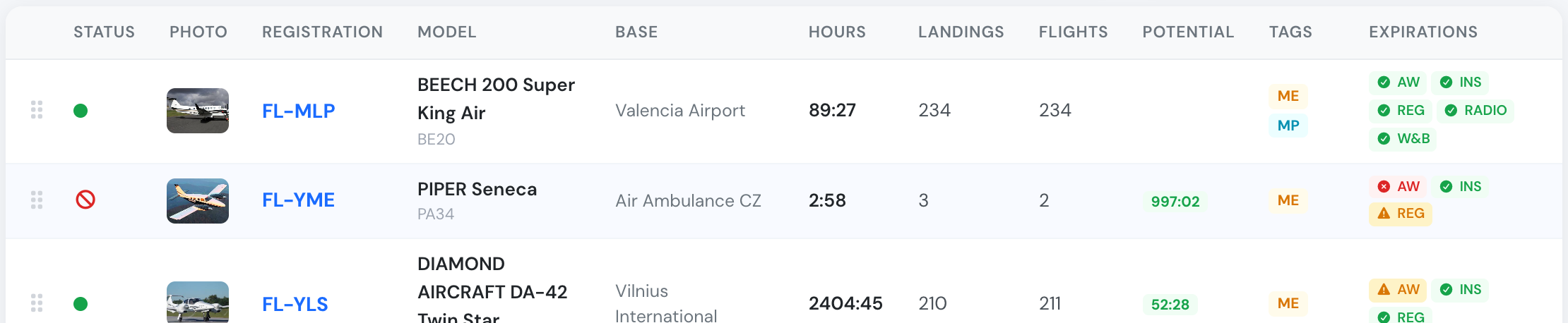
A grounded aircraft in the fleet list. Hover the icon to see why.
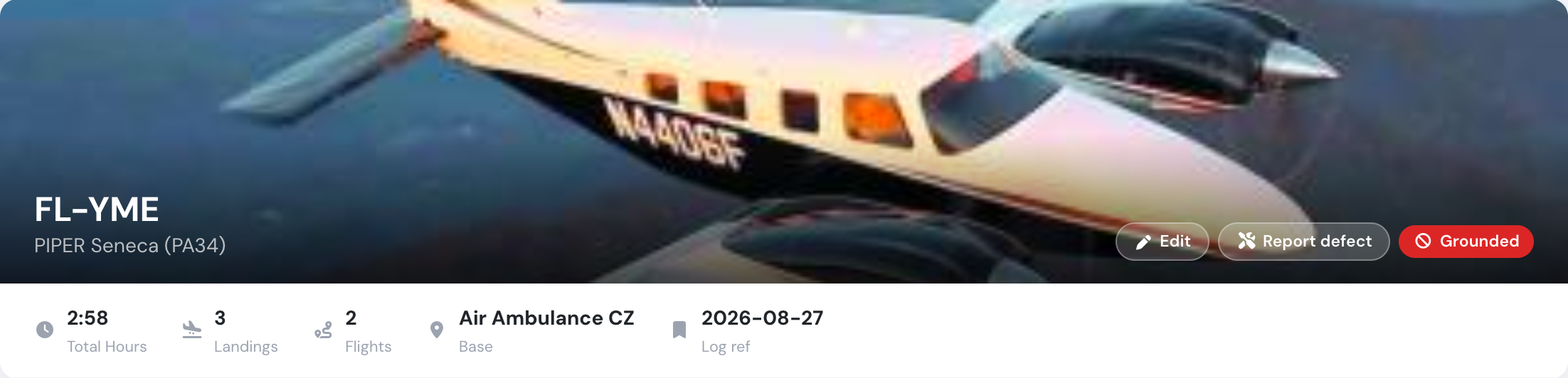
The aircraft page: Grounded badge and Report defect.
A Deferred report that is marked Grounded still grounds the aircraft.
Releasing the aircraft
Section titled “Releasing the aircraft”The aircraft is back in service when no open report grounds it any more. That happens when its reports are set back to Flyable, are closed, or are closed automatically when the CRS of their maintenance job is signed.
Only Company Administrators, Operations Managers, Compliance & Safety Managers, Mechanics and the aircraft’s managers can release a grounded aircraft. Anyone who can file a report can ground one. A pilot can take an aircraft out of service, but only maintenance can put it back.

For everyone else the Flyable and Closed choices are locked.
Hints while you write a defect
Section titled “Hints while you write a defect”Once the title and description say enough, the report form may show:
- ATA chapter — the chapter the defect reads like, with an Apply button. Nothing is filled in until you click it.
- Already reported? — when an open report on the same aircraft looks like the same defect, with a link to it. You can still file yours; it may add something the first one missed.
- Maintenance may already be on it — when an open maintenance job on the same aircraft looks like it covers the defect.
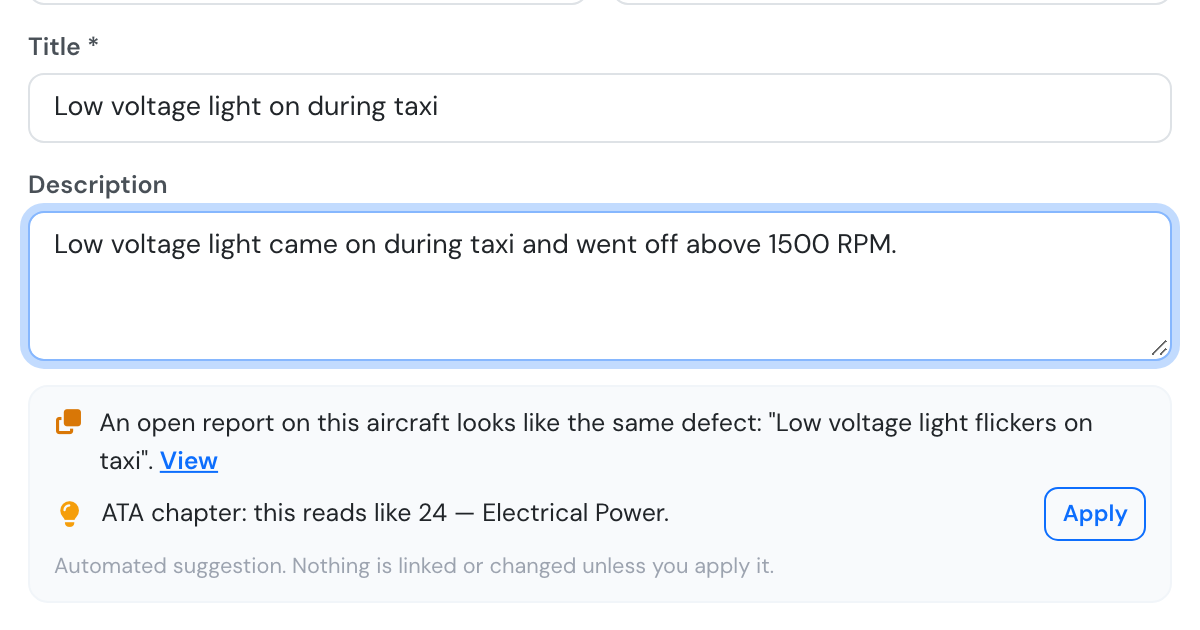
An open report already describes the same light, and the ATA chapter is ready to apply.
These are automated suggestions. They never link your report to a job (that stays a maintenance decision, see below) and they appear only while you are online. Anyone who can file an aircraft report sees them.
Reports and maintenance jobs
Section titled “Reports and maintenance jobs”Not every defect grounds the aircraft. A blown navigation light is not required for VFR flight; an inoperative ADF is not required unless you are navigating on instruments. Reports like these pile up while the aircraft keeps flying and get fixed together at the next scheduled visit.
Flylogs supports exactly that: one maintenance job can clear several aircraft reports. A report belongs to at most one job, a job can hold as many reports as you like, and each of those reports can be worked through as many work orders as the job needs.
When the job’s CRS is signed, every report attached to it is closed automatically, with the date and the signing user recorded.
Three ways to group reports
Section titled “Three ways to group reports”From the report — open the report and choose:
- Open maintenance job to create a new job for it, or
- Add to existing job to attach it to a job already open for that aircraft.
From the report list — tick the reports you want (Aircraft → Reports), then use New maintenance job or Add to existing job in the bar that appears. The selection is confined to a single aircraft: a maintenance job belongs to one airframe, so picking a report from a different aircraft starts a fresh selection.
From the job — open the maintenance job and use Add reports in the Aircraft Reports card. The picker lists only open or deferred reports of that aircraft that are not yet on another job.
To take a report back out, use Detach from job — either on the report itself or on the row in the job’s Aircraft Reports card. The report stays open and can be grouped somewhere else.
Closing a report
Section titled “Closing a report”A report can be closed in two ways:
- Automatically, when the maintenance job it is attached to has its CRS signed.
- Manually, with the Close report button on the report. Use Reopen if it was closed by mistake.
You never fill in a closing date. Flylogs records who closed the report and when, from the action itself. Reopening a report clears that record.
Reports that are still outstanding can also be parked as Deferred, with a reference (MEL / CDL number) and a deferral date, while the aircraft keeps operating under that condition.
MEL and CDL items
Section titled “MEL and CDL items”A report of type MEL or CDL is a special case: it carries its own category, computed rectification deadline, releaser and operational limitations, and an expired one is a hard block on flight dispatch. See MEL / CDL items for the full picture, including the exact rectification intervals and who may raise, release, extend or close one.
Who can do what
Section titled “Who can do what”| Action | Who |
|---|---|
| File a report, view reports | Any user of a company on a premium or unlimited plan |
| File a report without a flight | Everyone. With Report defects without a flight switched off: Company Administrators, Operations Managers, Compliance & Safety Managers, Chief Pilots, Mechanics and the aircraft’s managers |
| Ground an aircraft (mark a report Grounded) | Anyone who can file a report |
| Release a grounded aircraft (set it back to Flyable, or close its report) — while Grounded aircraft cannot be booked or dispatched is on | Company Administrators, Operations Managers, Compliance & Safety Managers and Mechanics, or a manager of the aircraft |
| Book a grounded aircraft (with a warning) | Company Administrators, Operations Managers, Compliance & Safety Managers, Chief Pilots and Mechanics, or a manager of the aircraft. Nobody can dispatch it |
| Close / reopen a report, edit management fields | Company Administrators, Operations Managers, Compliance & Safety Managers and Mechanics |
| Attach / detach reports to a maintenance job | Company Administrators, Operations Managers, Compliance & Safety Managers and Mechanics, or the user the aircraft is assigned to |
| Raise a MEL/CDL item | Company Administrators, Operations Managers, Compliance & Safety Managers and Mechanics, or the aircraft’s assigned pilot |
| Edit, extend or close a MEL/CDL item | Company Administrators, Operations Managers, Compliance & Safety Managers and Mechanics only — the assigned-pilot exception does not apply |
| Be the releaser on a MEL/CDL item | Company Administrators, Operations Managers, Compliance & Safety Managers and Mechanics, or the requesting user themselves — never a Student Pilot |
Aircraft reports are part of the maintenance module and require a premium or unlimited subscription plan.