

Schedules for Pilots & Flight Instructors
This guide explains how pilots and flight instructors see their assigned flights, confirm or reject assignments, cancel a scheduled flight, and dispatch a flight directly from the schedule.
If you are looking for the operations/manager side of scheduling, see the Schedule Review page and the Flight Dispatch Function.
Where to see your schedule
Section titled “Where to see your schedule”Home dashboard
Section titled “Home dashboard”When you log in, your home dashboard shows the Upcoming Flights panel with every flight you are assigned to as PIC, SIC or Supervisor, together with a weekly Calendar of your assignments.
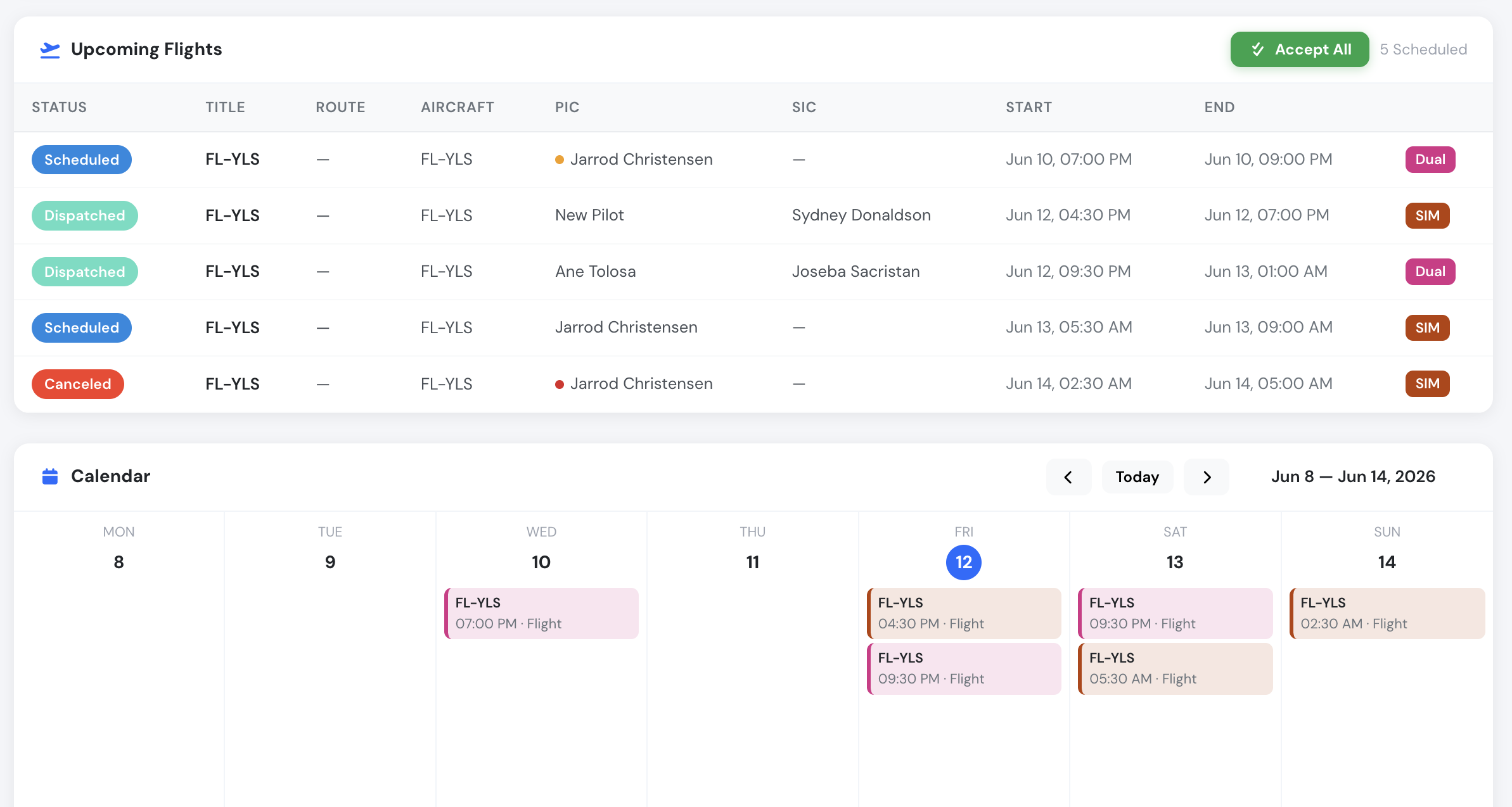
Upcoming Flights panel and weekly calendar on the pilot home page
Each row shows the schedule status, route, aircraft, crew, start and end times, and the flight type badge (for example Dual or SIM).
A compact version of the same widget is available on other dashboards:
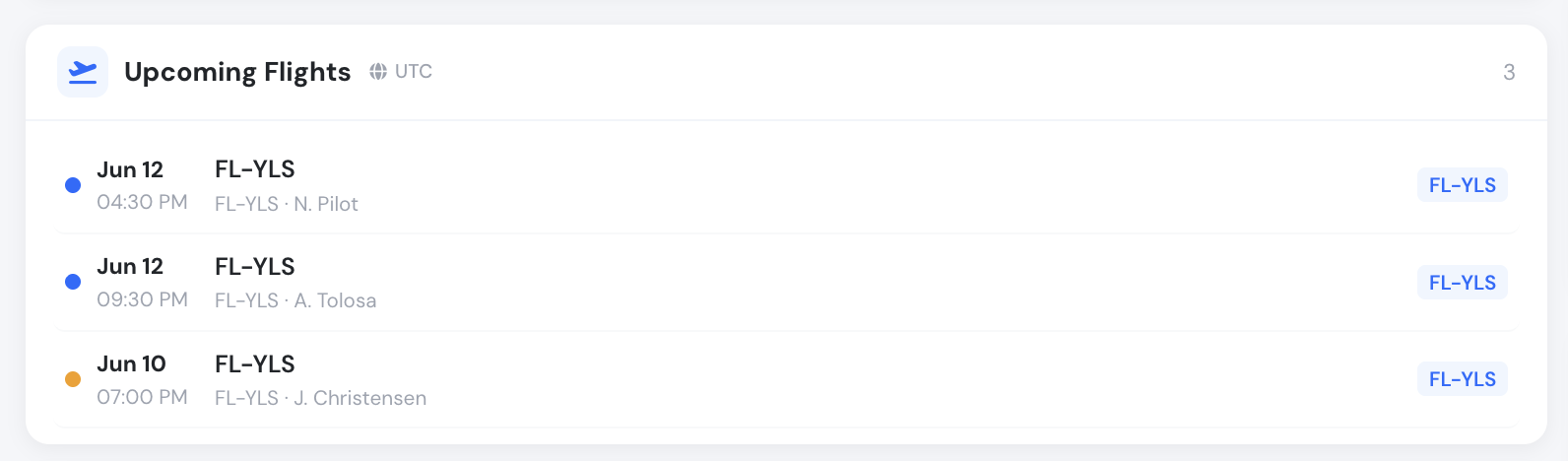
Compact Upcoming Flights widget
Timezone
Section titled “Timezone”All schedule times are displayed in your company timezone, not in your device timezone. The active timezone is always shown next to the panel or page title with a globe icon (for example, UTC or Europe/Madrid). If a time looks off by a few hours, check the timezone indicator first.
Status badges
Section titled “Status badges”| Badge | Meaning |
|---|---|
| Scheduled | The flight is published and waiting for crew confirmation. |
| Confirmed | All required crew members have accepted the flight. |
| Dispatched | A flight draft has been created and linked to this schedule. |
| Canceled | The flight was cancelled by the crew or by operations. |
Crew confirmation dots
Section titled “Crew confirmation dots”A small colored dot next to each flight summarizes the crew confirmation state:
- 🟢 Green — crew member accepted the flight.
- 🟠 Amber — confirmation is still pending.
- 🔴 Red — crew member rejected the flight, or the flight is cancelled.
- 🔵 Blue — no confirmation is required for this record.
When a flight has both a PIC and a SIC, the dot is split in two halves: the left half shows the PIC status and the right half shows the SIC status.
Viewing flight details
Section titled “Viewing flight details”Click on any flight in the list or on a calendar event to open the schedule detail window. It shows the start and end times, the aircraft, the assigned crew with their roles, any linked training course exercise (for example First Solo flight), and the flight type.
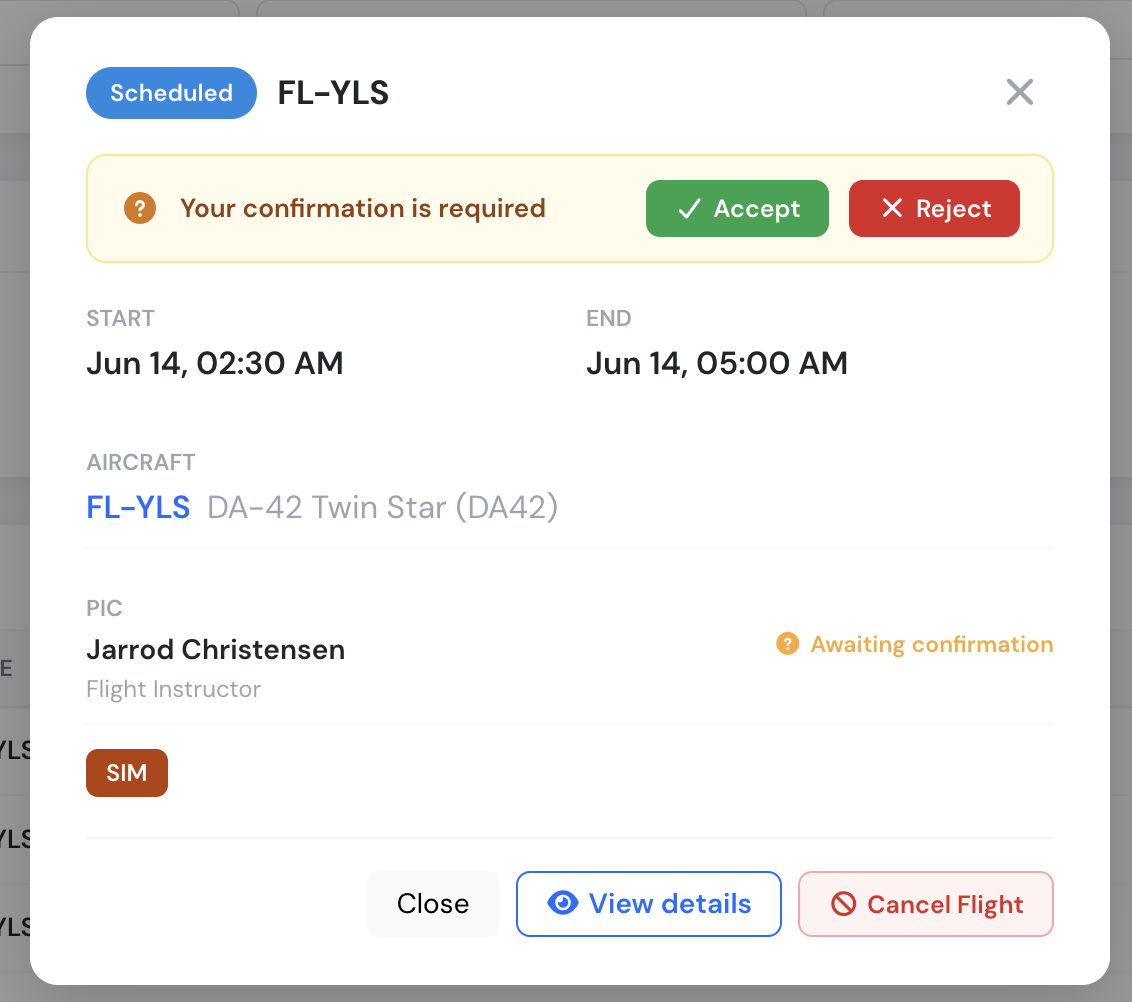
Schedule detail window — this flight is awaiting your confirmation
From this window you can:
- Accept or Reject the assignment (when your confirmation is pending).
- View details — opens the full schedule view page with the complete overview, crew information, aircraft data, attachments and the change history of the record.
- Cancel Flight — see Cancelling a flight below.
Confirming your assignments
Section titled “Confirming your assignments”When operations publishes a flight you are assigned to, your confirmation is requested:
- The flight appears with an amber pending dot and the detail window shows the banner “Your confirmation is required” with Accept and Reject buttons.
- You can confirm each flight individually, or use the Accept All button at the top of the Upcoming Flights panel to accept every pending assignment at once.
- If you do not confirm before the scheduled departure time, the record is marked as Confirmation missed and Accept/Reject are no longer offered. As PIC you can still dispatch the flight: dispatching it counts as your acceptance (see Dispatching a flight from the schedule).
Rejecting a flight notifies the schedule managers so they can reassign the crew.
Cancelling a flight
Section titled “Cancelling a flight”Crew members (PIC, SIC or supervisor) can cancel a flight they are assigned to from the schedule detail window or the schedule view page using the Cancel Flight button. A cancellation reason must always be selected, and some reasons require an additional written explanation. You never need to dispatch a flight just to cancel it.
You can cancel while the booking is Scheduled, Pending or Dispatched:
- Aircraft, weather (MET), maintenance and ATC reasons can be used at any time, even after the scheduled departure time.
- Personal and other reasons are only accepted outside the company’s minimum cancellation window, if one is configured. For example, if your company sets a 24-hour minimum, inside those 24 hours the reason list only offers the aircraft, weather, maintenance and ATC reasons. For anything else, contact your operations department.
- If your company has set the window to Disabled, crew cannot cancel their own bookings at all.

Inside the company's cancellation window only aircraft, weather, maintenance and ATC reasons are offered
If the flight has already been dispatched, the form says so. Cancelling the booking also cancels its flight draft, so you don’t have to open the flight separately. Any training mission authorization the flight used is handed back, and the reason is recorded in both the schedule history and the flight history. A flight that has already been logged can’t be cancelled from the booking.
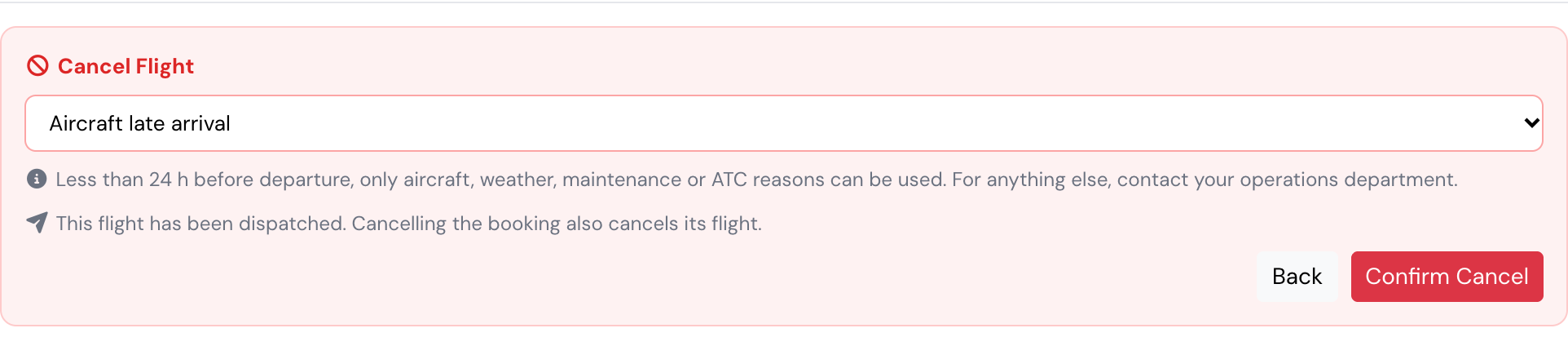
Cancelling a dispatched booking also cancels its flight
Cancelled flights remain visible with the Canceled badge and the cancellation is recorded in the schedule history. See Schedule cancellations for more detail.
Dispatching a flight from the schedule
Section titled “Dispatching a flight from the schedule”Crew members can dispatch their own flight directly from the schedule view page — this creates the flight draft with all operational data pre-filled, exactly as described in the Flight Dispatch Function.
The Dispatch button appears on the schedule view page when the schedule is in Scheduled or Confirmed status and no flight has been created for it yet. Who can use it depends on your role on that flight:
| Role on the flight | When can you dispatch? | Time restriction |
|---|---|---|
| PIC | Any time, unless you rejected the flight. If your confirmation is still pending or was missed, dispatching accepts the flight for you | None |
| SIC | Only after both PIC and SIC have accepted | From 6 hours before until 2 hours after the scheduled start |
| Supervisor | Always — no confirmation required | None |
Additional notes:
- PIC and SIC also need an active account with permission to create flights. The Supervisor of the flight is always allowed to dispatch, regardless of confirmations, time window, or flight creation permission.
- Users in the Flight Dispatcher group and above can dispatch any booking, without waiting for the crew to confirm.
- On dispatch, Flylogs checks the required pilot certificates (medical, license, ratings). If any required certificate is missing or expired, the dispatch is rejected.
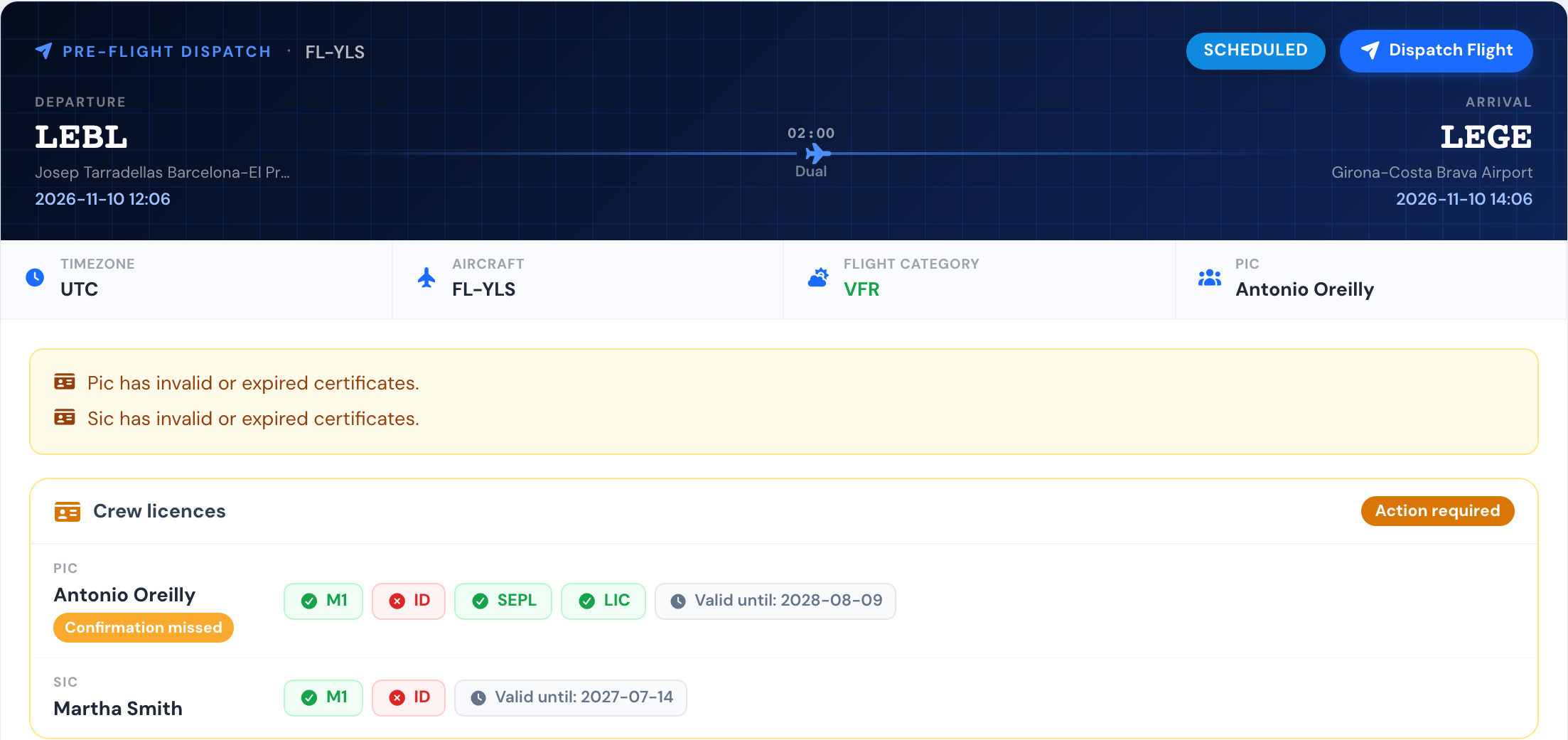
The PIC missed the confirmation but can still dispatch the flight
Once dispatched, the schedule switches to Dispatched status and the detail window shows a confirmation banner with a direct link to the created flight:
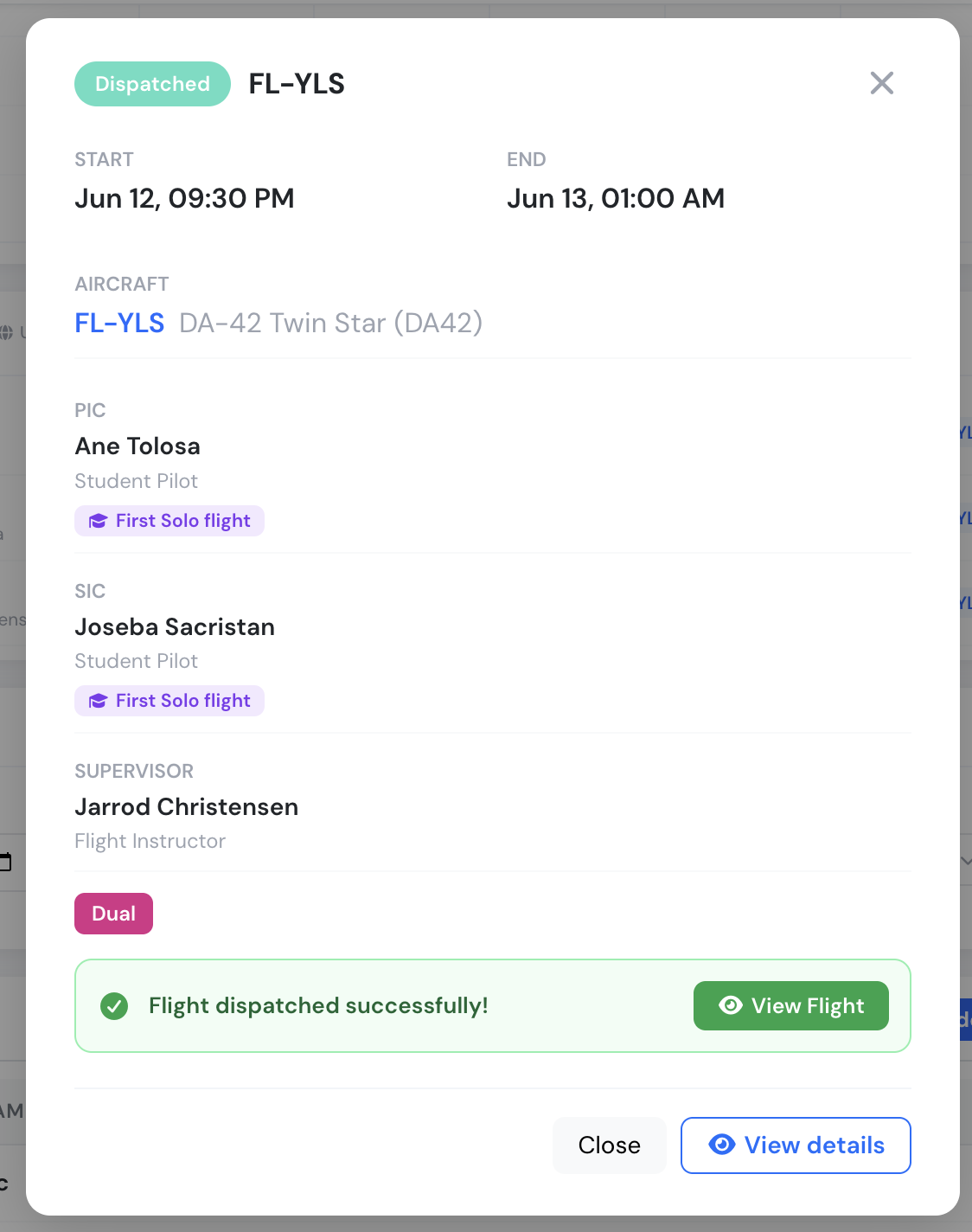
A dispatched flight — the crew, supervisor and the link to the created flight draft
Summary
Section titled “Summary”- Your assigned flights appear on your home dashboard and in the schedule calendar, always displayed in the company timezone.
- Confirm or reject assignments from the flight detail window, or use Accept All.
- Cancel with a reason, without dispatching first. Aircraft, weather, maintenance and ATC reasons are accepted at any time; other reasons only outside the company’s minimum cancellation window.
- PIC, SIC and Supervisor can dispatch their own flight from the schedule view page, each under their own conditions — the Supervisor can always dispatch.