

Account types
Every time you create a new Flylogs user within your account, you need to carefully select the desired account type. The account type you select will determine the access level of the new user.
You can create:
- STAFF MEMBERS, which can also have PILOT privileges.
- Pilots with no company management privileges.
- Cabin Crew members (or Specialists in Specialised Operations companies).
- Mechanics.
- Auditors with external read-only access.
Staff members
Section titled “Staff members”Staff members are people working in your organization. Usually this members will have a management role of some level, and in some cases, some could also have some flight crew duties.
To create staff members, navigate to Company > Staff > Create a new user
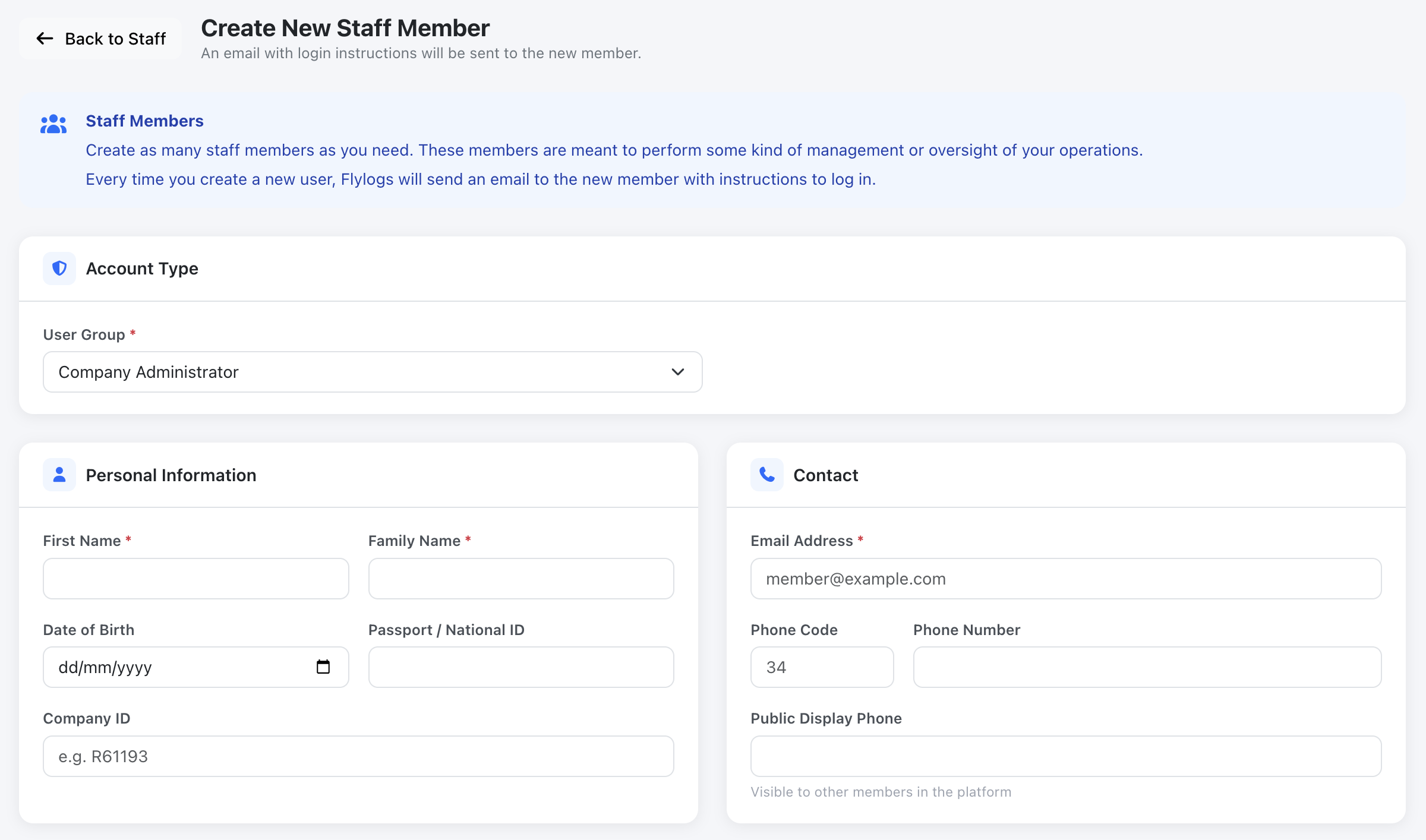
Create new staff member form
All staff members require at least the following fields:
- Name
- Family name
- Email address
- User type
Management Account Types
Section titled “Management Account Types”- Company administrator: It is the highest level. The user that creates the company is usually a company administrator, but new administrators can be created and the initial can be downgraded or deleted.
- Operations manager: This profile has access to all options except the management of the administrator account.
- Compliance & Safety manager: Access to reporting tools, docs, flights, trainings and SMS.
- Human resources manager: Create and manage any other company user.
- Financial manager: Access to manage company billing and user account balances. Also has the ability to manage the Flylogs Premium subscription and download the bills.
- Trainings manager: Dedicated to managing the trainings module. Can create and edit training programs, schedule sessions, record attendance and manage exams and progress for students.
- Crew Scheduling: Limited access with privilege to manage the flight schedule and pilot info and availability.
- Flight Dispatcher: This profile can edit or cancel scheduled flights. Also can confirm and enter flight details after their landings.
As mentioned before, any of these STAFF profiles, can also be activated as pilot. In that case, the user will appear both in the STAFF members and PILOTS lists.
Pilots
Section titled “Pilots”Pilot management can be performed by any Company administrator, Operations manager or Human Resources manager.
Pilots do not have company management privileges and are designed to be selected in any flight, schedule, training or SMS report forms.
In contrast with STAFF members, pilots can be created without email address. This will allow you to schedule or store flight data for a pilot without or unknown email address. In this case, the pilot, will not have LOGIN access to Flylogs.
Pilots can also be created with or without flying privileges. This way, you can control who can or can not fly. This is usefull for student pilots still in their first stages of the trainings. It will remove non-flying pilots from flight/scheduling forms to avoid errors and remove clutter.
Pilot account types:
Section titled “Pilot account types:”- Chief Pilot: This pilot has access to view all other pilots, flights, aircraft, SMS and schedules, and can publish and edit company documents and document folders as well as the documents attached to each aircraft. Editing the aircraft themselves and signing maintenance remains with administrators, operations managers and mechanics.
- Flight Instructors, have a more limited access to view all their own flights, schedules and SMS. They can also view all students.
- Theory Knowledge Instructor (TKI): ground-school teacher. Teaches theory classes and sees the students of the courses they teach. Flight schools only. See Theory Knowledge Instructors below.
- Captain: Own flights and schedule view/edit only. Can also see the company’s active aircraft under Aircraft (read only, including the aircraft documents, which they can open but not upload, edit or delete), and the Fleet Maintenance Status card on the home page.
- Pilot: Own flights and schedule view/edit only. Can also see the company’s active aircraft under Aircraft (read only, including the aircraft documents, which they can open but not upload, edit or delete), and the Fleet Maintenance Status card on the home page.
- Student Pilot: This is the most limited access with view only capabilities and limited access to other pilot profiles.
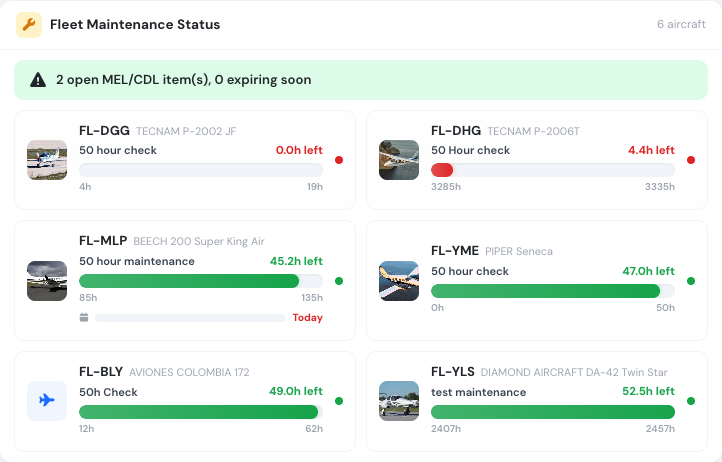
The Fleet Maintenance Status card on the home page of a Captain or Pilot, on plans that include maintenance
Theory Knowledge Instructors
Section titled “Theory Knowledge Instructors”The Theory Knowledge Instructor (TKI) account type is for the people who teach ground school: air law, meteorology, human performance and the other theory subjects. It is offered to flight schools only. Other company types do not see it when they create a user.
A TKI never has more access than a Flight Instructor. Everything a TKI can see about students is limited to the courses they teach: courses where they are the teacher of a subject, or of a class that was not cancelled.
What a TKI can do:
- Teach theory classes: take attendance, sign the class, grade homework and review absence justifications on the classes where they are the teacher.
- Edit the details of the classes they teach (date, duration, location, remarks) with Edit class. New classes are still scheduled by the training staff.
- Record onsite exam results for the students of those courses.
- Be picked as the teacher of a subject.
- Open Trainings → Students and the student record, read only. The list only shows the courses they teach and the students enrolled in them. The home page has a My Students shortcut to it.
- Download the training report and the completion certificate of those students.
- Everything a line pilot can do with their own flights, schedule and documents.
What a TKI cannot do:
- See students of courses they do not teach.
- Enroll, edit, complete, reset or move students, change an enrollment status or write manager notes.
- Edit courses, subjects, lessons, exams, stages, stage checks or intakes, or approve missions and enrollment requests.
- See the list of issued certificates.
- Anything reserved to Flight Instructors: sign flight lessons, appear as a flight instructor in bookings or instructor availability, see My students under Pilots (FI assignments), the flights audit or the annual flight report.
- Create or confirm flights, unless you tick Theory Knowledge Instructor under Company settings → Flights (Who can create flights / Who can confirm flights), the same as for Captains and Pilots.
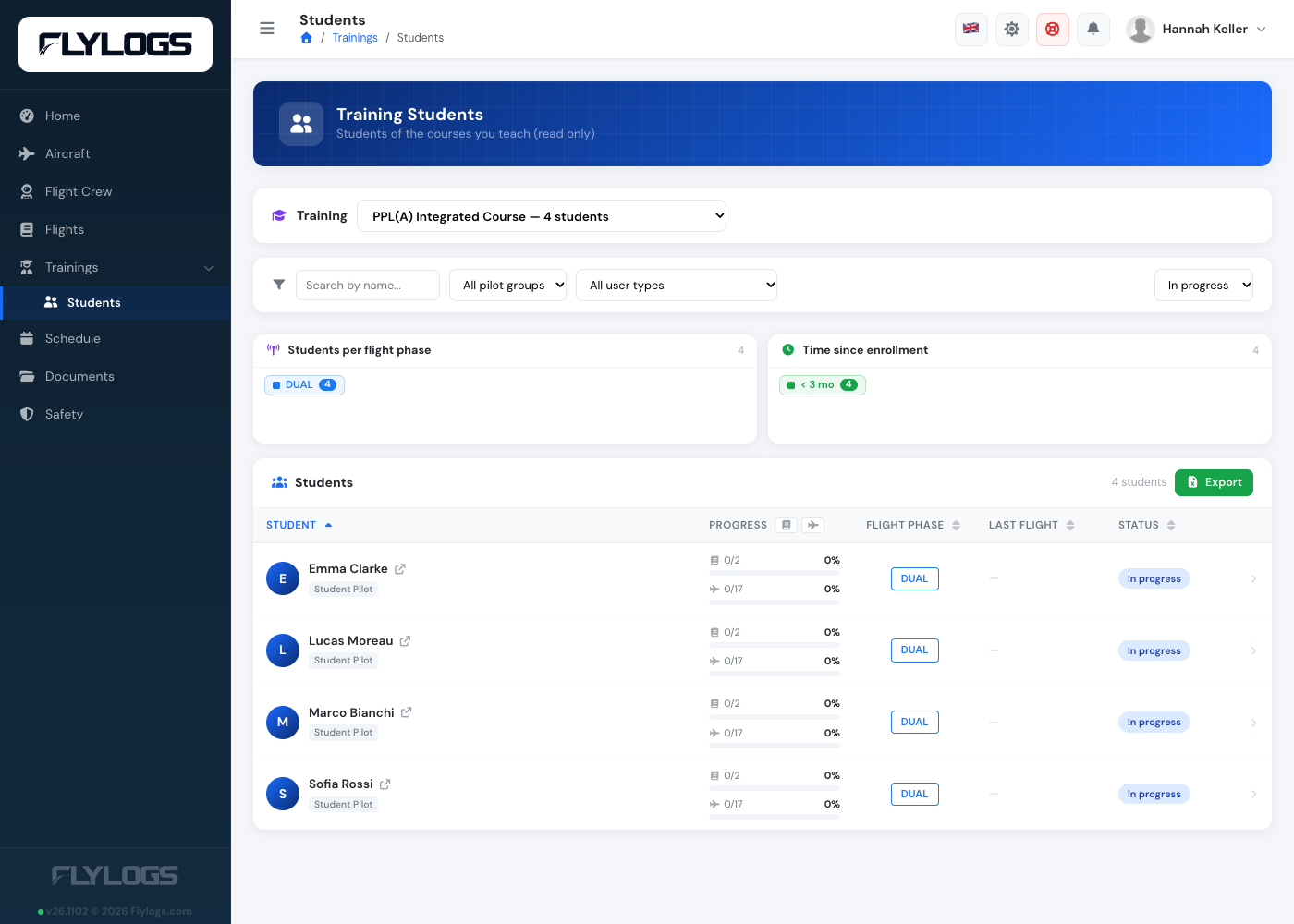
A Theory Knowledge Instructor sees only the courses they teach, read only.
Instructors who also teach theory: keep them as Flight Instructor. A Flight Instructor can already teach theory classes and see every student, so they do not need the TKI type.
Cabin Crew
Section titled “Cabin Crew”Cabin Crew members can be added to flights as part of the crew, alongside pilots. They have a personal view of their own assigned flights, schedules and documents, but no company management privileges.
Like pilots, cabin crew members can be created without an email address if login access is not required.
Specialised Operations (SPO) companies use the Specialist account type instead. It has the same permissions. See Specialists below.
Specialists
Section titled “Specialists”Specialist is the crew account type for Specialised Operations (SPO) companies. It does the same job as Cabin Crew and has the same permissions, with no company management privileges.
Which one you see: the account type list depends on your company type. SPO companies see Specialist when creating crew members. Every other company type sees Cabin Crew. Each company only sees the one that matches its type, so you never have to choose between them yourself.
What a Specialist can do:
- Be added to flights as crew, alongside pilots, and be assigned to schedule entries.
- See their own assigned flights, schedules and documents, and manage their own documents where your company allows it.
- Sign their own attendance in trainings classes they are enrolled in.
- Read mass-and-balance results and loadsheets for flights they are on, and aircraft loadsheets they are allowed to see.
- Open the crew home dashboard. It is the same dashboard as Cabin Crew.
What a Specialist cannot do: manage other users, billing, company settings, or any company-wide management area. Everything else is limited the same way as for Cabin Crew.
Moving between types: if your company was SPO and had Cabin Crew accounts, those accounts were moved to Specialist. If your company type changes later, existing accounts keep their current type. Only the list offered when creating new accounts changes.
Mechanics
Section titled “Mechanics”Mechanics have access to all aircraft details. They can manage maintenance jobs and work orders, and view and download all aircraft flight and logbook information.
Auditors
Section titled “Auditors”Auditors are external users granted read-only access to your company. They are typically used to provide regulators, inspectors or external compliance reviewers a temporary view of your operations without giving them permission to modify any data.
Auditor accounts have a few rules that always apply and cannot be turned off when creating or editing one:
- Always temporary. Every auditor account must have an expiration date, no more than 90 days in the future. Once it passes, the account can no longer log in — you can extend it at any time by editing the account and setting a new expiration date (also capped at 90 days out).
- Never a pilot. Auditor accounts can never be granted flying privileges.
- Email-based two-factor only. Auditors always verify login with a code sent to their email — this can’t be changed to an authenticator app or turned off.
- No personal contact details of other people. An auditor never sees another user’s email address, phone number or address — anywhere in the app. They see operational data (aircraft, maintenance, flights, trainings, student progress, safety reports, schedules, FTL, rosters) at a company-wide level. On an individual pilot’s profile, an auditor can additionally view the Overview and Qualifications tabs — including the certificate list — but cannot open or download any uploaded certificate file, and cannot edit anything on the page.
- Read-only, including their own account. The only thing an auditor can change about their own account is their password — everything else (email, name, 2FA method, etc.) is fixed by whoever created the account.
- No API access. Auditor accounts never have an API key — only company managers can have one, always bound to their own account. See API Keys.
- The expiration date is always emailed. The welcome email sent when the account is created shows when it expires. This is true for any account you create with an expiration date set, not just auditors.
Permissions at a glance
Section titled “Permissions at a glance”The table below summarises what each role can do across the main areas of Flylogs. ✅ = full access · View = read-only · — = no access.
Roles are listed from most to least privileged. Where the rest of this manual says “and above” after a role — for example Chief Pilot and above — it means that role plus every role listed above it here.
| Role | Manage users | Billing | Flights | Aircraft | Trainings | Safety | Schedule |
|---|---|---|---|---|---|---|---|
| Company Administrator | ✅ | ✅ | ✅ | ✅ | ✅ | ✅ | ✅ |
| Operations Manager | ⚠️ no admins | ✅ | ✅ | ✅ | ✅ | ✅ | ✅ |
| Compliance & Safety Manager | — | — | ✅ | — | View | ✅ | View |
| Human Resources Manager | ✅ | — | — | — | — | — | — |
| Financial Manager | — | ✅ | View | — | — | — | — |
| Trainings Manager | — | — | View | — | ✅ | — | View |
| Crew Scheduling | — | — | View | — | — | — | ✅ |
| Flight Dispatcher | — | — | ✅ | View | — | — | ✅ |
| Chief Pilot | View pilots | — | View all | View | — | View | View all |
| Flight Instructor | View students | — | Own + students | — | Teach | Own | Own |
| Theory Knowledge Instructor | View own students | — | Own | — | Teach theory (own courses) | Own | Own |
| Captain | — | — | Own | — | — | Own | Own |
| Pilot | — | — | Own | — | — | Own | Own |
| Student Pilot | — | — | Own (read) | — | Enrolled | Own | Own (read) |
| Cabin Crew / Specialist | — | — | Assigned | — | — | Own | Assigned |
| Auditor | — | View | View | View | View | View | View |
| Mechanic | — | — | View | ✅ | — | — | — |
A few rules apply across every role:
- The user that created the flight, or the assigned Pilot in Command, can always edit their own flight for 24 hours after it was confirmed, even without any other permission.
- Company Administrators, Operations Managers, and Compliance & Safety Managers can override almost every limit — they can edit, cancel, delete or confirm any flight regardless of who created it.
- Deleted flights and historical entries cannot be modified by anyone, regardless of role.
Deactivate or delete users
Section titled “Deactivate or delete users”You can deactivate users to hide them from any list and archive them. The user information is not deleted, but will be hidden from your daily tasks.
You can delete staff members and pilots also, but in this case, Flylogs will mark the user as deleted with the same result and this action can not be undone unless you request it to our support service.
Deactivated users
Section titled “Deactivated users”If you deactivate a user, they disappear from your lists as expected, but they can still log in to a read-only view of their own records:
- their flights and logbook (including the logbook download),
- their trainings,
- their own profile and documents.
They cannot edit anything, log or edit flights, send messages, file safety reports or see other users. This applies to pilots, students, instructors, managers, staff and cabin crew, so they can always check their logbook or training records, as aviation authorities require.
Company Administrators, External Auditors and Mechanics are the exception: once deactivated, they cannot log in at all.
Two other settings still block the read-only login: an account whose expiration date has passed, and the company-wide Disable login switch.