

Schedule
The Schedule tab shapes how your flight schedule works: who can manage it, who can see it, when self-bookings are allowed and how cancellations are handled.
Permissions
Section titled “Permissions”- FI schedule management — allows Flight Instructors to manage the schedule and book flights for other pilots, the same way scheduling staff does. When enabled, an instructor gets the Schedule Manager in full edit mode and can create, move, edit and delete any booking of the company — including bookings created by another instructor or by a manager — and is not held to the crew anticipation limits (the cancellation window, or the rule that stops a SIC removing a booking the PIC already accepted). When disabled, instructors can only handle their own bookings; the schedule editor is limited to staff roles. The setting opens the Schedule Manager page only — Schedule review, Availabilities, Cancellations and the roster/FTL pages stay reserved for management ranks. See Schedule Edit page.
- All pilots see schedule — when enabled, every pilot and student gets read-only access to the company master schedule. When disabled, the master schedule views are reserved for staff and instructors and pilots reach only their own bookings.
Calendar appearance
Section titled “Calendar appearance”- Calendar slot color — chooses what the slot colors in the schedule editor represent:
- Pilot color — each pilot’s personal color (default).
- Flight status color — booking status (booked, confirmed, dispatched…).
- Flight type color — the color assigned to each flight type.
Operating hours
Section titled “Operating hours”Your opening times. They decide which slots self-service booking offers, which flights AutoPilot may place, and how wide the schedule calendars are drawn.
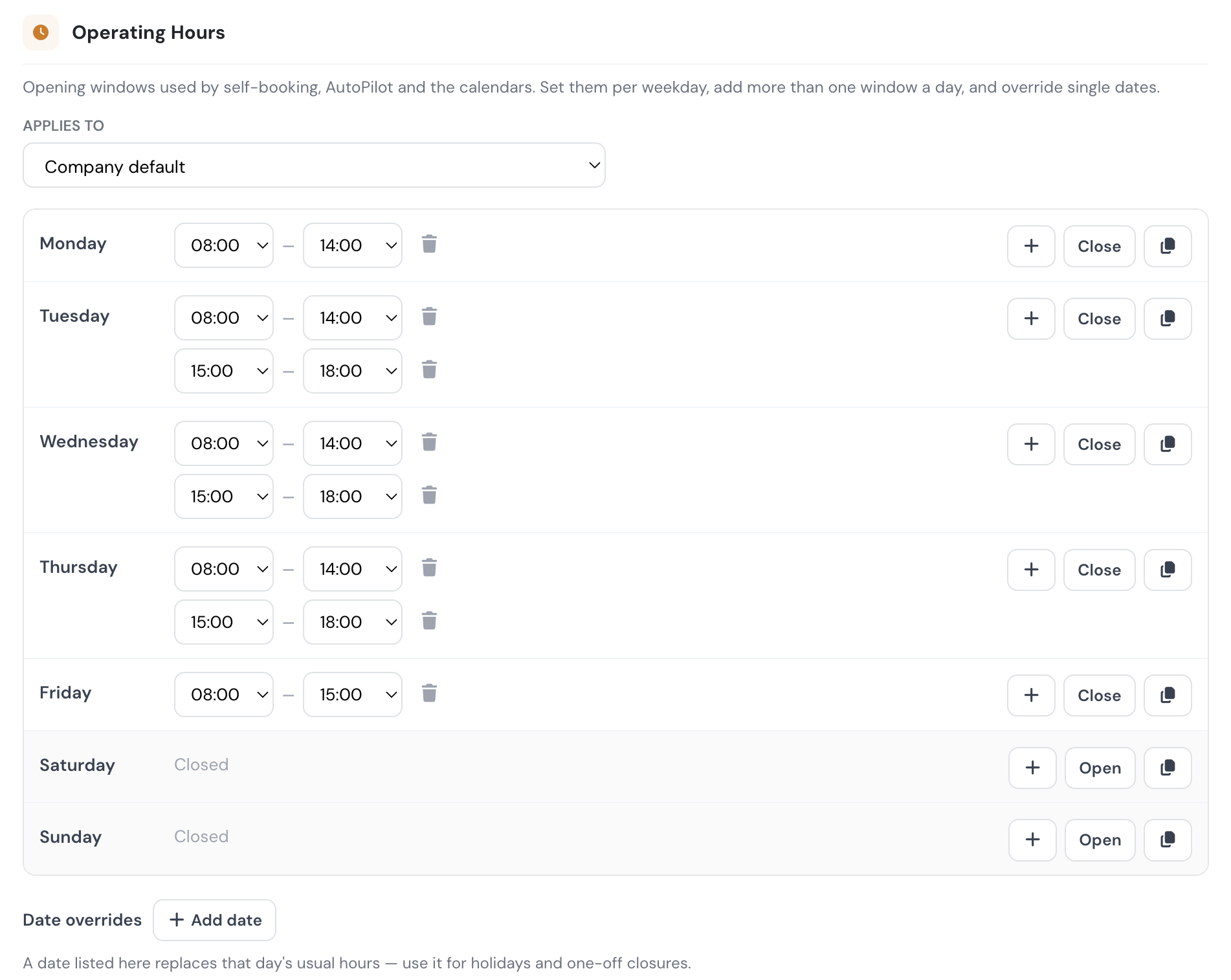
The weekly grid. Each weekday gets its own times, so a field that shuts early on Saturdays no longer has to pretend it keeps weekday hours.
- Several windows a day — press + on a day to add another window. A day set to
08:00–12:00and14:00–19:00offers slots in the morning and the afternoon, and never one that runs through the midday closure. Use this for lunch breaks, shift changes, or a gap reserved for maintenance. - Closed days — press Close on a day the field does not operate. Self-booking then answers “Closed on this date” for that day instead of “no slots available”, and AutoPilot skips it.
- Copy to all days — the copy icon applies one day’s windows to the whole week, which is the fastest way to start from a uniform week and then adjust the exceptions.
- Times are set in 15-minute steps, in your company timezone.
- Sunrise and sunset — each opening and closing time can be a clock time, Sunrise or Sunset instead. Use this when your operation follows daylight: for example a window from Sunrise to Sunset, or from
08:00to Sunset.- Sunrise means the start of civil twilight and sunset means its end (the sun 6° below the horizon), at the airport of the base the hours apply to, shown in your company timezone.
- The times of the Monday of each week are used for the whole week, so a window does not shift from one day to the next.
- Flylogs will not save a combination that would, at any time of the year, close a window before it opens or make two windows overlap. The editor tells you the day and the week where it breaks; change one of the times.
- If the base has no airport set, or the sun never reaches that angle (polar day or night), a window using Sunrise or Sunset stays open all day rather than closing the operation. The editor warns you when a base has no airport position.
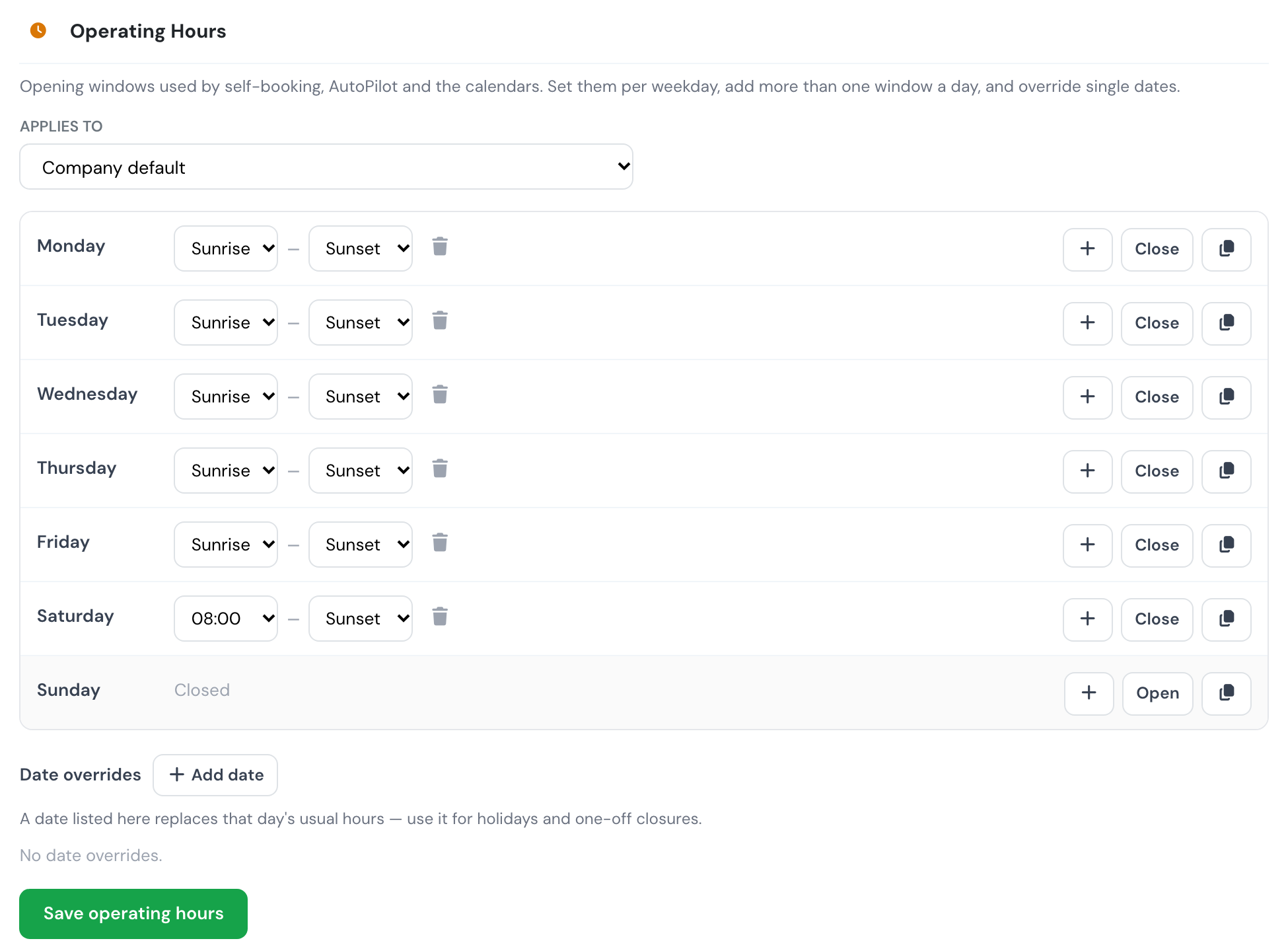
Per base. The Applies to selector at the top chooses whose hours you are editing: the company default, or one base.
- A base with no hours of its own follows the company default, and says so.
- Pressing Customise gives the base its own week, seeded from the company hours so you start from what it already uses.
- Once a base has its own week, that week is the whole story for that base — a weekday the base leaves empty counts as closed there, it does not fall back to the company hours. This is deliberate: a base that opens only at weekends should be shut on weekdays, not silently inherit them.
- Follow company default clears the base’s hours and puts it back to inheriting.
- Which hours apply to a booking is decided by the aircraft’s base, so an aircraft stationed at a base with its own hours is offered that base’s slots wherever the pilot happens to be.
Date overrides. Below the grid you can list single dates that replace that day’s usual hours — public holidays, an airshow, a day the field closes for works.
- An override can either close the date or give it a different set of windows.
- A company-level override closes or changes the date for every base, unless that base lists the same date itself. A base override always wins over the company one, which is how one base stays open on a day the rest of the company is shut.
Outside these hours. The hours are a guide for managers, not a lock. In the schedule editor, both saving a flight outside them and dragging or resizing one into them show a confirmation naming that day’s real windows; confirm and it saves normally, cancel and a dragged flight snaps back. Ferry flights, night training and one-off operations stay possible. Self-booking, by contrast, only ever offers slots inside the windows.
Flights that cross midnight are not checked against the windows, since they cannot fit inside a single day.
Self scheduling
Section titled “Self scheduling”These limits apply to the pilot self-scheduling feature.
- Max slots per day — the maximum number of self-service reservations a pilot may hold on a single day. The server rejects any booking above the limit.
- Min / Max slot duration — the shortest and longest slot a pilot can self-book.
- Default duration — the slot length pre-filled when a pilot opens the booking form.
- Allow self-booking without valid documents — controls whether pilots with missing or expired documents can complete a self-booking. The widget is always visible and the pilot is always warned in the booking modal; the switch decides whether that warning is a hard stop:
- Off (default, stricter) — the warning is red and the Book this Slot button is disabled until the pilot holds a valid licence, rating and medical.
- On (permissive) — the same warning is amber and informational; the pilot can book anyway. Use this only if you check documents outside Flylogs or are still onboarding pilots.
- Only has an effect while Require pilot documentation (Pilots tab) is on. With that off, certificates never block a self-booking.
Schedule cancellations
Section titled “Schedule cancellations”- Dispatch cancel limit: how close to the scheduled start time a crew member (PIC, SIC or supervisor) may still cancel or edit their own booking for personal or other reasons. Inside the window, the cancel form offers only the aircraft, weather, maintenance and ATC reasons, which crew can use at any time, even after departure, and the form explains why. This limit only affects self-service: staff with scheduling rights are never blocked by it and can always cancel any booking from Schedule Review. Options range from Any time to 48 hours; Disabled prevents crew self-cancellation entirely, for every reason.
- Not-flown grace — how long after a flight’s scheduled end time Flylogs waits before automatically cancelling a booking that was never dispatched or logged. The auto-cancellation is attributed to the PIC with the reason “Not flown” and shows in the cancellation analytics; it is silent (no notification). Default 72 hours; set to Disabled (0) to turn the behavior off.
This same window also drives two automatic behaviors:
- PENDING student bookings (self-bookings without an assigned instructor) are automatically cancelled when the window closes without an instructor being assigned. The slot frees up and pilots on the watchlist are notified.
- Reminders and confirmation deadlines around dispatch use the same cut-off.
See Schedule cancellations for the pilot-facing behavior.