

Flight analysis
The Flight analysis card on a flight holds links to where the flight is analysed or debriefed: its FlySto analysis, a CloudAhoy debrief, a cockpit video, or any other page. Each link opens in a new tab, so the instructor and the student can go from the flight record straight to the debrief.
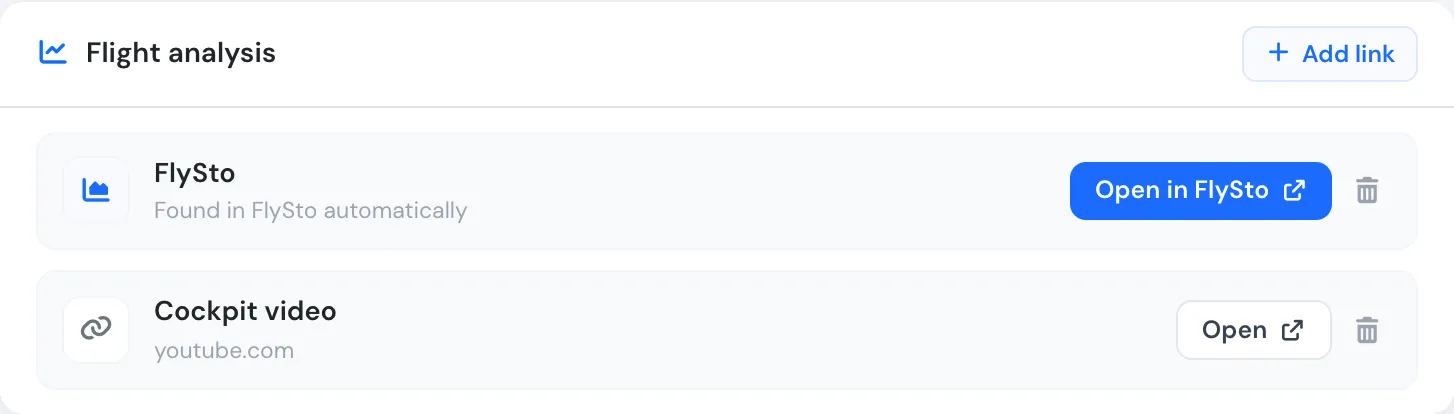
A flight with its FlySto analysis and a video.
The card sits on the flight page, below the training missions, where the flight is debriefed.
FlySto links
Section titled “FlySto links”When your company has connected FlySto (see Integrations), Flylogs finds the FlySto analysis of each flight by itself. The link shows Found in FlySto automatically and an Open in FlySto button. It usually appears within an hour of the avionics data being uploaded to FlySto.
FlySto pages need a login to your school’s FlySto account. Student pilots see FlySto links only when your company has turned on Show FlySto links to student pilots; instructors and staff always see them.
Adding a link by hand
Section titled “Adding a link by hand”Use this for a flight FlySto could not match, or for any other page about the flight.
- Open the flight and find the Flight analysis card.
- Click Add link.
- Paste the full web address (it must start with
https://orhttp://). - Optionally give it a name, such as CloudAhoy debrief. Without a name, the link shows the website’s name.
- Click Add.
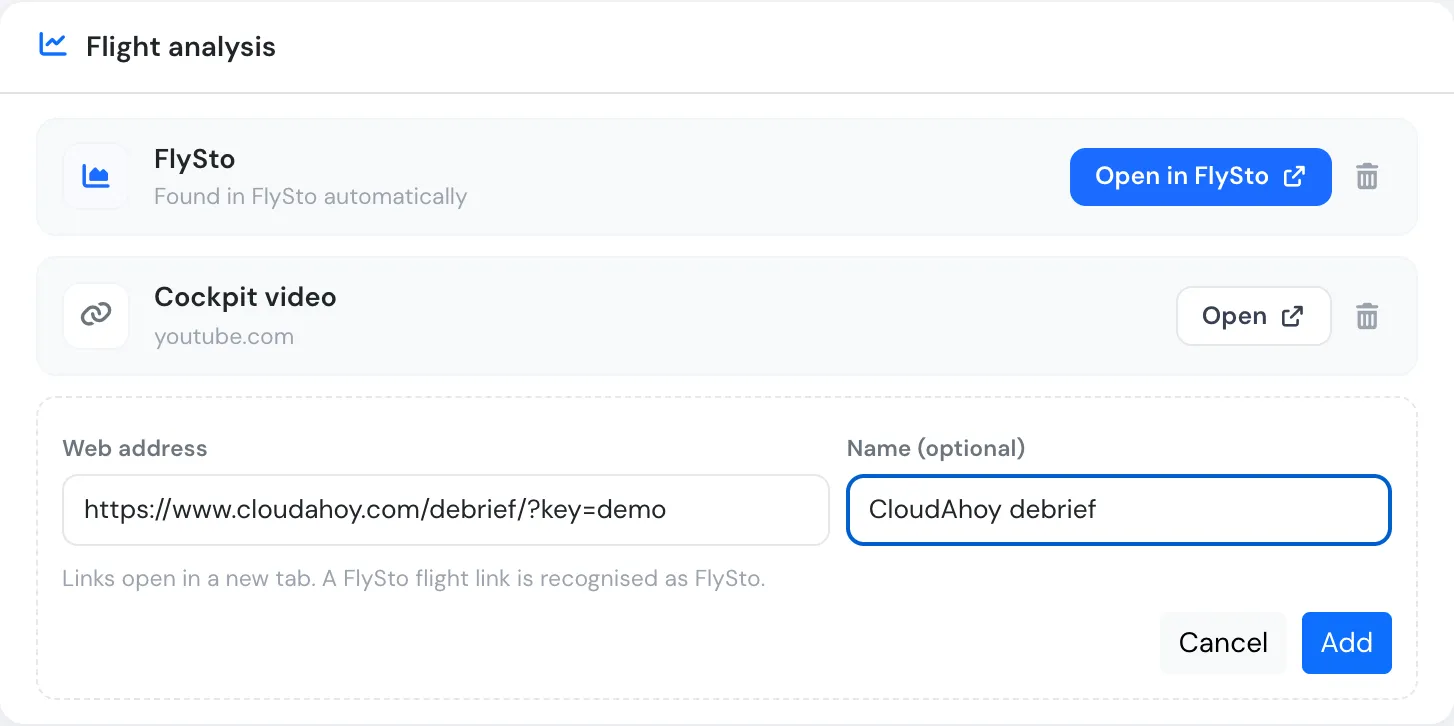
Adding a CloudAhoy debrief to a flight.
If you paste the address of a FlySto flight (https://www.flysto.net/logs/…), Flylogs recognises it and shows it as a FlySto link. A FlySto flight can be linked to only one Flylogs flight: if it is already on another flight, remove it there first.
Removing a link
Section titled “Removing a link”Click the bin next to the link and confirm with Remove. A FlySto link you remove is not linked again by the hourly FlySto check, so you can remove a wrong match and add the right FlySto flight by hand.
Who can add and remove links
Section titled “Who can add and remove links”| Who | Can add and remove links |
|---|---|
| Managers, operations and office staff, chief pilots and flight instructors | On any flight of the company |
| Pilots, student pilots and other crew | Only on flights they flew (as PIC, SIC or supervisor) or logged themselves |
| Everyone who can open the flight | Sees the links (FlySto links: see above for student pilots) |
Links by hand are available on every plan. Finding FlySto flights automatically needs the FlySto integration, which is part of the Premium and Unlimited plans.